Using the Schedule Hierarchy

You can organize your schedules into a hierarchy. This will make it easier to view and work with your schedules. If you have selected the Sum the availability from child schedules option, the schedules must be in a hierarchy for APM to calculate the availability correctly.

To Add an Existing Schedule to a Hierarchy

1.
2.
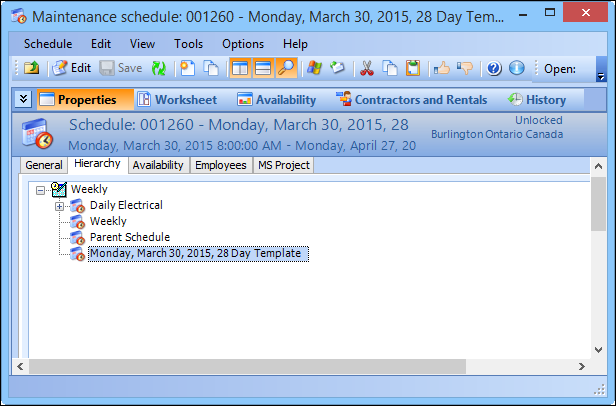
On the Properties view, select the Hierarchy tab. This tab displays the schedule hierarchy and automatically selects the current schedule.
Tip: To expand the hierarchy and display more schedules, click the plus sign (). For example:
3.
4.
5.
Select the schedule that you want to insert into the hierarchy, and then click OK. APM inserts the selected schedule, and any child schedules, at the selected spot in the hierarchy.

To Add a New Schedule to a Hierarchy

1.
2.
On the Properties view, select the Hierarchy tab. This tab shows the schedules in a hierarchy format.
Tip: To expand the hierarchy and see more schedules, click the plus sign ().
3.
To create a child schedule, right-click the parent schedule in the hierarchy, and then select New Child. APM creates and opens a new schedule and inserts it below the parent schedule in the hierarchy.
To create a peer schedule, right-click the peer schedule in the hierarchy, and then select New Peer. APM creates and opens a new schedule and inserts it adjacent to the peer schedule in the hierarchy.
4.
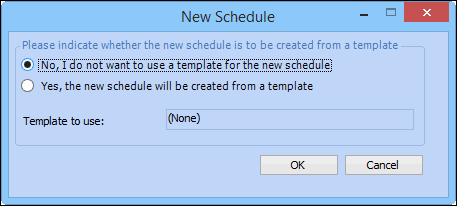
To create a schedule from scratch, select No I do not want to use a template for the new schedule, and then click OK. The Properties dialog for the new schedule appears. Complete the schedule properties.
To create a schedule from a template, select Yes the new schedule will be created from a template, and then select the template from the list.
5.

To Move Schedules in a Hierarchy

1.
2.
On the Properties view, select the Hierarchy tab. This tab displays the schedule hierarchy and automatically selects the current schedule.
3.
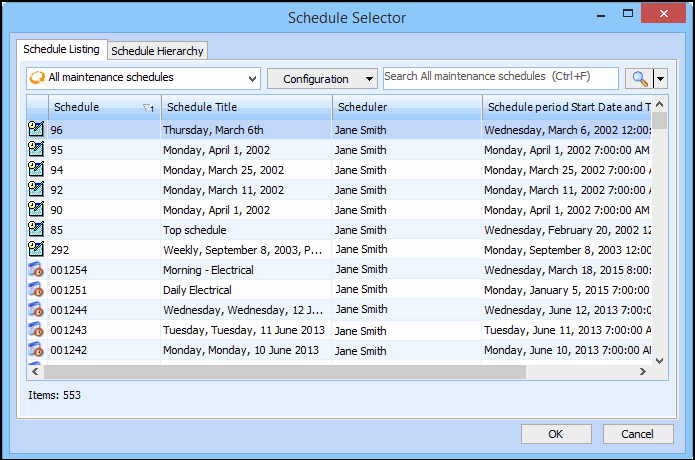
Right-click the selected schedule, and select Change Parent. The Schedule Selector dialog appears.
Tip: You can also move a template in the hierarchy by dragging and dropping it under the new parent template.
Tip: You can filter and sort the list in the dialog, to quickly find the schedule that you need.
4.
Select the schedule that you want to be the new parent, and then click OK. APM moves the schedule and its children underneath the new parent schedule in the hierarchy.