Validating Construction Forms

After you have added the equipment to a construction form and provided the required asset information, APM can validate the information and display errors for correction.
You can start the process manually by clicking Validate Records or clicking the Tools menu and then Validate. Alternatively, the validation process can occur automatically when the construction form status changes. For example, in some implementations, when you change the status from “Data entry” to “Data entry completed”, APM starts the validation.
When the validation process completes without errors, the construction form status might change automatically, for example, from “Data entry completed” to “Validation completed”. The process step might also be updated, depending on your organization’s requirements.
Validation involves checking the following:
General properties for the form – In the template’s Properties view, Details tab, you can select the information required on a construction form, for example, work order or in-service date
For more information, see Setting up Construction Form Templates.
Tip: The form’s validation status is shown in the Details view and tab in the Validation status box. Possible validation statuses are “Validation pending”, “Errors”, and “Validated”.
Tip: You can reset a validated construction form’s status to “Validation pending”, as long as installation tasks and asset change requests have not been generated. In the Construction Form window, click the Tools menu and then Allow Changes. This action allows you to make changes to the form’s records and then validate it again.
This topic explains how:

To Validate a Construction Form

1.
In the Construction Form window, select the Details view, Asset Types tab. Ensure that each asset type has at least one record and that each group has at least one detail.
2.
Click Validate Records
Click Change Status. In the Change Construction Form Status dialog, select a status that automatically starts the validation process. Click OK
The Validating progress dialog appears and closes when the process has finished. If the validation was successful, the Validation status box displays “Validated”. The construction form status might change, depending on your implementation.
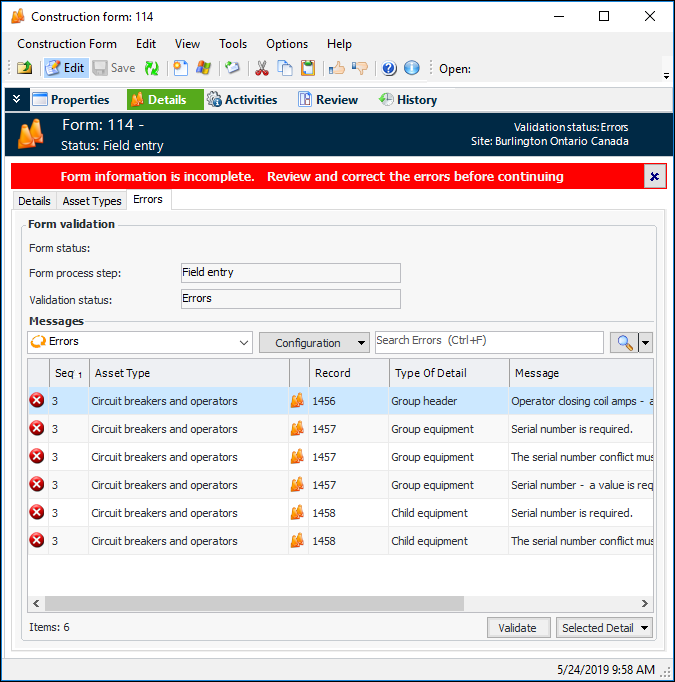
If one or more errors occurred, a red banner appears in the window and the Validation status box displays “Errors”. See To Resolve Validation Errors.

To Resolve Validation Errors

1.
View the validation errors in the Details view, Details tab, Errors table. Or, you can select the Errors tab. Errors are listed with their asset types, record numbers, and messages. For example:
2.
For each error, provide the missing information. For example, on the Errors tab, you can double-click an error to open the Construction Form Detail Properties window, which also lists the errors.
3.
Click the Validate button to restart the validation process. If the validation is successful, the Validation status box displays “Validated”. The construction form status might change, depending on your implementation.
Tip: You can also validate your corrections one at a time. Select the error in the Messages table, click the Selected Detail list, and then Validate.
If one or more errors occurred, the Validation status box displays “Errors”. The new errors are listed in the Errors table and tab.