Creating Construction Forms

A construction form identifies the equipment being installed at a specific location. The form typically specifies the originating work order and all of the new or existing assets to be installed. It includes asset information such as make, model, serial number, and counter information. New construction forms must identify the location asset and construction form template.
For related information, see Setting up Construction Form Templates.
Working with construction forms involves the following steps:
Note: The asset types available in the construction form are defined in the construction form template, where the basic APM asset type is given additional properties to support the form, for example, mandatory serial number and asset group support.
For more information, see Validating Construction Forms.
For more information, see Creating and Updating Assets for Construction Forms.
For more information, see Generating Inspection Activities for Construction Forms.
For more information, see Creating Asset Change Requests for Construction Forms.
Note: Interop work orders and asset change requests are only available when AssetWise Enterprise Interoperability is implemented to exchange data with your CMMS.
For more information, see Creating a Gas Transaction from a Construction Form.
This topic explains additional features of construction forms and how to perform tasks. It covers:

Construction Form Statuses

You can use statuses to control the workflow and processes for construction forms. Construction form statuses have the following uses:
For more information, see Setting up Statuses for Construction Forms.

Asset Groups

Asset groups simplify data entry requirements by allowing attributes that have a common value for a group of assets to be entered only once. Information that is specific to each asset in the group is entered at the detail level.
Support for asset groups is set on the construction form template asset type.

Child Assets

A setting on the form asset type determines whether you can create or reuse a child asset at the same time that its parent is generated from the form. You can enter the information for both at one time. When the form is processed, two assets are created with the child-parent relationship.
For some asset types, for example three-phase transformers, you can specify in the form that only the child asset is being replaced. In that case, you can identify the parent asset by its serial number and then add information about the child asset.

Generated Details for Asset Descendants

When a new asset record is added to a construction form and the asset is identified, if the asset type template’s child asset options are set appropriately, APM gets a list of the asset’s descendants and creates a construction form detail for each. Each detail is populated with the asset’s values. Only assets with an asset type on the template are added.
When the child assets are automatically added to the construction form, their existing parent assets are retained.
This functionality is useful for mobile trailers that transport many types of equipment (for example, transformers, station battery, battery charger, series reactors, and bushings) to a site to support operations while on-site equipment is repaired or replaced.

Supervisor Checksheet

A supervisor checksheet lists the inspection tasks that a supervisor performs for a construction project, based on the standard task assigned to it in the construction form template. You can generate a construction form’s supervisor checksheet manually, as long as the construction form status allows it. You can have a supervisor checksheet generated automatically when activities are generated for the construction form or in response to a status change.

To Create a Construction Form

1.
In the Site window, select the Construction Management view and the Construction Forms tab. By default, this tab lists existing forms for this site and below. You can use the options at the bottom of the tab to change the site filter.
Tip: You can also open the Asset window, select the Construction Management view, and the Construction Forms tab. The asset information is shown in the form.
2.
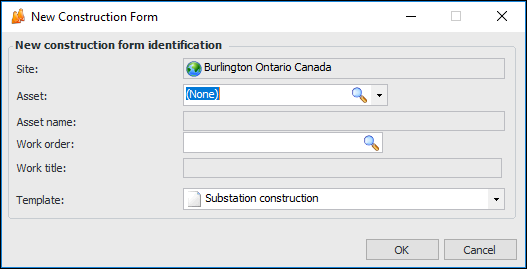
Click New. The New Construction Form dialog appears. This example appears when you are using AssetWise Enterprise Interoperability to exchange data with an external CMMS:
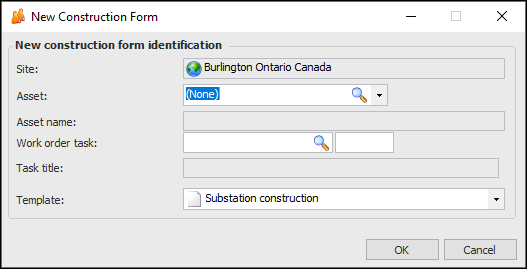
When APM is the work document system, the dialog looks like this:
3.
4.
5.
6.
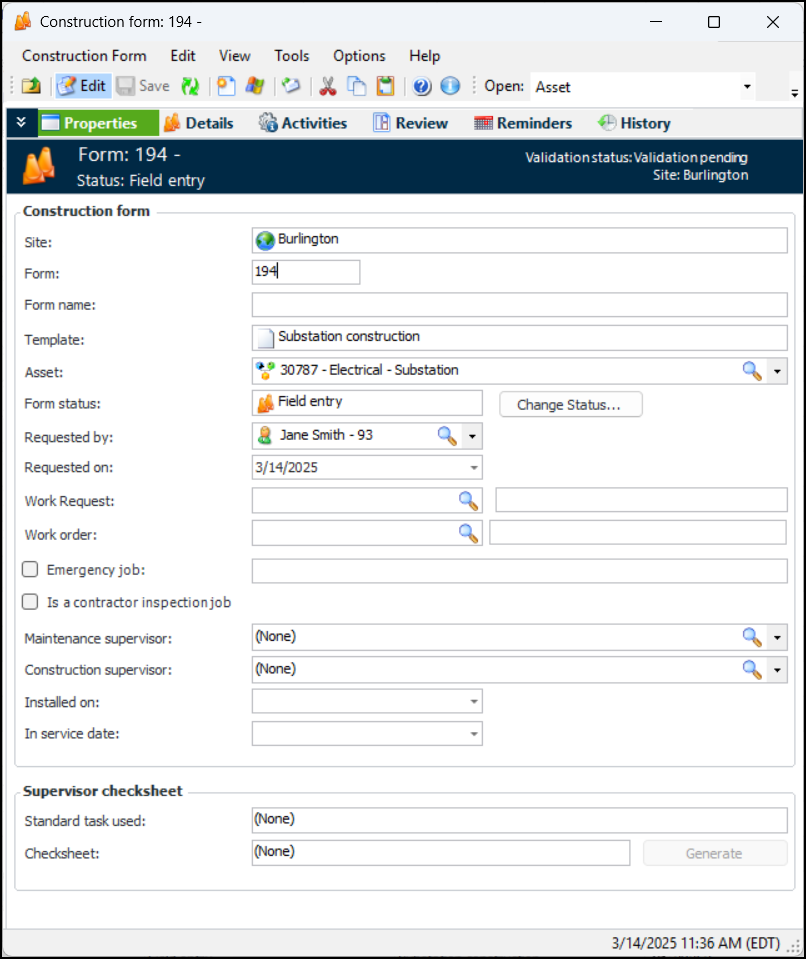
Click OK. The Construction Form window appears showing the Details view. Select the Properties view. For example:
7.
8.
9.
Tip: To replace the current status, click Change Status. The Change Construction Form Status dialog appears, where you can select a different status and enter comments. Click OK to close the dialog.
Note: When a different construction form status is applied, APM might be triggered to perform actions such as starting validation. The tasks that you are allowed to perform might also change.
10.
Note: If you selected a work order in the New Construction Form dialog, it is displayed here. You can select a different work order, if required.
11.
When the form status allows it, you can click Generate to manually create the supervisor checksheet. The names of the standard task and checksheet are then shown in the window.
Note: The supervisor checksheet can also be generated automatically in response to a status change or when activities are generated for the construction form

To Add Individual Assets to the Form

1.
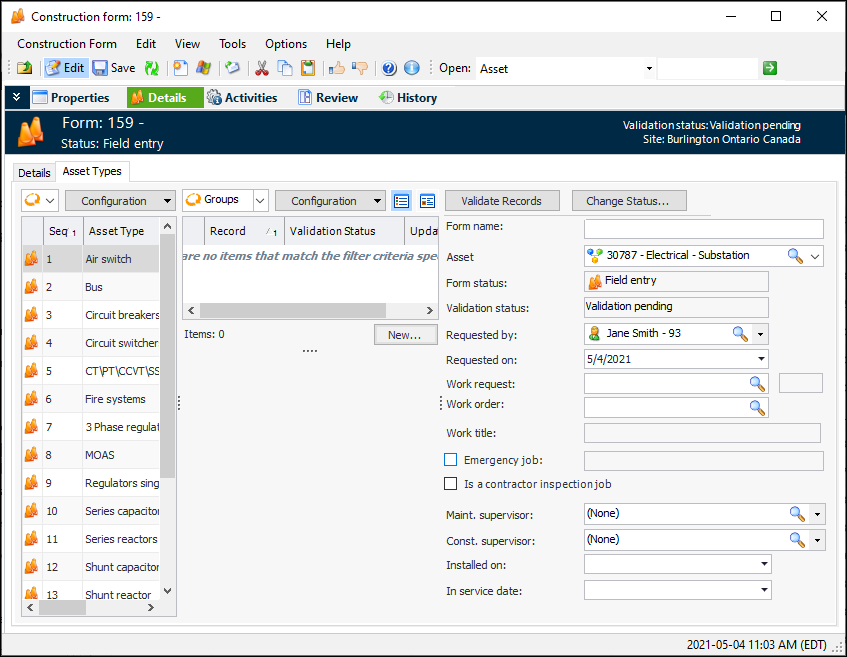
Select the Details view and the Asset Types tab. For example:
The template’s asset types are listed by sequence number in the Asset Types table on the left.
Tip: For more information about an asset type, double-click it in the table to open the Construction Form Asset Type Properties window. The Records tab lists the records that have been added to the form. The General tab shows, among other things, the name of the construction form template and the APM asset type on which the form asset type is based.
2.
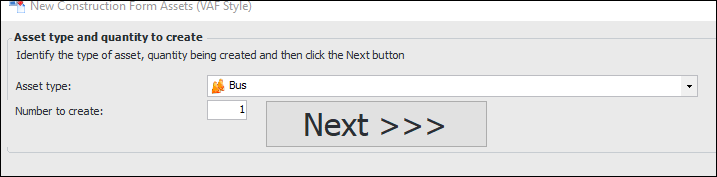
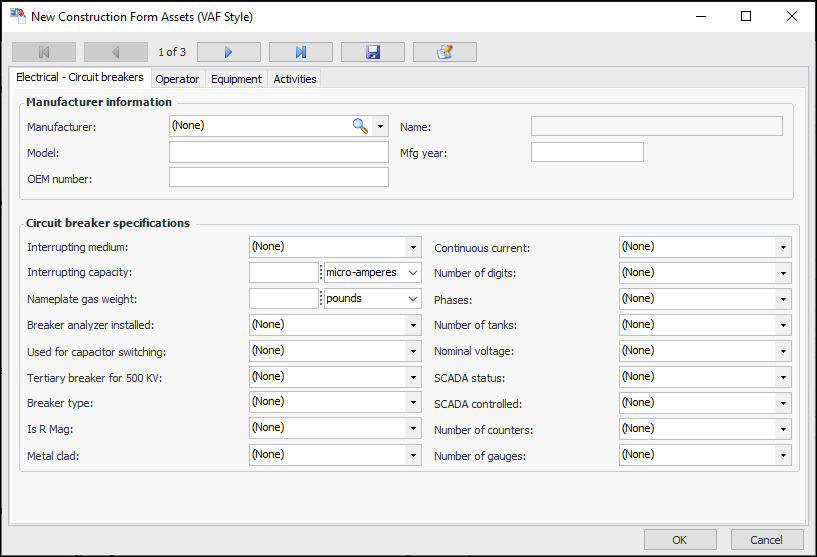
Select an asset type in the Asset Types table. Click New. The New Construction Form Assets window appears. For example:
3.
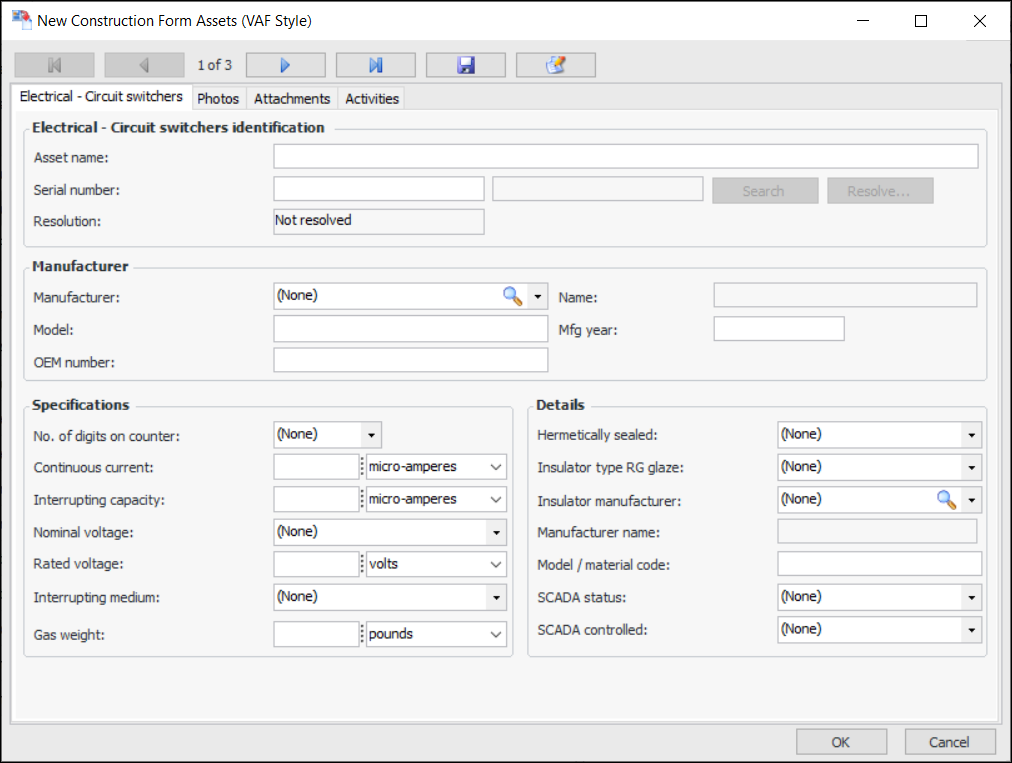
Enter the number of assets of this type to create and click Next. On the next page, you can enter information about the asset(s). In this example, three circuit switchers are being added to the form:
Use the navigation arrows at the top of the page to move between assets.
4.
In this example, you would select Has Electrical - LTC. The Electrical - LTC tab is added to the window.
To specify that you wish to replace or update the child asset only, you would select Only Electrical - LTC is being replaced. The fields in this tab (for the parent asset) are disabled, with the exception of the serial number or reuse asset search fields. Use the available method to identify the child’s parent asset, as explained in the next steps.
5.
Reuse asset – Select this option and click the browse icon. In the Asset Selector dialog, select the Asset Listing tab. This tab lists assets of the type you are adding. Select the asset and click OK.
You can click Prompt Values to copy the asset’s values into the construction form panel.
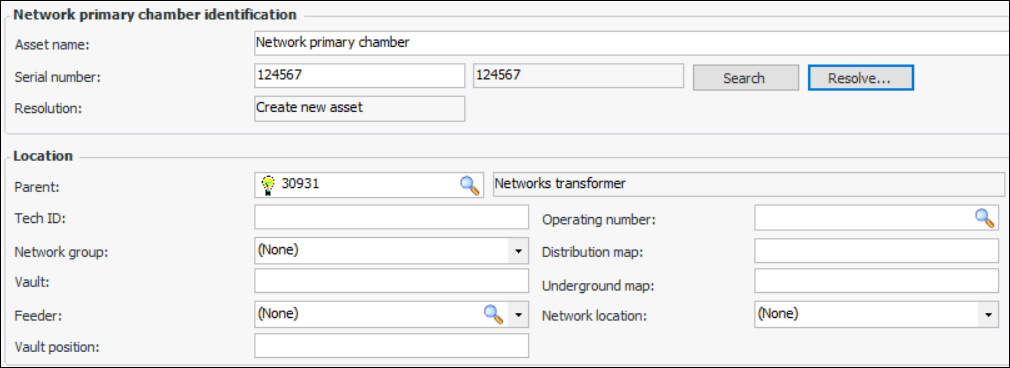
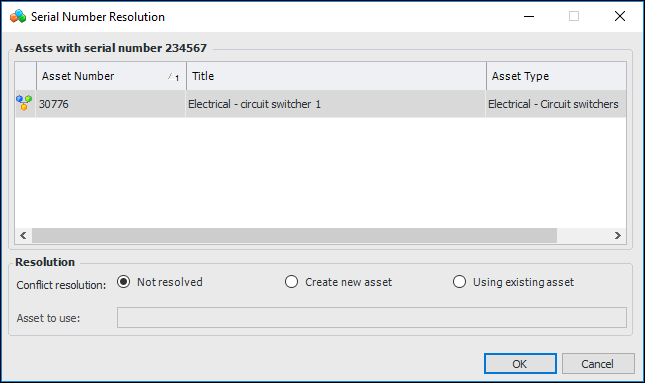
Serial number – Enter a serial number and tab out of the field. The Search and Resolve buttons become available. Click Search. Click Resolve to open the Serial Number Resolution dialog. For example:
If the serial number search was successful, the matching asset is listed in the dialog. You can choose to either create an asset (and assign the serial number to it) or use the asset found by the search. Click OK. The Resolution box displays the result: “Using existing asset” or “Create new asset”.
If you specified that only the child asset is to be replaced, Create new asset is not available in the Serial Number Resolution dialog. You must use the existing asset as the parent. Click Use existing asset and select the asset that was returned by the serial number search from the Asset to use list.
6.
If the asset supports a child asset, you can specify that only the child asset is to be updated or created. In that case, the parent asset is not affected by the Update Assets and Generate Installation Activities processes.
7.
If the asset is a child asset, select its parent in the Location area and add information. For example:
Settings in the construction form template determine whether you can select either:
In either case, the selected asset will be the parent of the current one.
8.
Select the Photos tab to browse for photographs to add to the form.
Tip: When assets have been created and updated for the construction form, their photographs will also be available on the site’s Assets view, Photos tab.
9.
Click the Attachments tab to add a file, folder, note, or URL to the form. For more information, see Adding Attachments to Objects.
10.
Click OK. The window closes and the records are added to the construction form.

To Add Asset Groups to the Form
1.
Select the Details view and the Asset Types tab. For example:
2.
Tip: For more information about an asset type, double-click it in the table to open the Construction Form Asset Type Properties window. The Records tab lists the records that have been added to the form. The General tab shows, among other things, the name of the construction form template and the APM asset type on which the form asset type is based.
3.
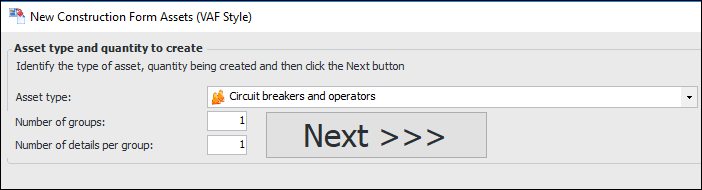
Click New. The New Construction Form Assets window appears. This example is for an asset type that supports groups:
4.
5.
Click Next. The next page displays general settings for the group. For example:
6.
7.
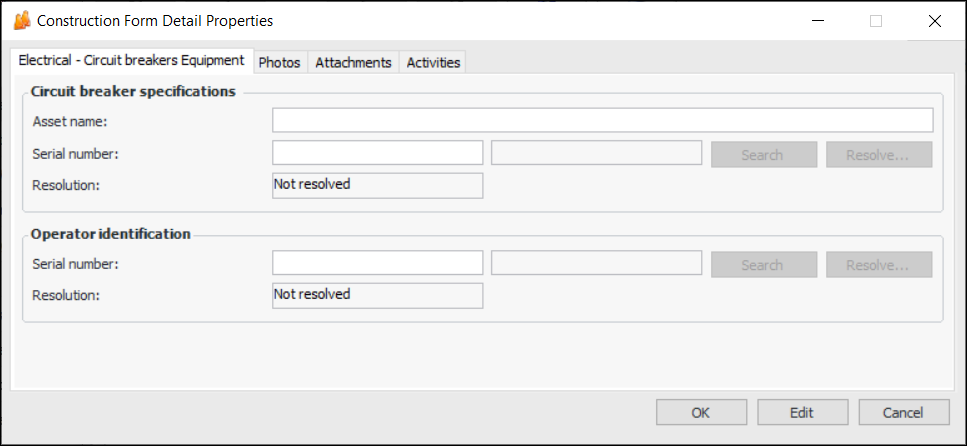
Select the Equipment tab. Double-click each new record to open its Construction Form Detail Properties window. For example:
Tip: You can also add new assets, if needed. At the bottom of the Equipment tab, click New to open the Construction Form Detail Properties window.
8.
Reuse asset – Select this option and click the browse icon. In the Asset Selector dialog, select the Asset Listing tab. This tab lists assets of the type you are adding. Select the asset and click OK.
You can click Prompt Values to copy the asset’s values into the construction form panel.
Serial number – Enter a serial number and tab out of the field. The Search and Resolve buttons become available. Click Search. Click Resolve to open the Serial Number Resolution dialog. For example:
If the serial number search was successful, the matching asset is listed in the dialog. You can choose to either create an asset (and assign the serial number to it) or use the asset found by the search. Click OK. The Resolution box displays the result: “Using existing asset” or “Create new asset”.
If you specified that only the child asset is to be replaced, Create new asset is not available in the Serial Number Resolution dialog. You must use the existing asset as the parent. Click Use existing asset and select the asset that was returned by the serial number search from the Asset to use list.
9.
Enter information for the asset. Select the Photos tab to browse for photographs.
Tip: When assets have been created and updated for the construction form, their photographs will also be available on the site’s Assets view, Photos tab.
10.
Click the Attachments tab to add a file, folder, note, or URL to the form. For more information, see Adding Attachments to Objects.
11.
Click OK to close the window and save the record.
12.
13.
Click OK. The window closes and the groups and records are added to the construction form.
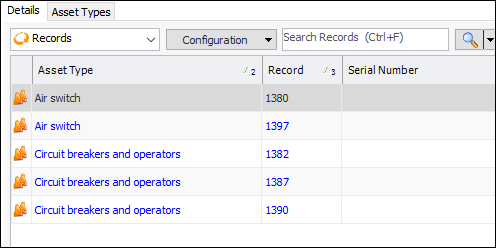
Tip: In the Construction Form window, select the Details view and tab to view the group headers and their equipment details. If the asset type supports child assets, you will also see child equipment records. For example: