|
Creating Polling Schedules
Note: In order for indicator alarms to be displayed in the Inspection Management view in real time (that is, as the readings are recorded in the system), the Garbage Collection Expire server setting must be shorter than the polling frequency. To change this setting, open the Settings Editor for the APM server instance that hosts the ODC service provider. In the File menu, click Show Advanced Settings. Select the Runtime node and scroll to the In-memory cache node. Check the number of seconds entered for the Garbage Collection Expire setting and change the value as required.Note: Any time that you make a change to a polling schedule or an ODC indicator, you must refresh the ODC service provider. From the Enterprise window, click the Services view and then the Servers tab. Locate the service provider, right-click it, and click Refresh Service.To Create a Polling Schedule
2. Note: You can also create a polling schedule that is available only to a specific site by selecting the Inspection Management view, Settings tab, Indicators tab, ODC tab, and then the Polling Schedules tab.
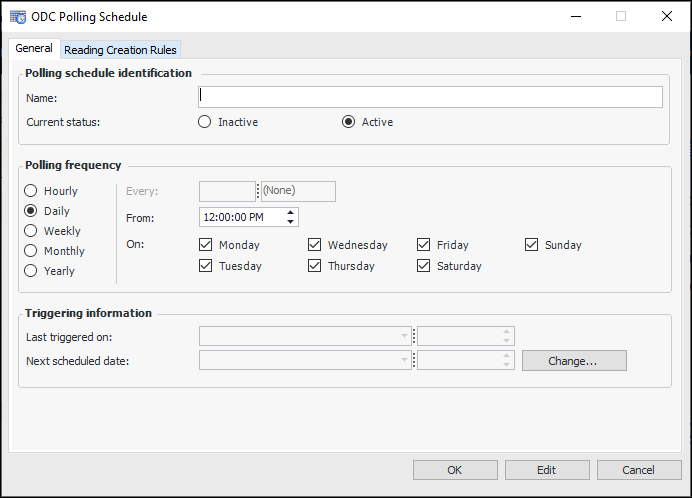
3. Click New. The ODC Polling Schedule dialog appears.
4.
5.
• Hourly: Select this option to define a pattern that repeats more than once a day (for example, every two hours, every half hour, and so on).
• Daily: Select this option to define a pattern that repeats more than once a week (for example, every day at 10 a.m.; every Monday, Wednesday, and Friday at 10 a.m.).
• Weekly: Select this option to define a pattern that repeats at weekly intervals but not more than once a week (for example, every week on Tuesday at 10 a.m., every two weeks on Saturday at 10 a.m.).
• Monthly: Select this option to define a pattern that repeats in monthly intervals but not more than once a month (for example, every month on the 15th at 10 a.m., every two months on the first Monday at 10 a.m.). You can choose the calendar or financial month.
• Yearly: Select this option to define a pattern that repeats in yearly intervals but not more than once a year (for example, every year on the 1st of July at 10 a.m., every year on the last day in December at 10 a.m.).
7. Click OK to save the polling schedule.