Configuring Indicators to Collect Online Data

You can configure any numeric, descriptive, or cumulative asset indicator to record and collect readings from an online data source. You can also create new asset indicators to collect online data.
Configuring an ODC indicator involves selecting the data source, connecting to the data source, and selecting the data tag. After you set the tag for the indicator, you will also need to define the reading creation rules. See Configuring ODC Reading Creation Rules.
Note: If you are using the APM on-premises ODC agent, you must configure indicators on a computer in the local on-premises context so that any client UI provided by the data source plugin will work.

To Configure an Indicator to Collect Online Data

1.
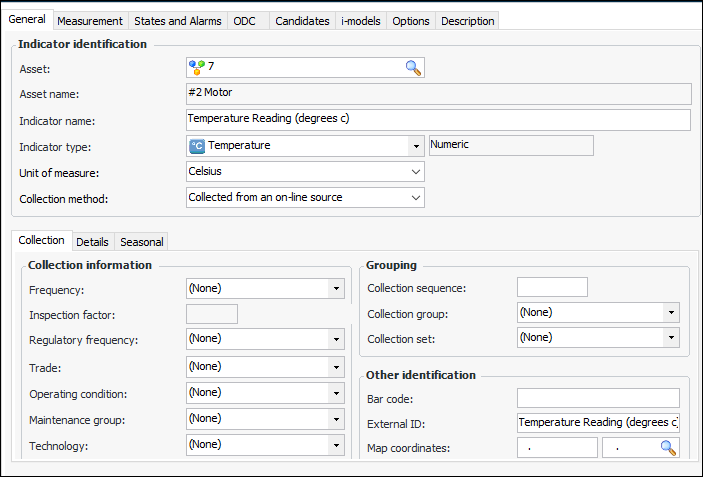
Open an indicator and select the Properties view, General tab.
2.
3.
In the Collection Method list, select Collected from an on-line source. The ODC tab is added to the window.
4.
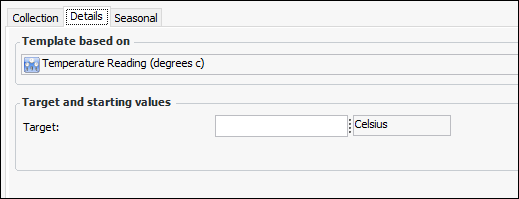
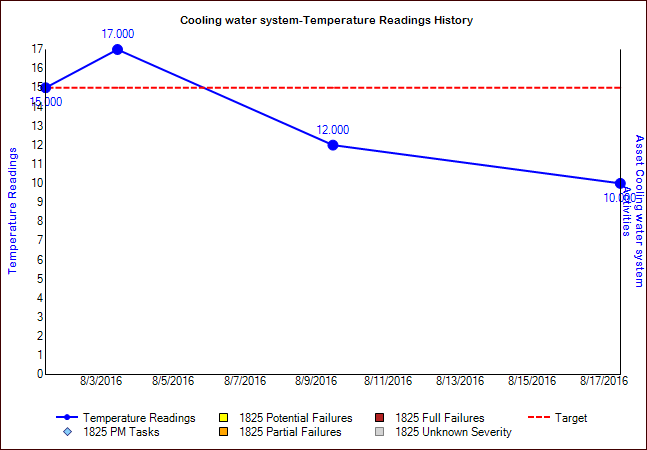
The target value is displayed on charts and dashboards that show readings for the indicator. In this example, the target line appears as a red dotted line on charts:
5.
If the indicator is numeric or descriptive, select the States and Alarms tab. Enter the appropriate states for the indicator.
Note: For more information, see Adding States and Alarms to an Indicator or Template or Creating a Descriptive Indicator.
When defining states for a descriptive indicator, you must map the codes returned from the data source to the indicator’s states. For more information, see Mapping Values For Descriptive Indicators.
Note: If you wish to have an indicator issue an email when in an alarm state, the ODC service provider user on the host computer must be a domain user with a valid email account. Have your Network Administrator create an email account; otherwise, the email will not be issued. This email account must also be added to the employee record in APM. The computer hosting the ODC service provider must also have access to the email application.
6.
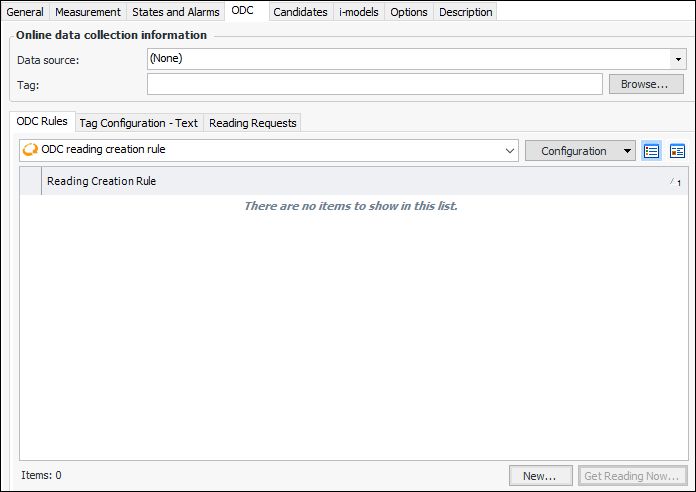
Select the ODC tab. For example:
7.
Select a Data Source from the list.
8.
Click Browse to select the data tag or manually enter the name of the data tag. The dialog that appears is specific to the type of target data source.
Note: If you manually enter the name of an OPC DA or HDA tag, the value is not validated and, if it is entered incorrectly, errors will appear in the log file.

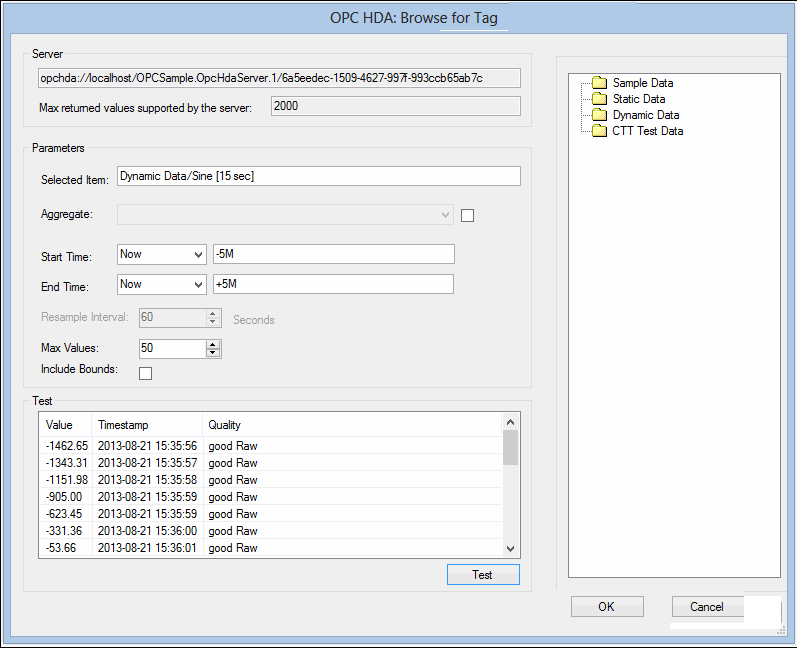
OPC HDA Example

Here is an example of tag information from an OPC HDA server:
Note: When setting start and end times for an HDA tag, use an uppercase letter to indicate the offset time type, for example, “H” for hour or “M” for minute.
Note: The smaller the Max Values setting, the less time it will take to create and process indicator readings. We recommend setting Max Values to between 10 and 50.
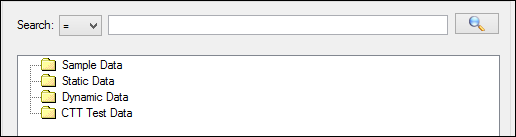
Tip: For HDA servers that allow filtering, you can select Enable tag browse filtering on the Select OPC HDA Server dialog, and the filter box and search icon will be displayed on the OPC HDA: Browse for Tag dialog. For example:

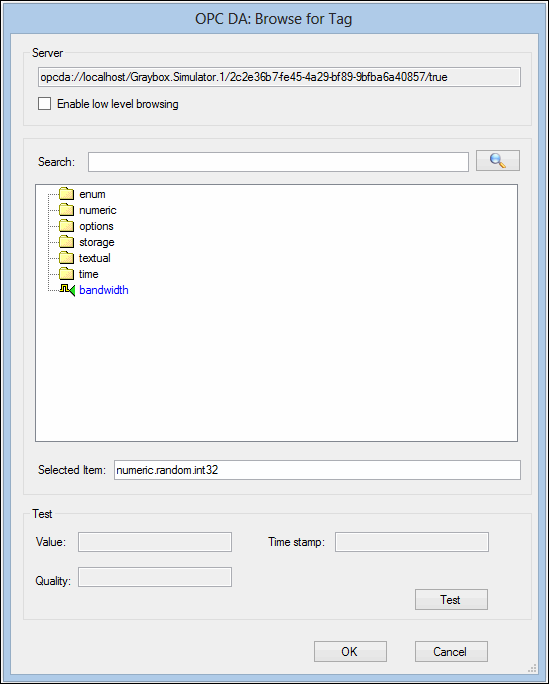
OPC DA Example

Below is an example of tag information from an OPC DA server with no low level browsing enabled:
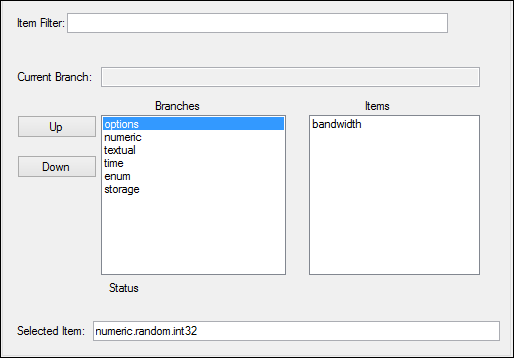
The search area of the OPC DA: Browse for Tag dialog expands to display branches and their items when Enable low level browsing is selected:
Tip: You can use wild card characters in the Item Filter box, such as using an asterisk (*) to represent any number of characters, or a question mark (?) to represent a single character. Doing so will filter the branches and items that match your filter criteria; filters are not case-sensitive.

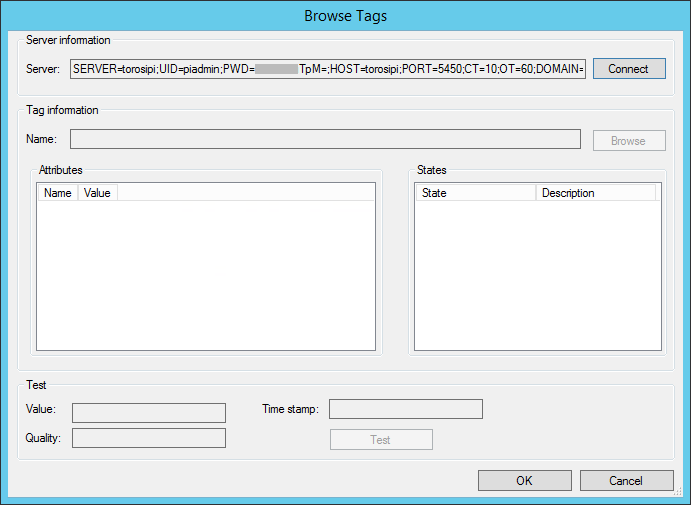
PI Example

Here is an example of the Browse Tags dialog for a PI server:
Click Connect to connect to the server.
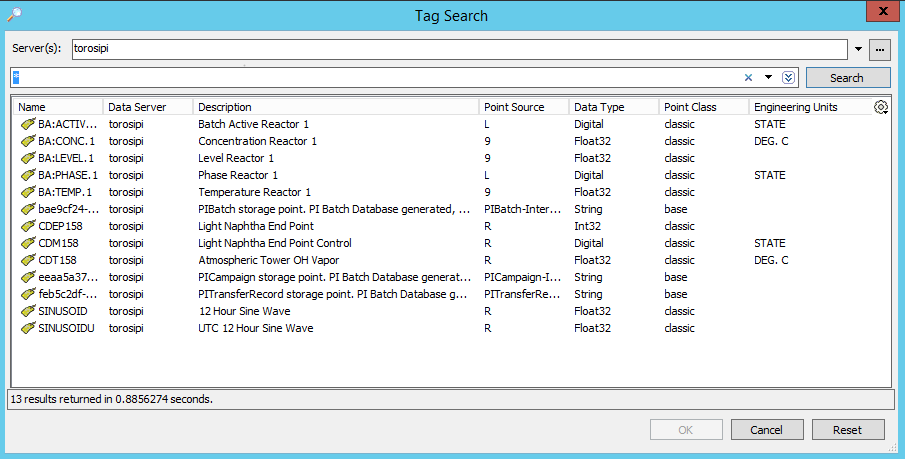
Click Browse to open the Tag Search dialog, where you can search for tags and select one with the appropriate data types for the indicator.
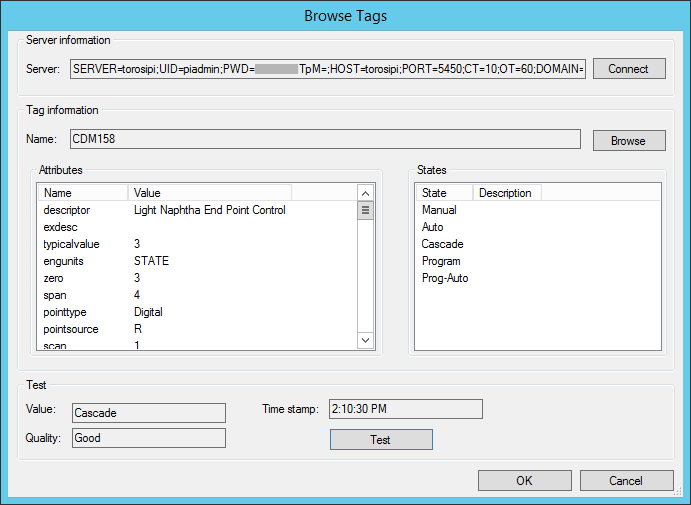
When you click OK, the Browse Tags dialog is populated with the tag information. Click Test to view information about the tag. If you are creating a descriptive indicator and its states have ODC mappings, the States area is populated. For example:

PI AF Example

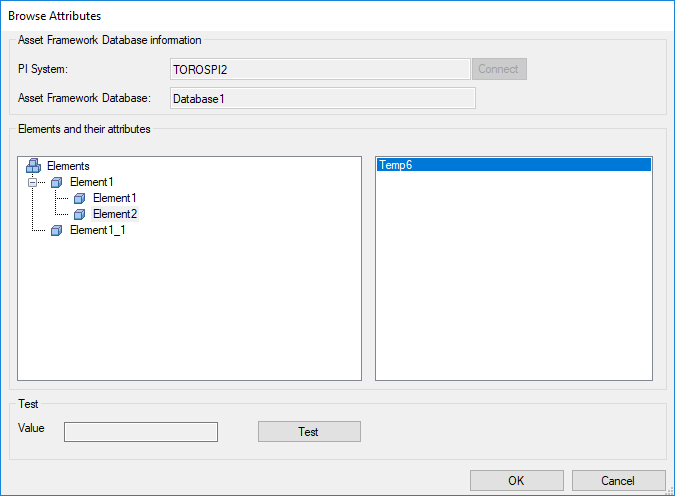
Here is an example of the Browse Attributes dialog for a PI AF database:
Click Connect to connect to the PI system.
Select an element and attribute.
Click Test to view information about the tag.
9.
Select the appropriate tag for the data to monitor and click OK. The tag name is added to the ODC tab.
Tip: You can click Get Reading Now to return the tag’s configuration in text form. Select the Tag Configuration - Text tab to see the XML data. This is useful for ensuring that the ODC mapping values of states for descriptive indicators is accurate.
10.
11.
Note: Any time that you make a change to a polling schedule or an ODC indicator, you must refresh the ODC service provider. From the Enterprise window, click the Services view and then the Servers tab. Locate the service provider, right-click it, and click Refresh Service.
To learn more about email settings on indicator alarms, see Adding States and Alarms to an Indicator or Template.