|
Configuring Data Sources for the DB Plugin
To Create a Data Source for the DB Plugin
1. From the Site window, select the Inspection Management view and the Settings tab. Select the Indicators tab and the Indicator Settings node in the tree.Tip: You can also click the Administration menu, Inspection Management Settings, and then Indicator Management. The Indicator Settings window appears.
2. Note: You can also create a data source that is available to all sites that use the Online Data Collection module. On the Enterprise window, select the Services view, ODC tab, and then the Data Sources tab.
3.
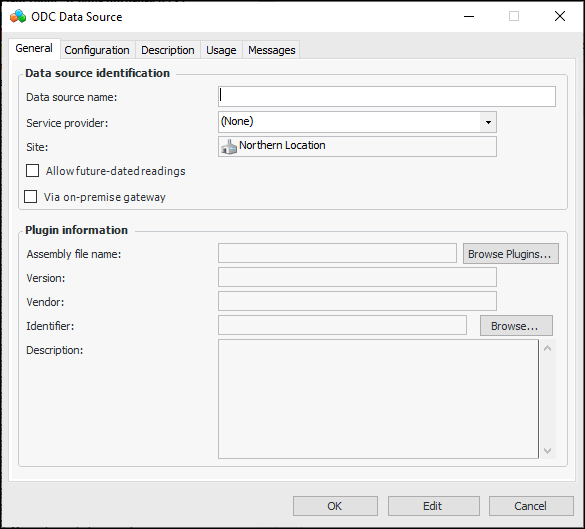
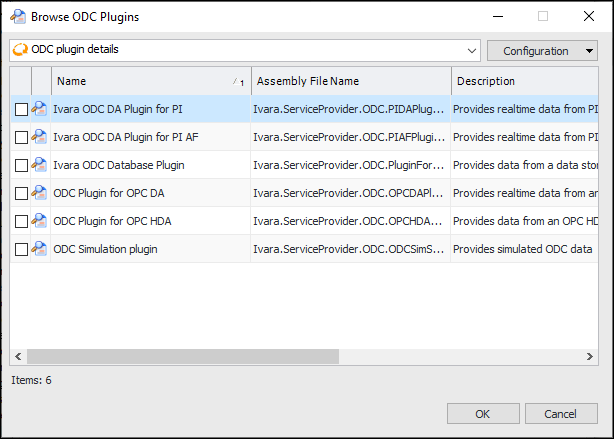
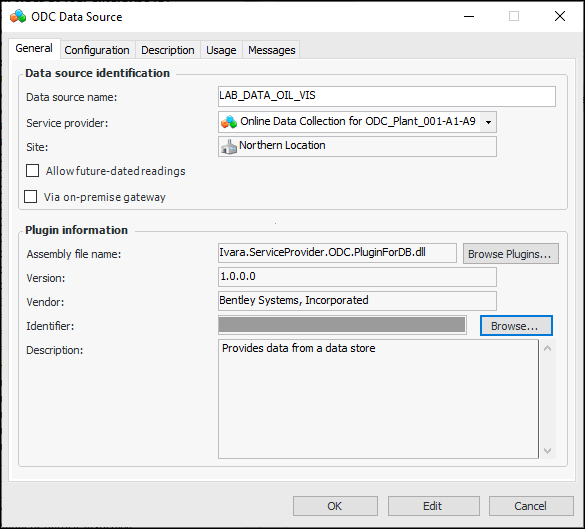
6. Click Browse Plugins. The Browse ODC Plugins dialog appears.
7.
8. To permit future-dated indicator readings, click Allow future-dated readings. If the server clocks are not perfectly synchronized, the ODC service is still able to return the most recent indicator readings.
9. If you are using the APM On-Premises ODC agent to manage data collection, select Via on-premises gateway.
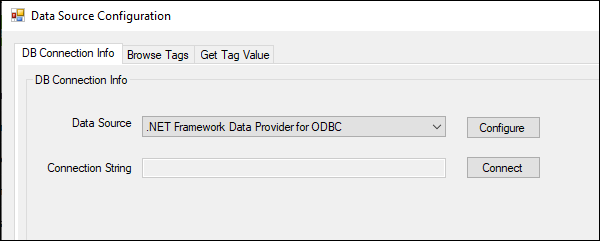
10. Click Browse. The Data Source Configuration dialog appears:
11. Select a .NET Framework data provider from the Data Source list. The options are:
•
•
12. Click Configure to set up the connection to the database. When you are finished, click OK to return to the Data Source Configuration window.
13. Click Connect to test the connection. A successful connection is required to select tags for your SQL statement.
14. Select the Browse Tags tab, enter and run SQL statements to identify the tags. Select the Get Tag Value tab to create client-side queries for getting data. For more information, see Browsing for Data Tags and Getting Tag Values.
15. When you have finished setting up tags and their values, click OK in the Data Source Configuration dialog to return to the ODC Data Source dialog, where the Plugin information is populated. For example:The Identifier value (obscured in the example above) is encrypted and displayed as hashed for security reasons.
16. Select the Configuration tab to enter additional configuration information about the data source.
17. Select the Description tab to enter additional information about the data source.Tip: After you have configured indicators and started collecting online data, you can return to the ODC Data Source dialog to see information about how the data source is used. Select the Usage tab to see which indicators use the data source. Select the Messages tab to view ODC message logs.
18. Click OK to save the data source and close the dialog.To Configure Connection Information for ODBC
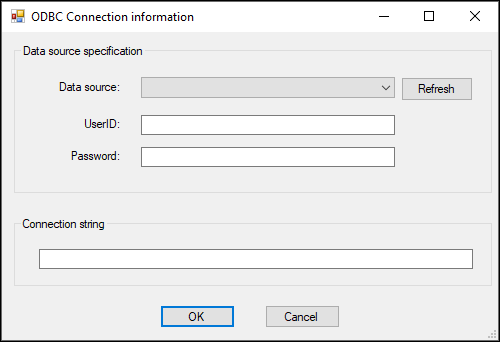
1. Click Configure in the Data Source Configuration dialog. The ODBC Connection Information dialog appears.
3. Provide the user ID and password for authenticating the connection. Click OK to return to the Data Source Configuration dialog.Browsing for Data Tags and Getting Tag Values
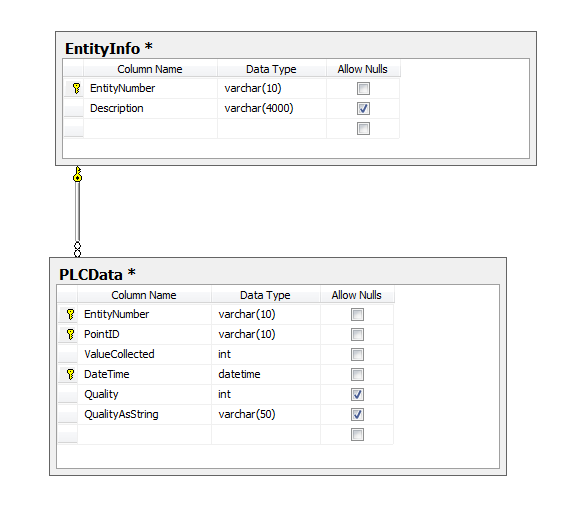
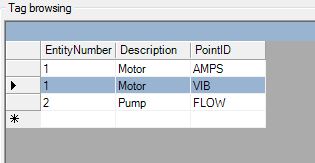
Example Database
To Browse for Data Tags
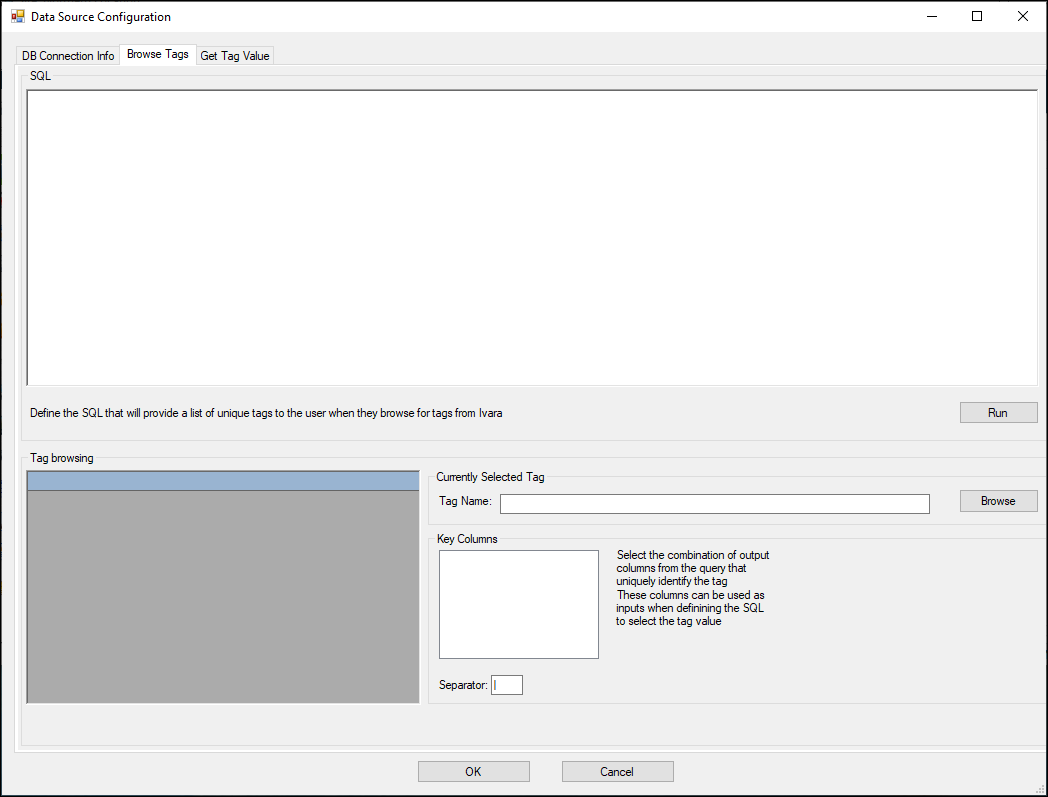
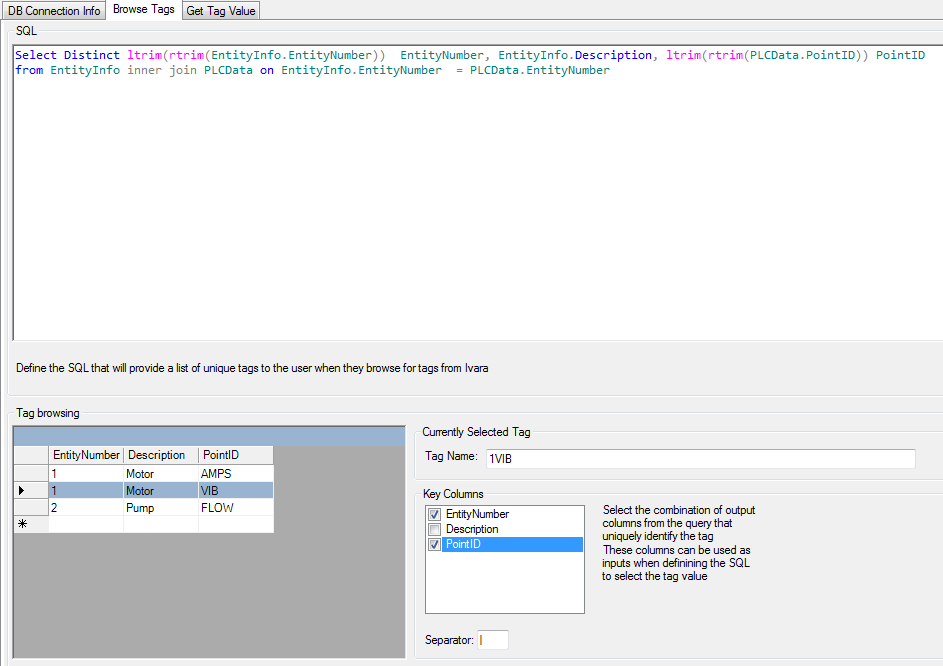
If you have not already done so, connect to the data source before selecting the Browse Tags tab. On this tab, you can enter the SQL statement that will provide a list of tags to get data from.
5.
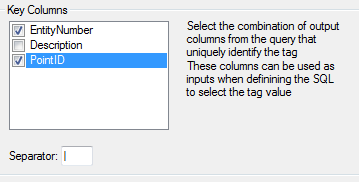
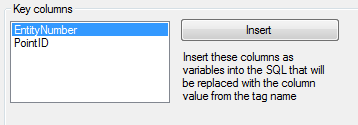
6. In the Key Columns list, select which columns, when combined, identify the selected tag.Note: You must select key columns in the Browse Tags tab before the Run and Browse buttons on the Get Tag Value tab will work.
8.To Get Tag Values
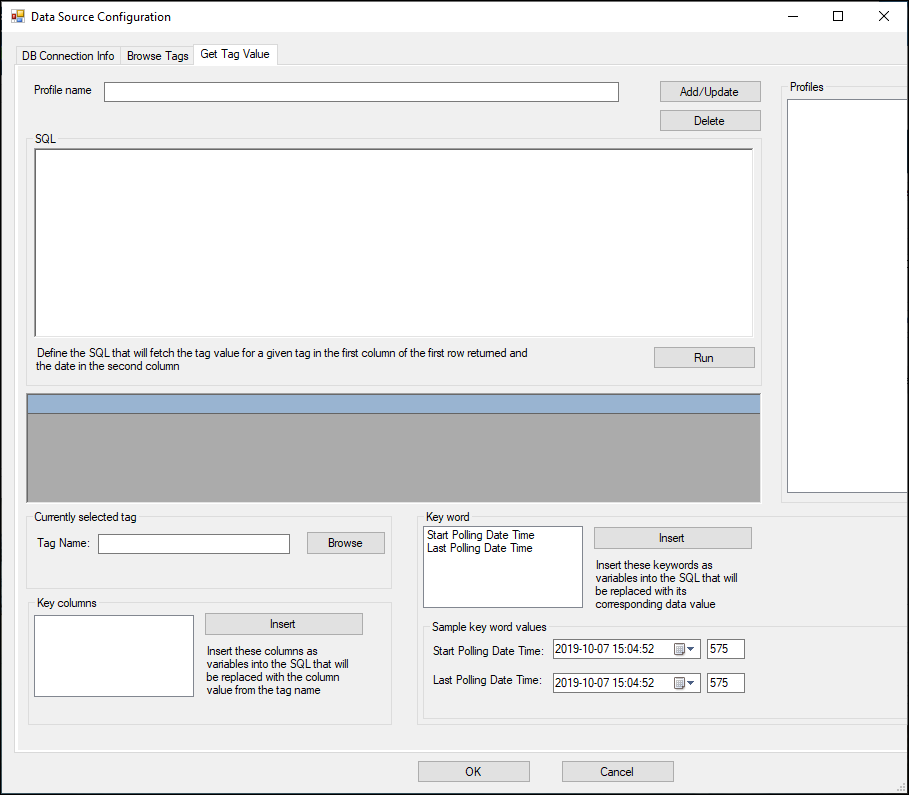
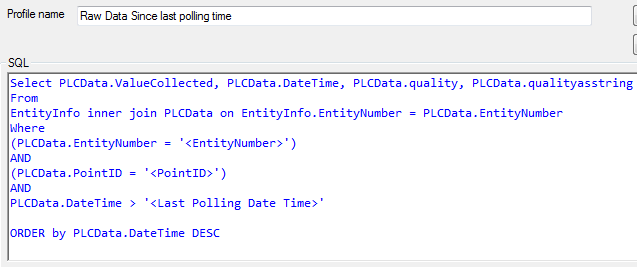
1. Select the Get Tag Value tab. On this tab, you can enter the SQL statements that will select tags and return their values to the ODC service.
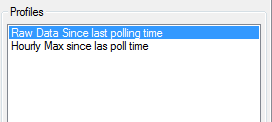
2. You can save the SQL statements for different queries using profiles. To create a profile, provide a descriptive name and click Add/Update. The profile name is added to the list. For example:When you have developed the SQL statement, click Add/Update to save the profile.
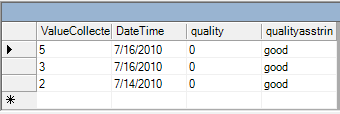
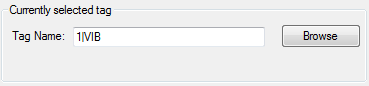
4. Click Run to test the statement. The results appear in the data grid. For example:You can also click Browse to preview the tag name.
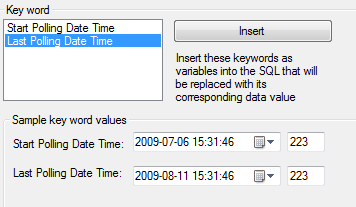
6. You can insert variables in the SQL statement that represent the value of that column in the tag name. From the Key Columns list, select the column name that you want to insert as a variable and click Insert. In this example, <EntityNumber> will be replaced by 1 and PointID will be replaced by AMPS before the SQL statement is executed, thus returning the data for tag 1:AMPS.