Creating Filter Groups for Table Configurations

You can apply two or more filters on one or more columns. Filter groups allow you to bracket sets of conditions. These groups are then linked to each other using the Boolean operators AND and OR. A group can contain conditions as well as other groups (nested brackets). For example, you could create a configuration that shows work order tasks with the status New and work order tasks with the status In Planning AND a Requested Completion Date that occurs next month:
This configuration would require one group containing two conditions for the Task Status column and a second group containing one condition for the Requested Completion Date column.
You can increase the complexity of the filters by applying groups and sub-groups, and in doing so, create more nested brackets.
For more information about filtering, see Filter Criteria Concepts.
This topic explains how to add a new group to a table configuration.

To Add a New Group From Scratch

1.
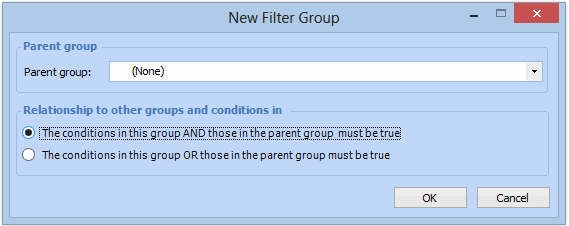
Open the configuration dialog, select the Filtering tab, and click New Group. The New Filter Group dialog appears.
2.
Tip: You can also right-click the parent group in the Filtering tab hierarchy and click New Group. The New Filter Group dialog appears with the parent group selected.
3.
4.
Click OK. The new group is added to the hierarchy.
5.
Click OK to save your changes and close the Configuration dialog. The table configuration is updated.
Groups may also be removed from a table configuration. For more information, see Deleting Conditions or Groups for Table Configurations.