Adding Conditions to Table Configurations

Multiple filter can be applied to a table configuration by applying two or more filters on one or multiple columns.
Conditions can be assigned into filter groups which allows you to bracket sets of conditions. For more information on filter groups, see Creating Filter Groups for Table Configurations.
This topic explains how:
For more information about filtering, see Filter Criteria Concepts.

To Add a Second Condition for the Same Column

1.
In the Configuration dialog, Filtering tab, click New Condition. The New Filter Criterion dialog appears.
Tip: You can also right-click the group in the hierarchy and click New Condition.
2.
3.
Select one of the three filter types (This value, This attribute’s value, or This column’s value), enter a value for the filter, and then select a condition. For more information on creating filters, see Creating Filters for Table Configurations.
4.
The Add to existing group option is selected by default. Select the group from the list of groups that filter on the selected column.
5.
This condition AND all others in the group must be true: this option displays items that satisfy all criteria in the group
This condition OR others in the group must be true: this option display other that satisfy one of the criteria. When adding conditions to an existing group, the default is OR.
6.
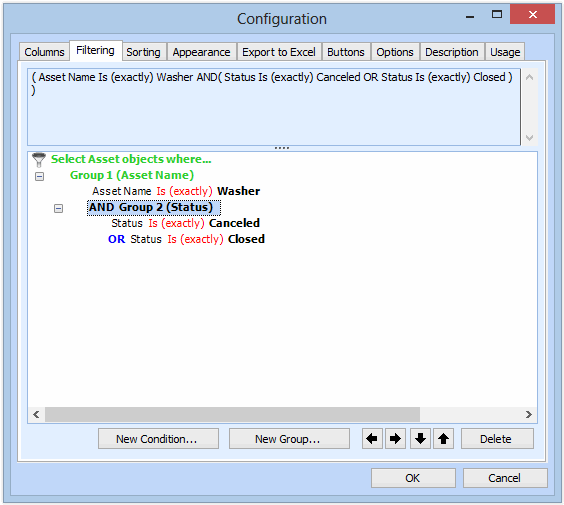
Click OK to close the dialog. The second condition is displayed in the group. For example:
 

To Add a Condition for a Different Column
1.
In the Configuration dialog, Filtering tab, click New Condition. The New Filter Criterion dialog appears.
2.
3.
Select one of the three filter types (This value, This attribute’s value, or This column’s value), enter a value for the filter, and then select a condition.
4.
5.
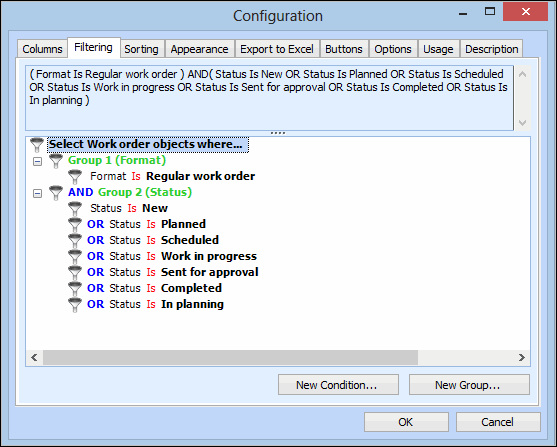
Click OK. The new criterion is added to the hierarchy. For example:
 
6.
When you are finished, click OK to save and close the Configuration dialog.