
Entering a Tool Issue

This topic explains how to complete a tool issue. You might need to do this when entering tool issues for a warehouse or when reporting activity for a work order task.

To Enter a Tool Issue

1.
Tip: You can also issue a tool by clicking New Tool Issue on the Resources Used tab, Tools tab, on an activity report
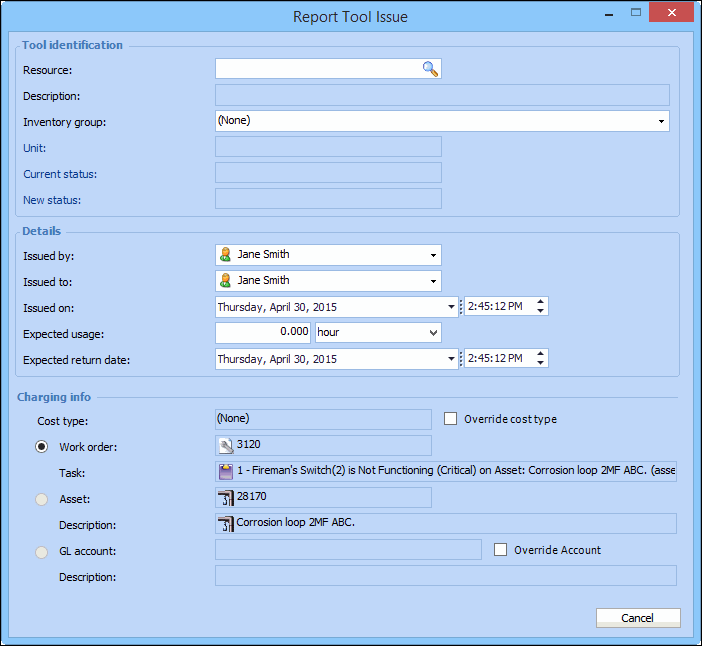
The Report Tool Issue dialog appears. For example:
2.
In the Tool identification area, complete the following information:
3.
In the Details area, complete the following information:
4.
In the Charge to area, complete the following information:
If charging to a Work order, click the browse icon. Select the work order in the selector dialog and click OK. You can select a task on the work order using the Task list.
If charging to an Asset, click the browse icon. Select the asset in the selector dialog and click OK.
If charging to an Account, click the browse icon. Select the account in the selector dialog and click OK. You might be able to override the selected GL account. To change the GL account, select Override the account. Click Browse, select the appropriate account, and then click OK.
5.