Completing a Modification and Repair Inspection Checksheet

The printed MRI form allows the manufacturer, inspection team, and regulatory inspector to sign off on the activities and add remarks. To complete the checksheet in APM, you can record information from the form in the checksheet, as well as enter the summary, analysis, and recommendations. When the inspection is complete, mark the checksheet as closed.
For information about creating the checksheet and using the MRI form, see Preparing a Modification and Repair Inspection Checksheet.
This topic explains how:

To Update Inspection Activities

1.
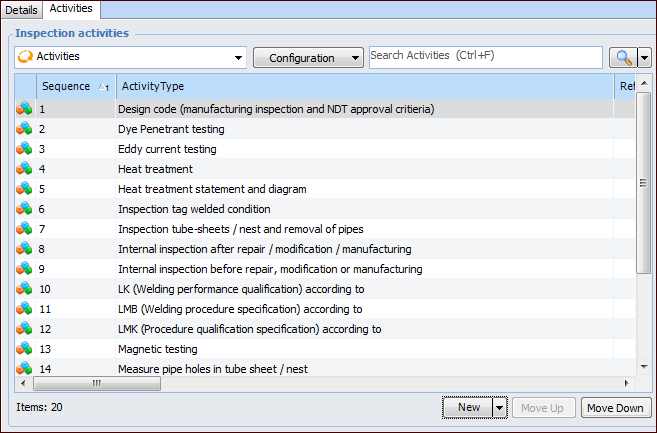
Open the MRI checksheet. Select the Modification Inspection view and the Activities tab. For example:
2.
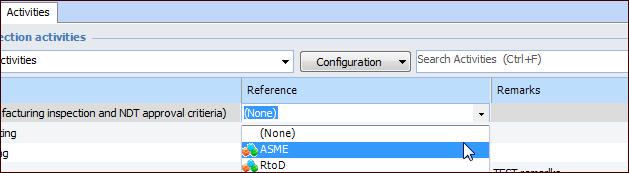
Enter or select the data.
Press Tab to move to the next box, or click the down arrow to move to the next row.
When you are finished editing data, press Enter to close in-line editing.
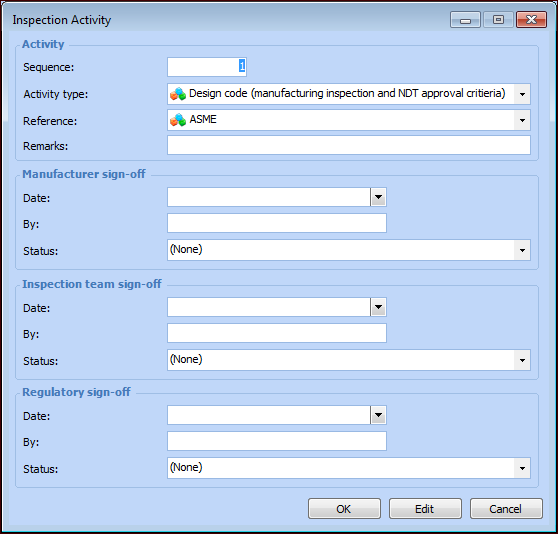
Enter remarks, if appropriate.
In each of the sign-off areas, select the date, enter the inspector’s name, and select a sign-off status.
Click OK. The dialog closes and the Activities table is populated with the information.

To Attach the Completed MRI Form

1.
2.
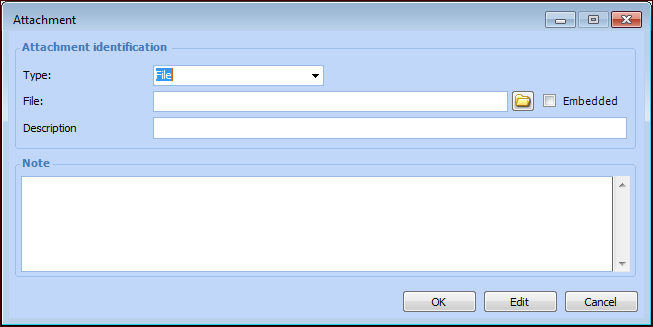
In the Checksheet window, click the Tools menu, point to Attachments, and click New. The Attachment dialog appears.
Tip: You can also drag and drop the file to the Checksheet banner. The Attachment dialog displays the file type, location, and description.
3.
In the File box, click , locate the file, and click Open. The path to the file is displayed in the File box. The Description box displays the file name.
4.
Click Embedded to store the document in the APM database.
5.
Add a note and click OK. The dialog closes and the paper clip icon is added to the banner in the Checksheet window.

To Complete the Inspection Summary

1.
2.
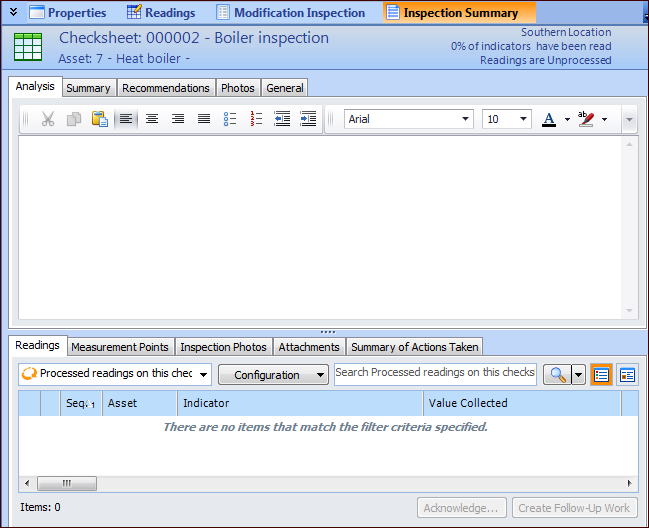
Use the Analysis tab to record your review of the inspection process and results.
3.
In the Summary tab, you can provide a synopsis of findings and analysis.
4.
In the Recommendations tab, you can document the actions to be taken as a result of the inspection.

To Close the MRI Checksheet

1.
When the inspection process is complete, select the Properties or Modification Inspection view.
2.
Click Change Status to open the Change Checksheet Status dialog.
3.
In the New status list, select the status that your organization uses to close the checksheet and prevent updates to the document.
4.
Click OK. The dialog closes and the status changes.