Reopening a Work Order

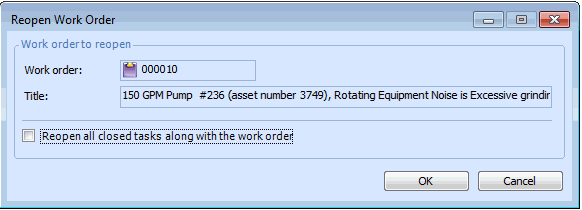
This section explains how to reopen a closed or canceled work order. When you reopen a work order, you have the choice of reopening just the work order or reopening the work order and all of its tasks. Reopening just the work order leaves the status of the tasks the same but allows you to add new tasks to the work order.
Note: You cannot reopen a work order that was created at a different site and then transferred to the current site with its asset.
Alternatively, you can reopen only a single work order task. To reopen a single task, see Reopening a Work Order Task.

To Reopen a Work Order

1.
Select the site’s Work Management view, Work Orders tab.
2.
Select the Work Orders tab. By default, all open work orders are listed.
3.
Select Historical Work Orders from the configuration list. All closed work orders will be displayed.
4.
Double-click the work order you want from the list. From the Work Order menu, select Reopen. The Reopen Work Order dialog appears.
5.
To reopen all of the work order’s tasks, select the Reopen all closed tasks along with the work order option.
6.
Click OK. APM returns the status of the work order and (if selected) its tasks to the status they had before being closed or canceled.
7.
8.