|
|


Closing a Work Order Task
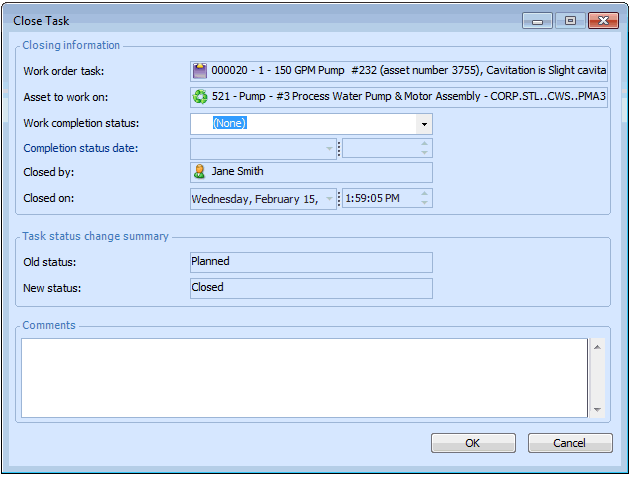
When all of the work has been completed on a work order task, you can mark it as “Closed”. When you close a work order task, you cannot make any more changes to it. You can print closed tasks. If your site’s late charges setting allows, you may also be able to enter timecards for closed work order tasks.You can close the entire work order (which also closes all of the tasks), or close each of the work order tasks independently. Closing the last open task on a work order closes the work order. If your site is using a two-stage activity reporting process, all of the task’s activity reports must be processed before the task can be closed. During the closing process, APM scans the task’s activity reports. If there are any unprocessed activity reports a warning message is displayed. If you choose to continue, the system processes the activity reports, starting from the first one entered.To Close a Work Order Task