
Checking the Triggering Status of a Standard Job or PM Route
You can set standard jobs to trigger work orders automatically using triggering rules. If you want APM to warn you when a job is about to be triggered, you can add an early warning clause to a triggering rule. You can add early warning clauses to time-based triggering rules and to rules that are based on cumulative asset indicators.
For example, you might have a job that needs to be done “every three months OR every 5000 miles.” This triggering rule could have the following early warning clauses:
Every time that APM evaluates a triggering rule for a standard job, it checks if the job falls under the early warning condition. If the job is in an early warning condition, APM flags it so that you can see that the job will be triggered soon. Planners can review the early warning flags on their jobs to get a preview of work that is coming up. Planners can also see the early warning flags if they use the Generate PM Work Orders method.
You can also have APM automatically trigger the standard job when the early warning condition occurs. This gives you additional time to plan and schedule the job.
Early warning clauses for cumulative indicators only work if the indicator includes a daily average calculation. APM uses the daily average to predict when the triggering rule will likely be true and, therefore, when it will trigger the standard job.
This section explains how to check the current triggering status of a standard job or PM route.

To Check the Triggering Status of a Standard Job or PM Route

1.
From the Site window, select the Reliability Program view, Program tab, and then the Jobs tab.
2.
3.
4.
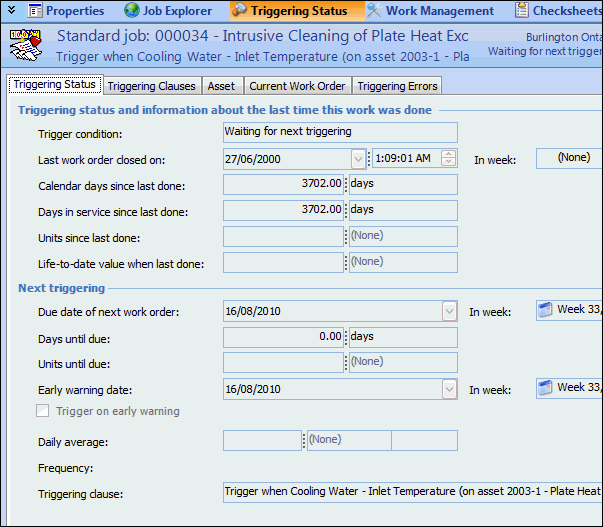
Select the Triggering Status view. The Triggering Status tab shows information about the job’s triggering status. For example:
5.
Select the Triggering Clauses tab to view the rule clauses for the job.
6.
Select the Asset tab. This tab shows the life-to-date information for the primary cumulative indicator for this asset and, if relevant, for the current asset life.
7.
Select the Current Work Order tab. This tab shows the triggering information for the last work order that was triggered from this standard job.
8.
Select the Triggering Errors tab to view all triggering errors or those pending review.
9.