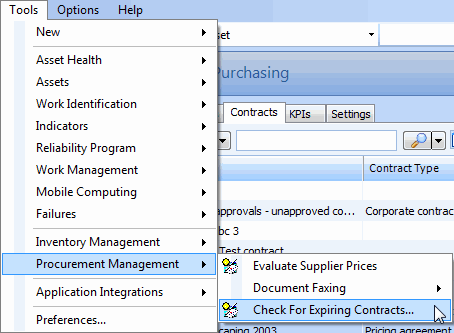
Concepts Tasks Settings Checking for Expiring Contracts A contract’s expiration notification and expiry dates indicate when a contract’s expiration notification should be issued (if notification is being used) and when the contract is expired. Setting a contract to the expired status prevents new purchase orders from being issued against the contract. When the contract is expired, the system re-evaluates the primary supplier setting for all of the contract’s resources. In order for notification and expiry to work, the Check for Expiring Contracts method should be run daily. When you run this method, the system reviews each open contract’s expiry dates, as well as the expiry dates for the contract’s pricing agreements. Your system administrator can schedule this method for the site. You can also run the Check for Expiring Contracts method manually from the site’s Tools menu. To schedule this method, please see Creating a Scheduled Action. This topic explains how to manually check for expiring contracts. To Check for Expiring Contracts 1. From the Site view, select the Tools menu, Procurement Management, and then Check for Expiring Contracts. This process might take a few minutes to complete. Any expired contracts have their status set to ‘expired’. Any contracts that have reached their notification date have their status set to ‘expiration pending’. For each contract using notifications, the system sends notification messages to the selected employees.