Changing the Sort Sequence in Table Configurations

You can find the information you are looking for quickly by using sorting criteria to determine the order in which data is displayed. You can sort ascending (1-10, a-z) or descending (10-1, z-a).
For each table configuration, you can create multiple sorting criteria and determine the order in which they are performed. For example, you can sort the items in a table by Status so that items with a status of New appear at the top and those with a status of Closed appear at the bottom. You can then sort the items within each status in ascending order by number.
For information about creating sorting criteria, see Entering Sorting Criteria for Table Configurations.

To Change the Sort Sequence

1.
2.
Click Configuration and then Open. The Configuration dialog appears, open to the Columns tab.
3.
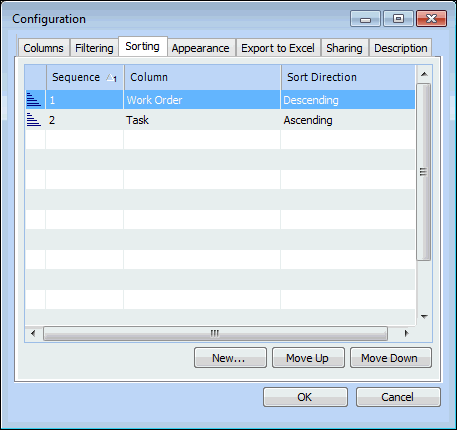
Select the Sorting tab.
4.
Select the sorting criterion you want to move and click Move Up or Move Down to move the criterion one step up or down.
5.
Click OK to save your changes and close the Configuration dialog. APM creates a Personal copy of the configuration.