|
Changing a Supplier’s Purchase Type
• Ordering supplier: The supplier is authorized for all purchasing activities (requisitions, purchase orders, and RFQs).
• Bidder: The supplier is only authorized to bid on requests for quotation (RFQs). You can only place a purchase order to a bidder-type supplier if you also send the purchase order for approval through an appropriate procurement approval route.
• Non-ordering supplier: The supplier is not authorized for purchasing activities. The supplier cannot be included on a RFQ or have a purchase order placed with them. Non-ordering suppliers are typically payment vendors in your financial system.To Change a Supplier’s Purchase Type
1.
2. Select the Suppliers tab. By default this tab lists the suppliers for the site.
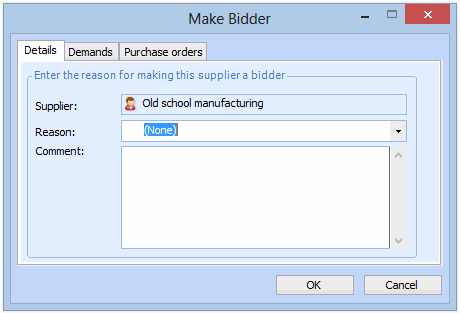
3. Right-click the supplier whose purchase type you want to change and select Change to, and then one of Ordering Supplier, Bidder, or Non-ordering Supplier. A dialog appears, for example:
4.
5. If you are changing a supplier to a non-ordering or bidding supplier, the dialog also displays Demands and Purchase Orders tabs.Select the Demands tab. This tab shows any outstanding purchase demands on which this supplier is listed as the preferred supplier. If you are making the supplier a non-ordering supplier, the system clears the preferred supplier setting on these demands.
6. If appropriate, you can select a new preferred supplier on the listed demands. Double-click a demand to open it. On the Requirement dialog, select the Purchase Details tab. Click Edit to open the Supplier box for editing. Enter the number of the new supplier, click All suppliers, or click Valid Suppliers to search for an appropriate supplier.
8.
9. Select the Purchase Orders tab to view the open purchase orders for the supplier. Any currently open purchase orders can be completed, but new ones cannot be created if the supplier is being made a non-ordering supplier.
10. Click OK. The supplier’s purchase type has now changed.