Changing the Order of Indicators on a Standard Task

After you have added indicators to a standard task, you can adjust the order of the indicators to match the sequence in which they are normally collected. Indicators to be read are listed in checksheets, work order tasks, and indicator previews on the standard task.
When a standard task includes a dynamic route, indicators are ordered according to their route assets and then by sequence number. By default, static indicators are ordered according to sequence number.
When a standard task includes both a dynamic route and static indicators, by default, static indicators appear at the bottom of the list of indicators. However, you can associate a static indicator with a route asset so that it is grouped with the route asset’s indicators.
Note: If you change the order of static indicators on a standard task that was created from a template, you will be overriding the original order. The next time that task template changes are applied, the order of the indicators might not match the order on the template. You can manually renumber the indicators on standard tasks with indicator overrides.
This section explains how to change the order of dynamic and static indicators on a standard task.

To Change the Order of Dynamic Indicators on a Task

1.
2.
3.
On the Properties view, select the Inspection tab and then the Dynamic tab.
4.
5.
6.
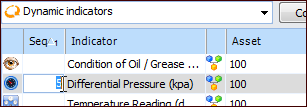
Press F2. The Seq field is opened for editing. Type a sequence number, for example:
7.
Press the arrow keys to move up and down the table between Seq fields. When you have added sequence numbers to all of the indicators, press Enter to close the fields to editing.
8.
9.
Click Preview Indicators. The Indicators Preview dialog displays each route asset’s indicators in the order that matches the sequence numbers you entered for each route asset.

To Change the Order of Static Indicators

1.
2.
3.
On the Properties view, select the Inspection tab and then the Static tab.
4.
Select one or more indicators in the list. Click Move Up or Move Down to move the indicators. The sequence numbers change accordingly.
If a dynamic route has been set up for the standard task, you can specify the stop on the route where this indicator should be read by including it with a route asset. Double-click the indicator to open the Standard Task Static Indicator dialog. Select the route asset in the Include with indicators for asset list. Click OK. The indicator no longer has a sequence number in the table of manually-added indicators. When you preview the indicators to read for the standard task, the indicator appears with the route asset’s indicators.
5.