Changing the Distribution on an Invoice Line

The invoice line’s distribution information identifies where the invoice costs are being charged. Normal purchasing distribution is supported: an invoice line can be distributed to a work order task, asset, cost type, warehouse item inventory, and/or general ledger account. An invoice line can be distributed to multiple distribution entries.
The distribution for lines that are matched to a transaction originates with the transaction’s distribution. For example, the distribution for a line associated with a purchase receipt defaults to the distribution on the receipt’s purchase order lines. The defaulted distribution can be overridden on the invoice line with the following restrictions:
This topic explains how to change the distribution on a regular or miscellaneous invoice line.

To Change the Distribution on an Invoice Line
1.
From the Site window, select the Invoicing view, Invoices tab, then the Invoices tab. By default, this tab lists all invoices by supplier.
2.
3.
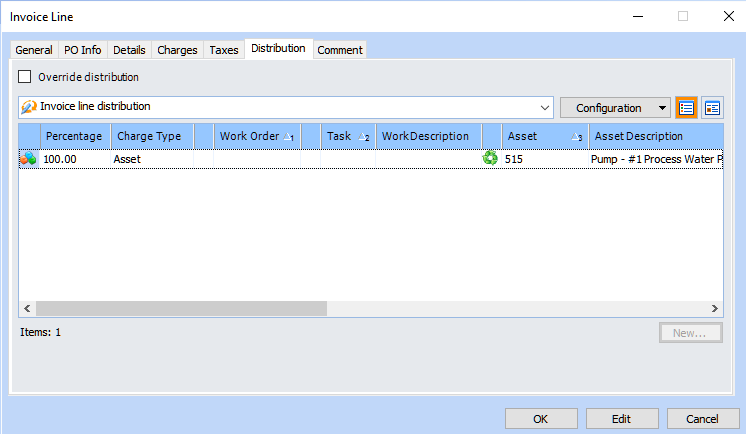
On the Worksheet view, double-click the invoice line that you want to edit. The Invoice Line dialog appears.
4.
Select the Distribution tab. This tab displays the accounts to which the line is currently distributed. On matched lines, the system copies the purchase order line distribution to the invoice line.
5.
Note: This option is not applicable if you are editing a miscellaneous expense line.
6.
7.
8.
9.
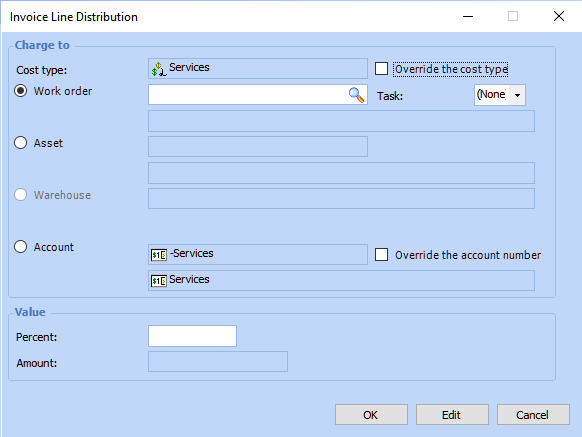
You might be able to override the cost type. If necessary, select Override the cost type and select the new cost type.
Note: If the invoice line references a non-catalog resource, you can only select a cost type for miscellaneous expenses.
10.
11.
12.
13.