|
Changing a Site’s Time Zone
Note: To enable site time zones, open the Enterprise window, select the Features view and the Enabled Features tab. Click Browse, select feature 9 “Time Zones by Site,” and click OK. If APM is running as a smart or remote client, click Refresh Enabled Features on the server. Then restart the client to use the functionality in the product.To Change a Site’s Time Zone
1.
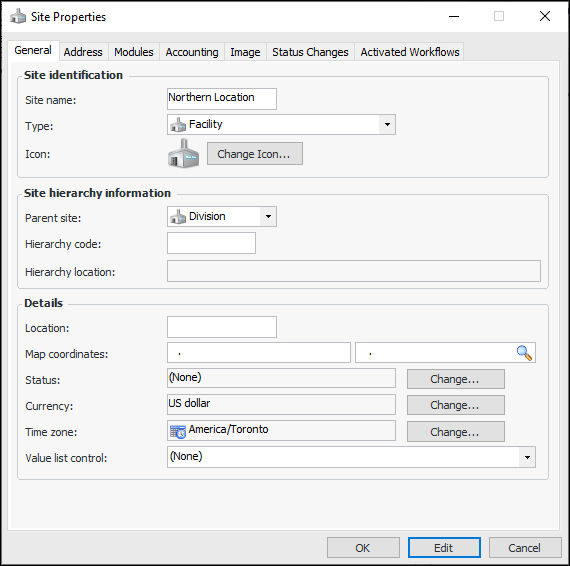
2. Right-click the site in the hierarchy tree and click Site Properties. The Site Properties dialog appears.Tip: You can also open the Site window, click the Site menu and then Properties to open this dialog.
3. Click Edit.
4.
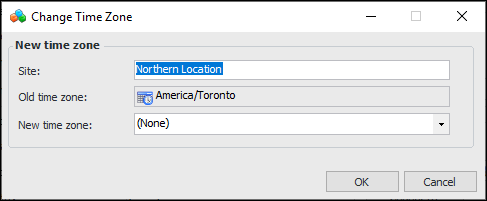
5. From the New time zone list, select the appropriate geographical area and city. APM uses the area’s time zone and intervals to display date and time information for the site.
6. Click OK. When the dialog closes, the change is made for the site and becomes the default for child sites that have not been assigned time zones.