Changing Project Status

A project’s status can change automatically if the status definition is linked to an event, for example, creation or send for approval. The status definition can also specify that the status can be assigned to a project manually.
This topic explains how to change the status of a project.
For more information about status settings, see Project Status Controls.

To Change the Project Status

1.
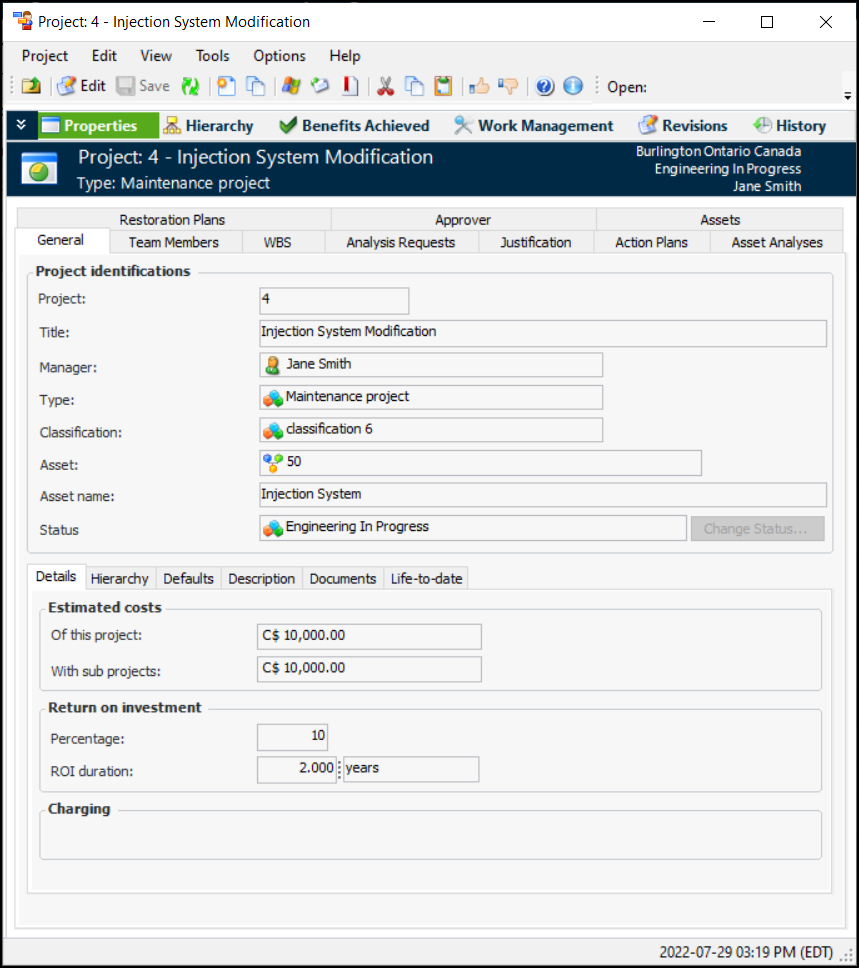
In the Project window, select the Properties view, General tab.
2.
3.
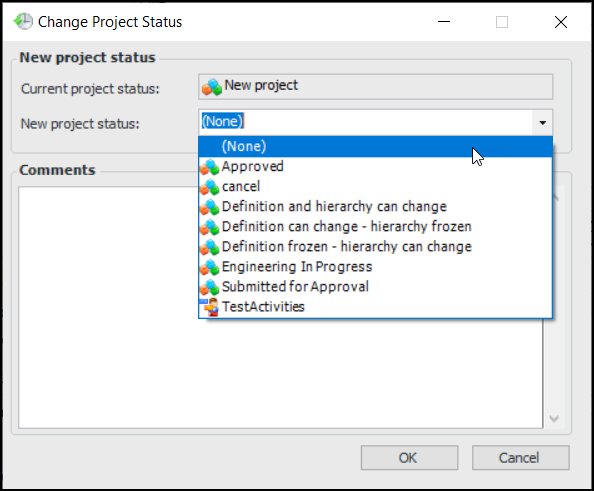
Click Change Status. The Change Project Status dialog appears.
4.
5.
Click OK. You can view all status changes in the project’s History view, Status Changes tab. For more information, see Viewing Project Status Change History.