|
Changing the Planner for Standard Tasks
To Change the Planner for Standard Tasks
1.
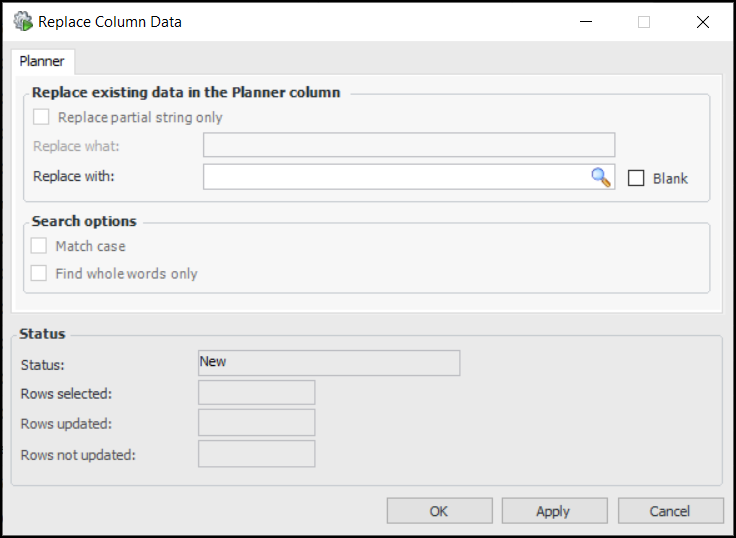
4. Right-click the Planner column heading and select Replace. The Replace Column Data dialog appears. For example:
• Click Blank to erase all information in the column.
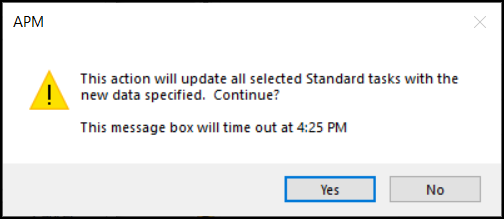
6. Click Apply to perform the mass update. A dialog prompts you for confirmation. For example:
7. Click Yes to proceed.
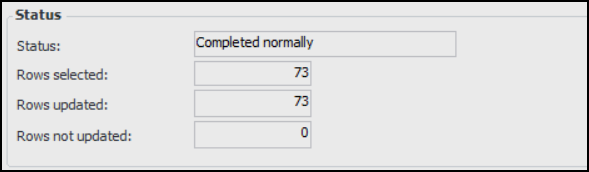
8. When the update is complete, the status of the updates is displayed in the Status section. For example:
9. If rows could not be updated during a mass update, they can be viewed by clicking View Log or by APM administrators in the Mass Update Requests log. For more information, see Viewing Mass Update Requests.
11. Remove the filter applied in step 3. The changes are now reflected in the table.