Changing Asset Activity Report Section Information

An asset activity report is comprised of one or more asset activity report sections. Each section can be predefined with information such as the assets source and recursion, the type of activities included, and any attachments to be included with the report section.
An asset activity report is pre-populated with the asset activity report sections from the chosen asset activity report type, however these sections can be modified, removed, and new sections can be added to the asset activity report.
This topic describes how to change information an asset activity report section, from an asset activity report.

To Change Asset Activity Report Section Information

1.
2.
3.
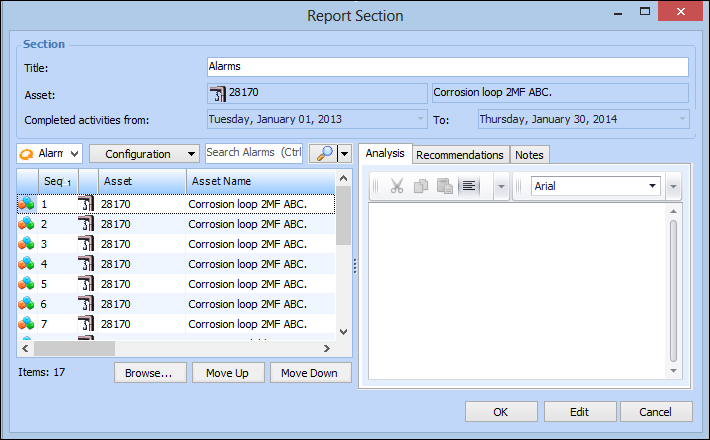
On the Report view, Sections tab double-click to open an asset activity report section from the list. The Report Section dialog appears. For example:
Note: The details list in the table on the left will be empty if Automatically include details when the report section is created was not selected when the section type was created, or if the section type does not support details.
4.
In the Section group, you can edit the following information:
5.
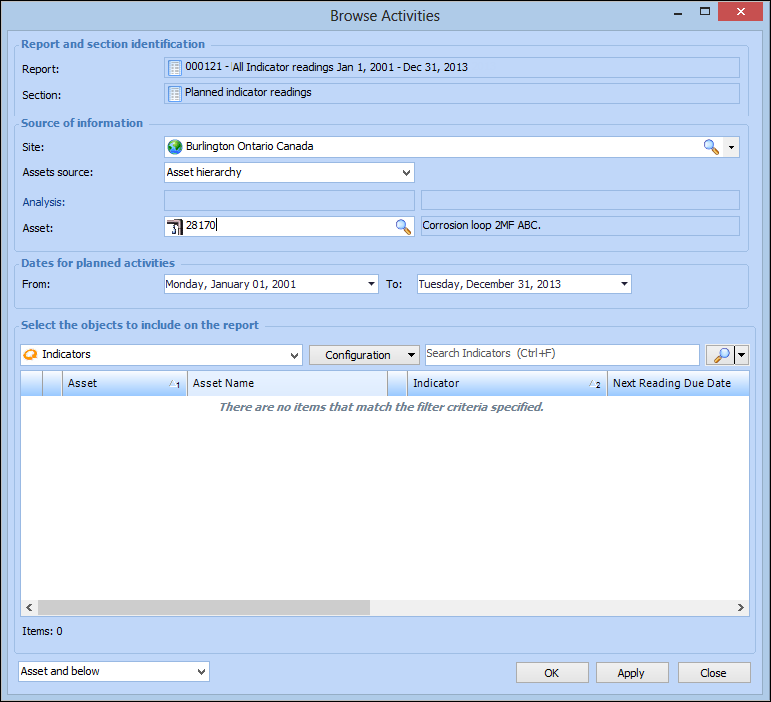
You can add activities to the asset activity report section by clicking Browse in the table on the left. The Browse Activities dialog appears. For example:
6.
7.
You can select either Asset hierarchy or Strategy development analysis for the Assets source.
8.
9.
If you selected Asset for the assets source, you can also select the asset recursion at the bottom of the dialog. The default is Asset and below.
10.
11.
12.
You can remove an activity from the list of activities in the report section by right-clicking on an activity and selecting Delete. A confirmation dialog appears. Click Yes. The activity is deleted from the list.
13.
14.
When you are finished, click OK to accept the changes, then close the Browse Activities dialog.
15.
16.
When you are finished, click OK to close the Report Section dialog and return to the Report window.