Changing Asset Activity Report Information

From time to time, you might have to change information on an asset activity report, such as the report type, name, report status, starting and ending dates, and printing and publishing information, among others. The status of the report determines whether the report can be edited.
This topic describes how to change information an asset activity report.

To Change Asset Activity Report Information

1.
From the site, select the Assets view, then the Activity Reports tab. By default, this tab displays a list of all asset activity reports for the site and below.
Tip: You can also select open, published, completed asset activity reports, and reports by status, from the configuration list.
2.
3.
4.
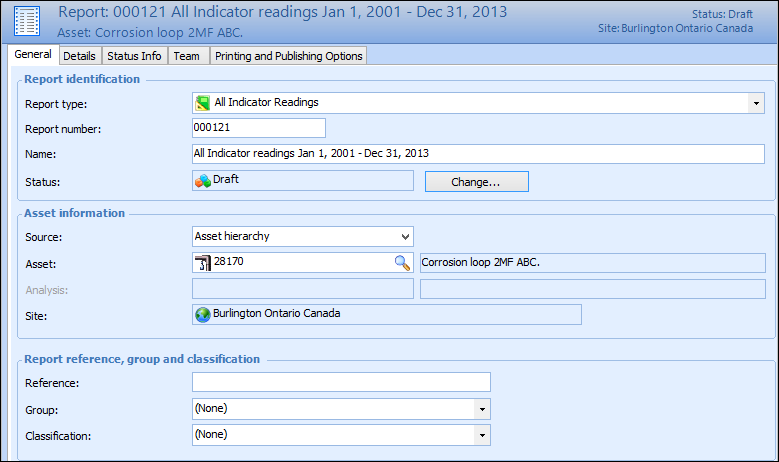
Select the Properties view. For example:
5.
On the General tab, you can edit the following information:
6.
7.
In the Asset Information group, you can edit the following information:
Select either Asset hierarchy or Strategy development analysis for the source of the assets.
8.
In the Report reference, group and classification group, you can edit the following information:
9.
On the Details tab, you can edit report dates. For more information, see Assigning Asset Activity Report Details.
10.
On the Team tab, you can edit the report author and team members. For more information, see Assigning an Asset Activity Report Team.
11.
On the Printing and Publishing Options tab, you can edit the printing and publishing options for the report. For more information, see Assigning Asset Activity Report Printing and Publishing Options.
12.
On the Status Info tab you can view created, published, completed on dates, and the user responsible for those actions.
13.
Select the Report view, Sections tab, to view and add report sections. For more information, see Adding a Section to an Asset Activity Report.
14.
Select the Report view, Notes tab, to view notes included with the report.
15.
Select the Report view, Attachments tab, and then the Report tab, to view or add attachments to the asset activity report. For more information, see Adding Attachments to an Asset Activity Report.
16.
Select the Report view, Attachments tab, and then the Sections tab, to view attachments to sections that are included with the report. To add attachments to report sections, see Adding Attachments to an Asset Activity Report Section.
17.
To change the sequence of report sections, select the Work with sequence configuration in the table, then select a report section and click Move Up or Move Down to adjust the order.
18.
19.