Introduction to Calculated Indicators

A calculated indicator is an indicator that has its readings calculated using a formula, rather than entered manually by a person or electronically by an on-line system.
You can set up a calculated indicator to record information about an asset condition that is not directly available from a measuring device on the asset. For example, you could set up a calculated indicator to measure the efficiency of a pump. Because this is difficult to measure directly, you can create a formula that uses other indicators on the pump that you can measure. You can set up numeric, cumulative, and descriptive indicators as calculated indicators. You can use data from other asset indicators or from APM objects as part of the calculation.
Note: The APM calculation feature is very powerful and allows users to write code that executes on the server. As such, we strongly recommend using APM security profiles to secure access to the functionality as well as reviewing all calculation code.
This section covers the following topics:

Formulas in Stored Procedures

You can enter the formula for a calculated indicator in APM as a VB.NET or C# script. However, if you need a complicated calculation requiring extensive or complex processing, you can use a stored procedure. At run-time, the indicator is recalculated in the normal way, either manually based on an input or based on a recurrence pattern.
When calculated, the value of the inputs are fed to the stored procedure. The stored procedure must return either a number or a string, and this value is used to create the reading for the indicator. If a calculation fails, a reading is still created, but it is flagged as “Invalid” and the appropriate reason for the invalid reading is noted.
When defining the indicator, provide the name of the stored procedure and calculation inputs with names that correspond to the parameters used in the procedure. A calculation input and its parameters must use the same data type, and the procedure must include a return parameter that is either a string or number. You can create calculation inputs for stored procedures as you would for a VB.NET or C# script, except that the inputs cannot use the array aggregation type.
Note: When using Date and DateTime data types, be aware that the Date type uses the enterprise time zone, and the DateTime type uses Coordinated Universal Time (UTC).
TOP

Formulas in VB.NET and C# Scripts

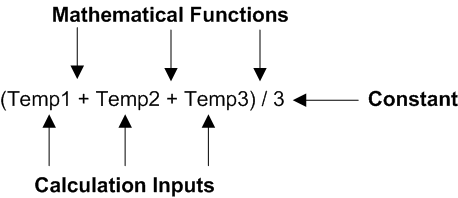
You can create a formula for a calculation based on three types of information:
Calculation inputs: data from another numeric, cumulative, descriptive, or rule-based asset indicator; data from the current calculated indicator; or data derived from an APM object (for example, a count of work orders or the dates when indicator readings were entered)
Mathematical functions: such as add, subtract, multiply, or divide
Constants: a fixed value used in the calculation
For example, a calculation for determining the average of three indicator values might be:

Calculation Inputs

A calculation input is a variable used in a calculation that represents data from the system. This data can be from two types of sources:
Based on indicator reading(s): data from an asset indicator
Based on a filter: data derived from one or more APM objects (for example, the total number of work orders based on a selected work type)
The name of the calculation input is used as a placeholder in the formula entered for a calculated or performance indicator.
TOP

Indicator Reading-Based Inputs

Most indicator reading-based inputs use the indicator readings from numeric indicators (for example, pressure or temperature). However, you can also use the readings from cumulative, descriptive, and rule-based indicators as inputs to a calculation.

Using Cumulative Indicators as Inputs

When a cumulative indicator is included in the calculation, the reading’s adjustment value is used to determine the input’s value, as opposed to the actual meter value. The adjustment value is the value accumulated since the last reading. For example, on an odometer indicator, if the previous reading was 10,000 km and the next one 10,100 km, then the adjustment value is 100 km.

Using Descriptive and Rule-based Indicators as Inputs

Using descriptive and rule-based of indicators as inputs requires writing more advanced calculation strings to deal with the non-numeric data. For example, if you are using a descriptive indicator as an input, you will probably have to use IF/THEN/ELSE logic in your calculation (that is, IF the value of the indicator is “Worn out”, THEN…, ELSE…).

Using the Current (Calculated) Indicator as an Input

You can include the current value of the current indicator as an input to its own calculation. The value of the input is its most recent reading. However, unlike other inputs when a new value for the current indicator is calculated, this will not cause the calculation to be triggered again.

Aggregating Indicator-Based Inputs

An aggregate calculation input is one in which the values of several readings from the same indicator are aggregated or combined to determine a value for the input. For example, you could define an aggregate input to use the average value of the indicator’s last five readings.
You can specify the number of readings to use in three ways:
When the calculation is evaluated, at least one reading must be selected for the input. If no reading is available (for example no reading was entered for the time period specified), a new value for the indicator cannot be calculated. In addition, readings that have been marked as “incorrect” are ignored.
TOP

Filter-Based Calculation Inputs

A filter-based calculation input defines a set of filtering criteria that, when evaluated, results in a value. The value can be a count of the items that satisfy the filtering criteria or it can be an aggregate of an attribute that belongs to the object being filtered or to some other object related to it through a join-path.

Count-Type Inputs

When evaluated, a count-type input results in a simple count of all the objects that satisfy a set of filtering criteria. As an example, consider a formula to calculate the percentage of work orders completed within the last 30 days that were planned to be complete:
Percentage = (Number of completed work orders where the planned completion date was in the last month) ÷ (Total number of work orders where the planned completion date was in the last month) x 100
In this formula, the two inputs to this calculation are:
Each of these inputs can be defined as a count of work orders that satisfy a set of filtering criteria. For example, the filtering criteria to determine the value for the first input (that is, number of completed work orders in the last 30 days) might be:

Aggregating Filter-Based Inputs

Aggregate-type calculation inputs apply an aggregation type to one of the attributes that belong to the object being selected or to one of its related objects.
As an example of an aggregate-type input, consider a performance indicator designed to measure the average cost of work orders completed within the last 30 days. In this case, the formula could consist of a single input with the following criteria:
The same result could also be achieved using a more complex formula with a different aggregate type:
Average cost = (Sum of the actual costs of work orders closed in the last 30 days) ÷ (Count of work orders closed in the last 30 days)
TOP

Using Numeric and Non-Numeric Data Types as Inputs

You can include data other than indicator readings as an input to a calculation. For example, you might want to use an indicator reading’s collection date in a calculation so that you can determine the length of time that has elapsed between two readings.
Note: Users who want to use inputs other than indicator readings as calculation inputs should have a basic understanding of object-oriented modeling concepts, as well as knowledge of the APM object model as it relates to indicator readings.
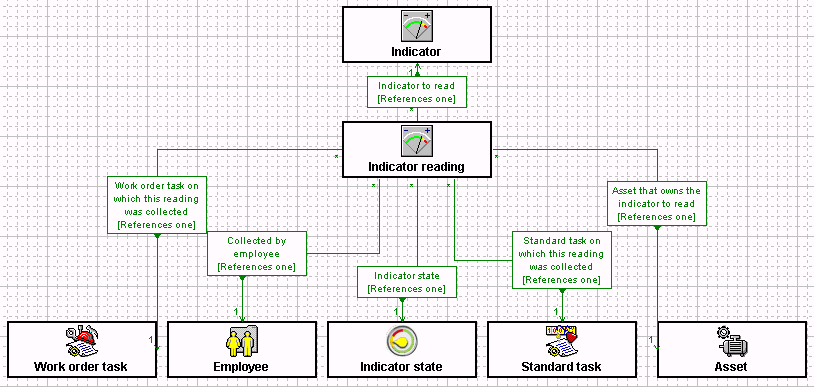
If your input is based on an indicator reading, you can select any eligible attribute (field) on the Indicator Reading class itself or on any class that is related to it through a single-cardinality relationship. For example, you could select an attribute on the asset that owns the indicator. You can select attributes from classes related through a single-cardinality relationship:
The following graphic illustrates examples of classes related to the indicator reading class:
Similarly, for filter-type inputs, you can select any eligible attribute from the class you are filtering or from any class related to it through a single-cardinality relationship.
Eligible attributes on which inputs can be based are:
For more information on relationships and attributes, see Relationship Types and Data Types. To learn more about the APM object model, see Object Model Overview.
TOP

Aggregation Types

The supported aggregation types are:
Note: The array aggregation type is not supported for indicators that are calculated using a stored procedure.

Array Aggregation

An array is an aggregation type that allows you to work with a list of values. It is required for inputs that are based on non-numeric data such as strings and dates. These types of data cannot be aggregated using any of the other aggregation types (that is, sum, mean, average, maximum, minimum, and difference), which are all intended to be used with numeric data only. While the array aggregation type is typically used to handle non-numeric data, you can also use it with traditional numeric inputs.
The system interprets an array-type input as a numbered list of elements. The data type of the elements in the list is determined by the type of attribute on which you have based the input. For example, if the input is based on an indicator reading’s Date collected attribute, the array consists of a list of dates.
VB.NET and C# scripting lets you work with the individual elements of the array. As an example, consider an input to a calculation that is based on the last three readings for an indicator and that is defined to return an array of dates based on the indicator reading’s Date collected attribute. Using VB.NET or C#, you can subtract the 3rd date in the array from the first date in the array and thus calculate the number of days between these readings. This would allow you, for example, to calculate the gas consumption on a vehicle (for example, miles per gallon) or the rate of rise in oil consumption.
Because the order of the elements in the array is often important, when you select the Array aggregation type you can also optionally specify the way the elements of the array are ordered. For example, in an array of indicator reading values, you can specify that the readings be ordered by the Date Collected attribute. When sorted, the elements of an array are presented in ascending sequence. You can only specify one sort criterion.
TOP

First Aggregation Type

The First aggregation type allows you to select the first element in a selection list. For example, you could use this aggregation type on an input that needs to return the Collection date of the first reading entered this month.
When you select the First aggregation type, the order of the elements in your selection list is important. It is therefore necessary that you also specify ordering information. For example, if you want the input to be the Collection date of first reading entered this month, then you will need to sort the readings in ascending order based on collection date.

Last Aggregation Type

The Last aggregation type is the opposite of the First aggregation type in that it allows you to select the last element is a sorted list. For example, you could use it to retrieve the value of the last reading entered in the previous month.
TOP

How Calculation Inputs are Used in VB.NET and C# Scripts

For numeric data, including numeric indicator readings and numeric data types, the system substitutes the value part of the data into the calculation string as a float. This means that the unit of measure portion of the data is ignored. For example, if a temperature indicator’s most recent reading was 10 degrees Celsius, the value that is substituted for the input is 10.
Inputs based on non-numeric data types are inserted into the calculation as follows:
 
TOP

Units of Measure

When you create a calculation that has inputs with different units of measure, you must account for the differences in the formula. For example:
Unlike Integers, Floats, and Base currency amounts that consist of a single numeric value, the other numeric data types (that is, Durations, Quantities, Prices, and Currency amounts) are compound data types. In addition to their numeric value, they also have a unit of measure (as in the case of Durations and Quantities), a currency (as in the case of Currency amounts), or both (as in the case of Prices).
For these compound types, only the numeric portion of the value is used in the calculation. For example, if the sum of the estimated duration of a group of work orders is 20 hours, the value of the input that is used in the calculation will be 20. The unit of measure (UOM) component (hours) is ignored. The unit of measure must, therefore, be taken into account as part of the formula.
When you select the unit of measure (UOM) for the indicator, the system assumes that the value resulting from your calculation is in the selected UOM. When you create a calculation that has inputs with different UOMs from the indicator, you must account for the differences in the formula. For example, if you create a calculation with the result in “eaches”, but the indicator is expressed in “dozens”, you must divide the result of your calculation by 12.
In addition, the attribute’s value for each instance that meets the selection criteria can be expressed in a different unit of measure or currency. For example, the Estimated Duration on one work order might be expressed in days, while on another it could be in hours. For this reason, when aggregating the value in a compound attribute, you must also identify the unit of measure or currency in which the aggregated value should be expressed. For example, when aggregating the value in a duration attribute such as the Estimated Duration example, you would have to specify whether the resulting value should be expressed in hours, days, or weeks.
Therefore, using the same example:
In addition, for Quantities and Prices, only values with units of measure from the same unit of measure category are included in the aggregate value. In other words, if you specify that the result should be expressed in the meters unit of measure, which is in the Length unit of measure category, only values expressed in units of measure from that category (for example, yards, feet) are included in the aggregate value.
In a similar way, in the case of Currency Amounts and Prices, only values having the same currency value are included in the aggregate value.
TOP

Integers and Averages

Integers are whole numbers and as such do not include fractions or decimals. Integers are used in a few places in the APM system. When working with calculations that include integers, remember that the result are expressed in a whole number. When using the Average aggregation type with integers, the system does not round the result but truncates the resulting value to a whole number.
For example, to calculate the average number of tasks in a group of work orders, you might create the following calculation input:
AvWorkOrderTasksPerWO =
If you have the following data
the result of the calculation [(6+1+1)/3 = 2.6667] is truncated to an integer (2).
If you need to have the result of a calculation include fractions, you can use the Sum aggregation type instead and then divide by the number of the objects being averaged. Using the same example, you would instead create two calculation inputs:
You calculation would then be:
NumberWorkOrderTasks/NumberWorkOrders
The result would be 2.6667.

Units of Measure

The unit of measure (UOM) selected for the calculation also affects your result. For example, if the UOM for the indicator described above is “each”, no decimal places are expressed. In the first calculation, the result would be expressed as 2. In the second calculation, the result will be rounded to 3.
To have a result with decimal places, select a unit of measure set up to express one or more decimal places. If necessary, you can have your system administrator create an appropriate unit of measure using the DTA Editor utility.
TOP

Functions in VB.NET and C# Scripts

A function is a series of VB.NET or C# statements that return a value. You can use functions to create a calculation for a calculated indicator or asset health calculation that includes logical operators such as IF, AND, OR, and so on. For example, you could do this if you want a calculation that includes an IF THEN statement.
Note: To create a calculation using a function, you should be familiar with VB.NET or C# scripting.
For example:

VB.NET

If A > B Then
return A
Else
return B
End if

C#

if (A > B)
{
return A;
]
else
[
return B;
}
Where A and B are the argument names.
A function returns a value by assigning a value to the function’s name in one or more statements of the procedure. The return data type of a function is always a Variant.

Calculation Inputs and Argument Names

In order for a function to work, the calculation input names defined for the indicator must match the arguments named in the function. Therefore, in this example you must also define calculation inputs named “A” and “B”. This is similar to entering a regular calculation expression.
When you define a calculation for an indicator without functions, the system processes the calculation by wrapping your expression in a function statement. For example, if your calculation is A / B, the system processes it as:
A / B
When you create a calculation by defining your own function, the system behaves similarly: in the first line of the statement the system inserts your calculation input names as arguments for the function. This means that you can leave the arguments for the function blank. However, for your own record-keeping, you will probably want to enter the argument names anyway.
Note: Your calculation input names must match the names of the arguments used in the function.
TOP

Function Examples

Using a String in a Calculation

In this example, the value of a numeric indicator is calculated using a different formula, depending on the value of a input (called StringInput). This calculation has two inputs:
If the value of StringInput is “Normal”, then the value of the indicator is set to the value of Input1. On the other hand, if the value of StringInput is “Squeaking”, then the value for the indicator is set to twice the value of Input1. Finally, if the value of StringInput is “Worn out”, then the value of the indicator is set to three times the value of Input1.
For example:

VB.NET

If StringInput = “Normal” Then
Return Input1
Elseif StringInput = “Squeaking” Then
Return Input1 * 2
Elseif StringInput = “Worn Out” Then
Return Input1 * 3
End If
Return 0

C#

if (StringInput == “Normal”)
{
return Input1;
}
else if (StringInput == “Squeaking”)
{
return Input1*2;
}
else if (StringInput == “Worn Out” Then
{
return Input1*3;
}
return 0;

Using an Enumerated Attribute in a Calculation

In this example, the value of a numeric indicator is calculated based on the Active Status of an asset. The Active Status is an enumerated attribute that has two possible values:
When referring to an enumerated value in the calculation string, you can use either the enumerated value’s integer or its corresponding constant (for example, c_Active). Constants are defined for you in the box above the calculation. In either case, you do not need to use quotation marks. The calculation has the four following inputs:
Note: Because StatusInput is a reading-based input, the indicator used to create the input must have at least one reading entered for the input to have a value.
This calculation does the following: If the asset status is c_Active, then the value of the calculated indicator is determined by adding together the value of Input2 and Input3. Otherwise, the indicator’s value is equal to what it is presently (that is, Input4).
For example:

VB.NET

’if the asset status is Active, calculate a value, otherwise don’t
If StatusInput = c_Active Then
Return Input2 + Input3
Else
Return Input4
’Input4 is the current value
End if

C#

//if the asset status is Active calculate a value, otherwise don’t
if (StatusInput == c_Active)
{
return Input2 + Input3;
}
else
{
return Input4;
//Input4 is the current value
}
 
TOP

Using a Boolean Attribute in a Calculation

Using a Boolean attribute in a calculation is the same as using an enumerated attribute. The only difference is that Boolean attributes can only have two values (that is, True or False).
In this example, the value of a numeric indicator is calculated based on the setting of a boolean attribute. If the Boolean’s value is True, then the value of the calculated indicator is determined by adding together the value of Input 2 and Input3. Otherwise, the indicator’s value is equal to what it is presently (that is, Input4).
The calculation has the four following inputs:
For example:

VB.NET

’if the “Has an alarm” Boolean is True calculate a value, otherwise don’t
If Input1 = True Then
Return Input2 + Input3
Else
Return Input4
’Input4 is the current value
End If

C#

//If the “Has an alarm” Boolean is True calculate a value, otherwise don’t
if (Input1 == true)
{
return Input2 + Input3;
}
else
{
return Input4;
//Input4 is the current value
}
 

Using an Array in a Calculation

The calculation in this example has two input numeric inputs. They are:
This function calculates the weighted average of the three values in the array if the value of the AverageType input is “c_WeightedAverage”. Otherwise, it calculates the average in the normal way.
For example:

VB.NET

If AvgType = c_WeightedAverage Then
Return (ArrayImp(0)*3 + ArrayImp(1)*2 + ArrayImp(2))/6;
Else
Return (ArrayImp(0) + ArrayImp(1) + ArrayImp(2))/3;
End If

C#

If (avgType == c_WeightedAverage)
{
return (ArrayImp[0]*3 + ArrayImp[1]*2 + ArrayImp[2])/6;
}
else
{
return (ArrayImp[0] + ArrayImp[1] + ArrayImp[2])/3;
}

Number of Values in an Array

If you do not know how many values will be in the array, use the Lbound and Ubound functions in the array. For example, if the array contains readings taken over the last weeks, you might not know in advance how many readings are in the array.
The following example shows how to use these functions. In this example, there is one calculation input called InputArray, which is an array of indicator readings.
For example:

VB.NET

If ReadingsList.Length = 0 Then
Return 0
End If
 
Dim total As Integer = 0
Dim divisor As Double = 0
For i As Integer =0 To ReadingsList.Length - 1
total = total + (i + 1) * ReadingsList(i)
divisor = divisor + (i + 1)
Next
Return total/divisor

C#

if (ReadingsList.Length == 0)
{
return 0;
}
 
double total = 0;
double divisor = 0;
for (int i = 0; i <= ReadingsList.Length -1;i++)
{
total = total + (i +1) * (double)ReadingsList[i];
divisor = divisor + (i + 1);
}
return total/divisor;
 
TOP

Using a Date Attribute in a Calculation

In this calculation, two reading-based inputs from the same indicator are used to calculate the rate of rise of that indicator based on its last 10 readings. The two inputs are:
This calculation takes the difference in reading values and divides it by the number of days that have elapsed between the first and 10th reading. To do this, it first declares a variable called DateDelta. The value of this variable is then set by subtracting the first date in the array from the last one, which results in the number of days. Next, the value of the ReadingDifference input is divided by the value in the DateDelta variable.
For example:

VB.NET

Dim DateDelta As TimeSpan = DateArray(9) - DateArray(0)
Return ReadingDifference/Date.Delta.TotalDays

C#

TimeSpan DateDelta = DateArray[9] - DateArray[0];
return ReadingDifference/DateDelta.TotalDays;

Calculated Cumulative Indicators

The value of cumulative indicators can also be determined using a formula. You can set up this formula in the same way as for other numeric calculated indicators. The way in which the calculated value is used depends on whether the indicator has been set up as an accumulated value (for example, an odometer) or a consumed value (for example, a trip meter).
If the indicator is set up as an accumulated value, then each time the calculation is triggered and a new reading is created, the indicator’s life-to-date value is reset to the value calculated by the formula. For example, if the result of the calculation is 2,000 km, then the life-to-date value for the indicator is set to 2,000 km.
On the other hand, if the indicator has been defined as a consumed valued, each new reading represents only the change since the last reading was taken. Therefore, the value calculated by the formula is added to the indicator’s current life-to-date value. For example if the calculated value is 10 km and the indicator’s current life-to-date value is 2,000 km, the new life-to-date value is 2,010 km.
TOP

Calculated Descriptive Indicators

You can set up a calculated indicator that will produce a descriptive value as the output. To do this, enter a function using VB.NET or C# code and Boolean logic. You should be familiar with VB.NET or C# before creating indicators of this type.
For example, consider a descriptive indicator that can have any one of the three following values:
In the formula below, the value of the indicator is set based on two numeric inputs: Input1 and Input2. If the value of Input1 plus that of Input2 is less than or equal to 100, then the value of the descriptive indicator is set to “Normal”. If it is between 100 and 200, it is set to “Fair Condition”. Otherwise, it is set to “Worn Out”.
For example:

VB.NET

If Input1 + Input2 <= 100 Then
Return “Normal”
Elseif Input1+Input2 > 100 And Input1+Input2 < 200 Then
Return “Fair Condition”
Else
Return “Worn Out”
End If

C#

if (Input1 + Input2 <= 100)
{
return “Normal”;
}
else if (Input1+Input2 > 100 & Input1+Input2 < 200)
{
return “Fair Condition”;
}
else
{
return “Worn Out”;
}
TOP

Triggering Calculated Indicator Readings

The reading for a calculated indicator includes the date and time when the alarm was triggered and information as to why it was triggered. The information includes the values of all of the inputs that were used in the calculation. If the indicator readings that contributed to the calculation were collected on a checksheet or on a work order task, the resulting calculated indicator reading is also shown on the checksheet or work order task.
You can use one of four methods to set when a calculated or performance indicator is recalculated:
Note: The Recalculate Calculated Indicators action cannot recalculate indicators with this setting.
If a reading is triggered automatically, APM evaluates the calculation each time data is entered for one or more of the asset indicators that are used in the calculation. Each time the calculation is evaluated, APM creates an indicator reading for the calculated indicator.

Required Proximity

Required proximity is a setting that prevents APM from making a calculation or evaluating a rule when indicator readings used in the calculation or rule are out of date. For example, you can say that all of the indicator readings included in the rule must have been collected within 1 day of each other.

Recalculating All Indicators for a Site

You can recalculate all calculated and performance indicators by running the site method Recalculate Calculated Indicators. This method analyzes all of the indicators that have been defined for a site and determines which of them needs to be recalculated. You can set a different calculation frequency on each indicator that defines how often it should be recalculated.
When you run the recalculation method, it looks at the indicator’s calculation frequency and the date and time on which it was last recalculated. If the time elapsed since the last recalculation is greater than the calculation frequency, the system calculates a new value for the indicator.
Because the recalculation of an indicator is triggered by a method, the value of any indicator is not recalculated at a more frequent interval than that at which the recalculation method is run. For example, a performance indicator that is set up to be calculated every hour is only recalculated once a day if that is the frequency with which the recalculation method is run.
You can schedule the recalculation method so that it runs automatically according to a defined interval. If you schedule the recalculation method to be run at the most frequent recalculation schedule for all of the indicators, each of the indicators is recalculated at the set frequency.
For example:
If you schedule the recalculation method to be run every day, each indicator is calculated at the appropriate time.
Tip: For information about monitoring calculation performance, see Viewing Calculation Times.
TOP

What Happens When a Calculation Fails?

Using advanced calculation features can increase the likelihood that errors will occur when defining calculations. For example, a single typographical error in the calculation string for a descriptive indicator could result in an undefined value for the indicator.
If a calculation produces an undefined value, the system displays a message and produces an indicator reading. This reading is flagged as invalid (that is, incorrect) and does not appear in graphs, and so on. The indicator’s last valid reading remains its “current” reading.
As with normal calculated readings, you can look at the values for each of the inputs that were used in the calculation, which should help you to determine the source of the error (for example, divide by zero, unexpected value, typographical error, and so on).

Calculation Failures

The following lists various causes for calculation failures. The system creates a reading and flags it as incorrect in each of these situations.
Divide by zero: This situation occurs when the calculation contains an input that is used in the calculation as a divisor and the current value of the input is equal to zero.
Null input: This situation occurs when one of the inputs in the calculation evaluates to null (no value). This can happen for several reasons, for example:
Note: You can tell the system to allow null values on individual calculation inputs. If you select to allow a null value in a calculation, you might want to account for this possibility in the VB.NET or C# script in your calculation.
Calculation string error: This situation occurs when the calculation string itself is flawed. This can happen, for instance, when the calculation expression contains Boolean logic that does not properly deal with every value that an input can have.
However, there are other situations in which a calculated indicator is prompted to recalculate, but the calculation does not occur:
Indicator’s asset is non-operational: If the asset that owns the calculated indicator is in a non-operational state, the indicator is not recalculated if a new reading is entered for one of its inputs and that input’s indicator belongs to a different asset. However, if the input’s indicator belongs to the same asset, the indicator is recalculated.
The reason for this difference in behavior is: In the first case, to prevent the unintentional recalculation of an indicator on a dormant piece of equipment. In the second case, the assumption is that if readings are intentionally being entered for other indicators on the same piece of equipment, then it’s reasonable to expect that the calculated indicator’s value should also be updated even though the equipment is not being used.
Inputs are outside the required proximity: This setting is only applicable when a calculation uses more than one indicator reading-based calculation input. This rule does not apply to filter-based calculation inputs. With required proximity, you can specify the length of time within which all readings must have been collected in order for APM to evaluate the rule or calculation. If any of the indicators fall outside of the required time period, APM does not evaluate the calculation.
These two situations are not considered calculation failures. Therefore, no reading is produced when they arise.
TOP