Changing the Primary Asset on a CPR

In a new review, the Properties view, Assets tab displays the primary asset and, if specified when the review was created, the primary asset’s descendants. You might find it necessary to change the primary asset in the review and update the review asset hierarchy.
When you change the primary asset, the original asset remains in the review. It is displayed under the new primary asset in the review asset hierarchy.

To Change the Primary Asset on a Review

1.
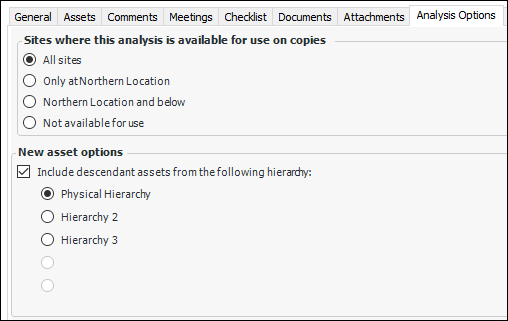
Open the review and select the Properties view, Analysis Options tab.
2.
3.
In the New asset options area, specify whether or not descendant assets are included. If they are, select the hierarchy. For example:
4.
Select the Assets tab.
5.
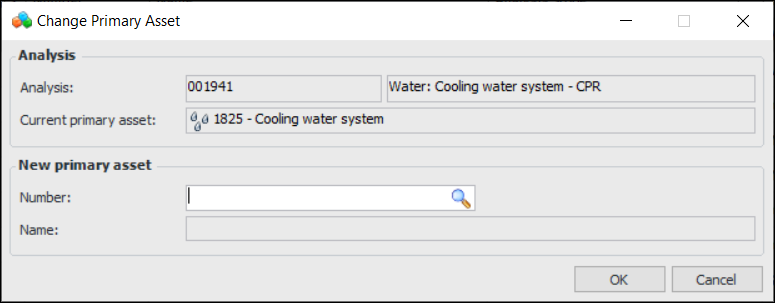
Click Change. The Change Primary Asset dialog appears. The Analysis area displays information about the review.
6.
In the Asset box, click the browse icon to open the Asset Selector dialog. Select the new primary asset, and click OK.
Note: Component assets and their descendants cannot be included in the review.
7.
Click OK. The asset is displayed as the new primary asset.
8.
Select the Implementation view, By Hierarchy tab. The original primary asset is moved under the new primary asset in the review hierarchy. Any of the original primary asset’s descendants that are not also descendants of the new primary asset are also moved.