Overview of the Copy Failure Mode Wizard

The copy function for failure modes and CPR action plans includes smart asset mapping, which uses information about the source assets to identify matching assets in the target asset structure. Using the Copy Failure Mode wizard, you can select source and target asset structures, the failure modes to copy, and the criteria for identifying target assets. You can then confirm or change the matches that the system suggests. When you click Process, the wizard performs the copy and reports the results.
The Copy Failure Modes wizard is especially useful when you have analyzed one branch of the asset hierarchy (for example, the many assets associated with haul truck #1) and then wish to copy the failure modes to a similar set of assets (haul truck #2). Failure modes can also be copied from one site to another, as long as the source analysis’ settings permit it to be used at the target site.
When a failure mode is copied, its primary and secondary action plans are included (if the analysis’ implementation method includes action plans). During implementation, use the wizard to efficiently update failure modes by copying indicators, standard tasks, jobs, and procedures into the target analysis.
Tip: You can set up smart mapping processing and mapping options for the site. These settings provide defaults in the Copy Failure Modes wizard, which you can change as required for individual copy requests.
This topic explains the following aspects of failure mode copy requests:

Types of Failure Mode Copies

The Copy Failure Mode wizard is available for all types of failure mode copies. You can:
TOP

Steps in the Wizard

Using the Copy Failure Modes wizard can involve as many as seven steps, depending on the type of copy you are doing:
1.
2.
3.
4.
5.
6.
7.
The steps appear at the bottom of each page. The current step is shown in blue. Any step that is not required for your copy is disabled.
TOP

Selecting the Source

If you are browsing for failure modes to add to the review that you are working on, you must select the source analysis or template.
Note: There are a few restrictions on copying failure modes between different varieties of analysis. For example, you cannot copy failure modes from an MTA2 analysis or template to an RCM2 analysis or template. You can only copy RBI failure modes to a new or existing RBI analysis.
If you are copying failure modes from a source to a target, the source analysis or template, asset or asset type, and failure modes are displayed on the Select Source page. You can review the failure modes and de-selected any that you do not wish to copy.
Smart asset mapping uses the source and target asset structures that you specify to search for matches between assets, failure modes, and so on. By default, the starting point for a structure is the primary asset on the analysis. You might find it useful to return to the Target page and change the starting points of the asset structures to yield more matches after you have tested the results of the matching process. The closer to parallel that the starting assets are in their respective hierarchies, the more likely it is that usable matches will be found.

Identifying the Target and Setting Mapping Options

In the Target page, you can select the following information, depending on the type of copy you are working on:
You can also select analysis criteria for matching assets, including:
For example, assets could be matched based on the source asset’s hierarchy code (asset attribute), asset type (reference-one relationship), and function group (reference-one relationship).
To help find matching assets, failure modes, and so on, you can use Trigram searching, a powerful method of searching for text when the exact syntax or spelling of the target object is not known. For example, use the Trigram option to match assets with slightly different titles. It finds objects that match the maximum number of three-character strings in the entered search terms; that is, it finds near matches. You can specify a threshold as a cutoff point, after which a result is no longer considered a match.
Note: If you are running APM with an Oracle database that has case-sensitivity turned on, you might get unexpected results when the matching process compares properties identified in mapping criteria. For example, mapping assets according to their Title attributes might not result in “PUMP” being matched with “pump”. For information about setting up case-insensitive searches, see “Setting Up an Oracle Database” in the APM Installation Guide.
For more information, see Setting Mapping Options for a Failure Mode Copy.
TOP

Reviewing Mappings

Once you have selected the source objects, target asset structure, and matching criteria, the system mines the source failure modes to create a list of assets involved in the copy, as well as the trades, employees, and maintenance groups. The system then attempts to map each of the source objects to a corresponding target object.
Depending on the consistency of the data in your source and target structures and the mapping criteria used, this step might simply require a visual confirmation of the system’s suggestions. In cases where the structures are not consistent or the mapping criteria provide too many or too few matches, a more thorough review is required.
For each source asset, you have the option of:

Confirming Selections and Selecting the Processing Options

Before the copy is started, the Confirm Selections step is displayed. This page provides you with an opportunity to review a summary of the information from the preceding pages and confirm that the values are correct. You are also able to adjust the options at this point by returning to previous pages.
You can also change the default processing options on this page. For example, you can have APM open the target analyses when the copy is finished, specify that the Review Results step not appear, or delay processing.
If Process later is selected, when you click Process, the copy request is saved and closed. You can finish it manually later or set up a scheduled action to process all pending copy requests for the site or enterprise. As a guideline, use deferred processing when you do not want to tie up your computer while the copy is performed and you do not want to start working on the new analyses right away. Deferred processing is handy when you have a number of copies to perform (for example, an asset’s Strategy Development program is being pushed out to a number of similar pieces of equipment). If you want to start analyzing the new action plans right away, you are best to process the copy now.

Reviewing Results

When the copy is completed (assuming that Process later is not selected), the Review Results step presents a list of the failure modes that were created or updated. You can open the Details window to view information about the copy request.

Copying Failure Modes Between Sites

Failure modes can be copied from one site to another, as long as the source analysis’ settings permit it to be used at the target site. These settings are located in the analysis’ Properties view, Analysis Options tab.
When you copy failure modes to a different site, their standard documents are copied only if they are valid at the target site. Any employees, maintenance groups, or trades included on the failure modes are mapped to matching objects in the target site, as long as they are valid for use at the target. If they are not valid, the mapping is set to “To Be Determined”, and you can specify that the object be excluded or mapped to a different target.
TOP

Smart Mapping

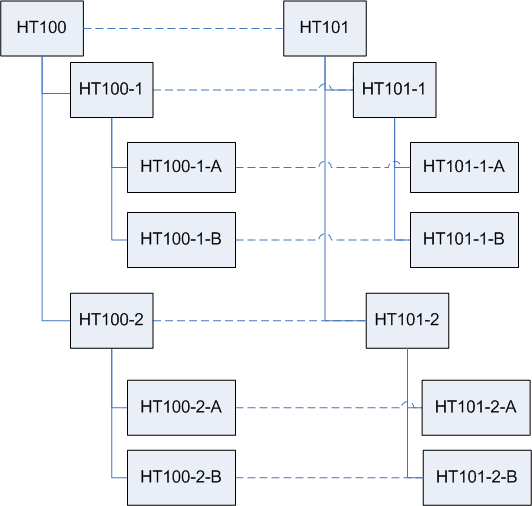
The term “smart asset mapping” is used to identify the process where the assets in one branch of the hierarchy are matched to the corresponding assets in another branch of the hierarchy. For example, the assets of one haul truck (HT100) are matched to those of another haul truck (HT101).

Matching Employees, Trades, and Maintenance Groups

You can also select matching criteria for employees, trades (and other resources), and maintenance groups. Mapping criteria for these objects are used most often when failure modes are copied between sites, although they can also be useful for copying within large sites. The system determines if there are any site-specific employees, trades, or maintenance groups that are not valid at the target site. If invalid references exist, they can be mapped to the target site’s values as follows:
The employees, trades, and maintenance groups on the source objects are mapped to the target objects based on the identified matches.

Match to Existing Failure Modes

A failure mode’s information can be copied into an existing action plan. A new action plan is not created. Instead, the information from the source is copied to the target, replacing the values contained in it.
The “match to existing failure modes” option was developed to accommodate the separation of Facilitator and Implementer roles. This allows the Facilitator to create a complete set of action plans for the asset being analyzed. The Implementer is able to implement one of the action plans and copy the implementation to other action plans.
When action plans are being copied to existing action plans, the Review FM/AP Mappings page is available in the wizard. The page displays the action plans and their mappings. The mappings are completed in the same manner as asset mappings.
All of the source information is copied to the target failure mode with the exception of:
In addition, the source failure mode’s indicators, standard task, standard job, trades, and maintenance group are mapped to the target action plan’s assets, trades, and maintenance groups using the same logic as previously described.

Asset Mapping Process

When the matching process starts, the system uses the mapping criteria in this order, assuming that all of the criteria are being used:
1.
2.
3.

The Failure Mode Copy Process

The copy request is processed when you click Process (and the Process later option is not selected). Processing consists of the following steps:

1.
When a complete target asset structure is being created, the complete source asset structure is replicated to the new asset. This can include some assets that are not referenced on the copied failure modes. This approach ensures that the new asset structure is complete and the structure is the same as the source asset.
2.
Employees are created for the employee mappings with the setting Create new. The employee is created as a copy of the source employee.
3.
Resources are created for the resource mappings with the setting Create new. The resource is created as a copy of the source.
4.
Maintenance groups are created for the mappings with the setting Create new. The maintenance group is created as a copy of the source.
5.
6.
7.
TOP