|
Copying an Asset’s Strategy Development Program
To Copy an Asset’s Strategy Development Program
1. From the site window, select the Assets view.
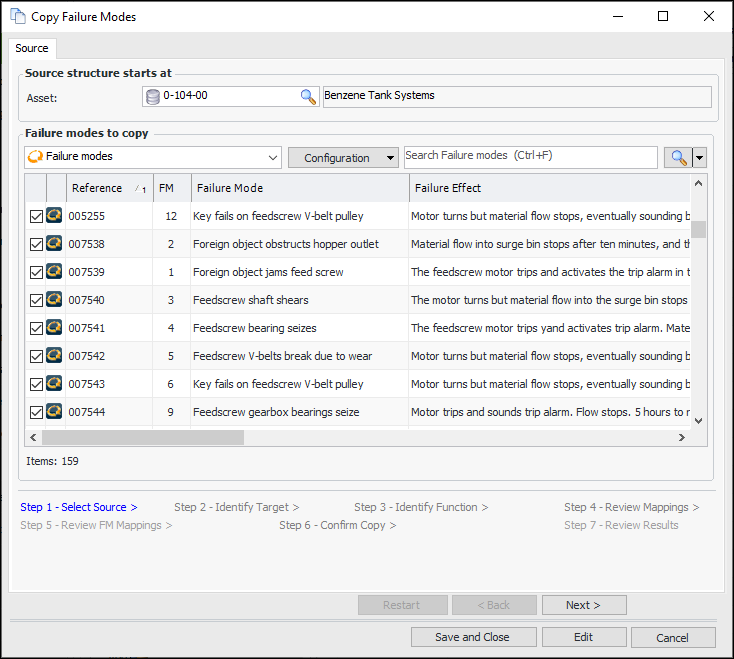
2. Note: You can also open the asset, click the Tools menu, and then Copy Strategy Development Program.All of the asset’s failure modes are displayed in the table and selected by default. Because only action plans are defined in current practice reviews, their Failure Mode and Failure Effect cells are blank.
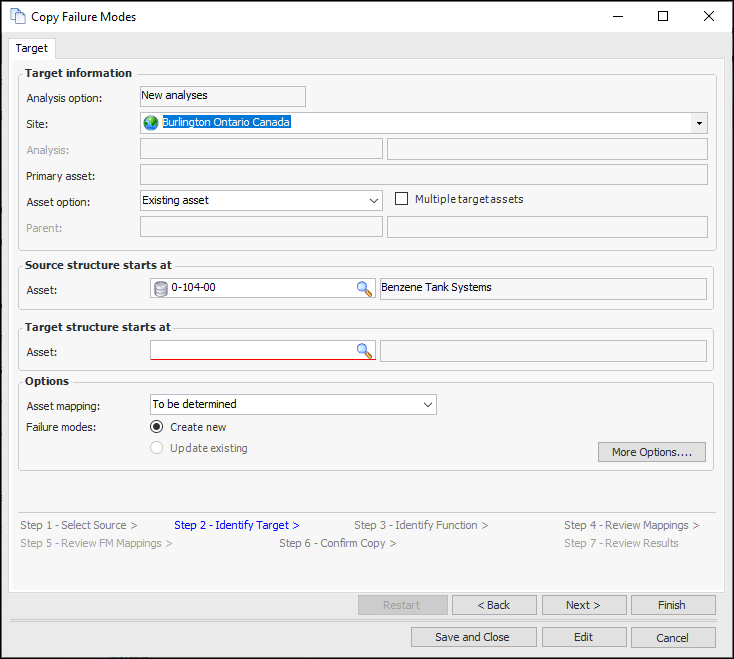
3. Clear any failure modes or action plans that you do not wish to copy and click Next. The Identify Target step appears. For example:
5. In the Asset option list, select “Existing asset” or “New asset”. If you choose to create an asset, a browse icon appears in the Parent box so that you can select its parent asset.
• Select Multiple target assets if you wish to copy to two or more assets and select them in the table.
7. You can change the Asset mapping option that determines what will be suggested if APM cannot identify a matching target. The options are:
• Exclude – the source asset is excluded from the copy, as well as any failure modes, indicators, and standard tasks and jobs that refer to it
• Map to primary target asset – the source asset is mapped to the target asset selected as the starting point for the structure
• New – a copy of the source asset is created when the copy request is processed
• Same – the source asset is mapped to itself
• To be determined – you can select the mapping option later
8. To set additional mapping options, click More Options. The Options dialog appears. For information about using this dialog, see Setting Mapping Options for a Failure Mode Copy. Click Close when you are finished.Tip: For quick copies (when you do not need to adjust the mapping options), click Finish when you have selected the target. The wizard performs the matching process and skips to the Confirm Selections step. Skip to step 13.
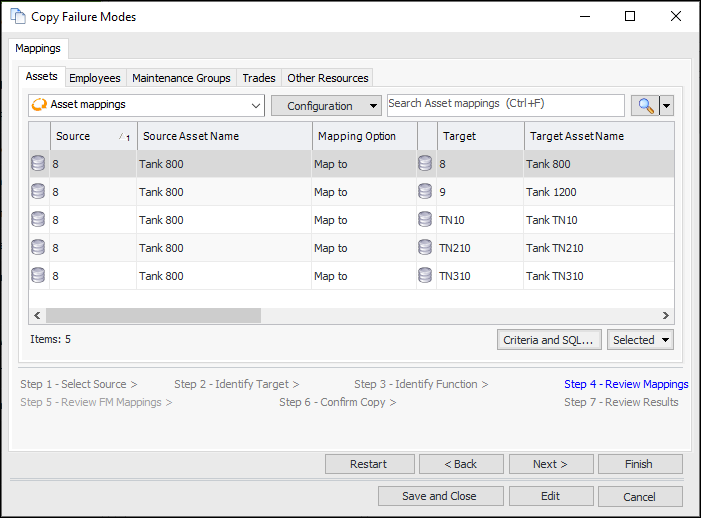
9. Click Next. The wizard matches objects as needed and presents the mappings for your review. For example:Tip: To view information about a source object on any of the mapping tabs, right-click it and click Source. For example, the Source dialog that appears for an asset mapping contains tabs for the asset’s failure modes, indicators, work order tasks, jobs, and job tasks, as well as the corrective tasks, jobs, and job tasks for the indicators. You can also view information about any secondary action plans included in the failure modes.The Suggestion Origin column displays the method used for matching. The options are:
• Previous match – the “Use results of previous copy” option is in effect
• Suggested – the mapping is based on another criteria, for example, hierarchy level or attribute matching
• Default – for assets, the source and target primary assets are automatically matched. For employees, maintenance groups, and trades, the source object is used as the target, provided that it is valid at the target site.
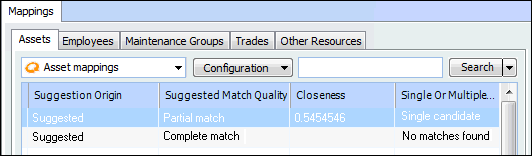
• Manual – the user selected the mappingThe Suggested Match Quality, Closeness, and Single Or Multiple Candidates columns show you the results of the smart mapping process. The following example shows that Trigram matching was used (the suggested match quality is “Partial match”), one partial match was found (single candidate), and a score of 0.5454546 was obtained. The candidate matches “Conveyor Belt” with “Conveyor”. An exact match has a closeness score of 1.0.
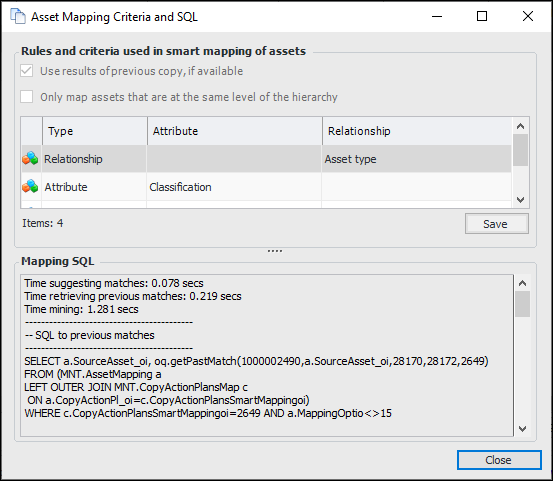
11. To view more information about the matching process, click Criteria and SQL. The Asset Mapping Criteria and SQL window appears. For example:
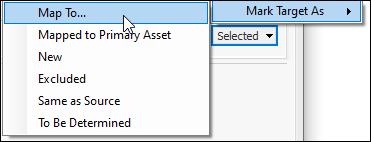
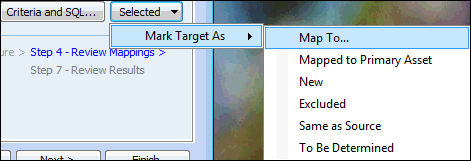
12. To make adjustments to a mapping, select it in the table, click Selected, Mark Target As, and one of the options. Here is an example of the list for asset mappings:
• Map To – select this option to view the candidates and select another, if you wish. For more information, see Manually Changing an Asset Mapping
• Mapped to Primary Asset – the source asset is mapped to the target asset selected as the starting point for the structure
• New – a copy of the source object is created when the copy request is processed
• Mark as Excluded – the source asset is excluded from the copy, as well as any failure modes, indicators, and standard tasks and jobs that refer to it
• Same as Source – the source object is used as the target
• To Be Determined – you can select the mapping option laterFor employees, trades, and maintenance groups, the Mark as options are New, Same As Source, and To Be Determined.Note: If a mapping is marked as To be determined, the copy request cannot be processed. However, you can save and close it until you decide what to do with it. You can then re-open the request from a Copy Requests tab and finish defining and processing it. For more information, see Revisiting CPR Failure Mode Copy Requests.
13.
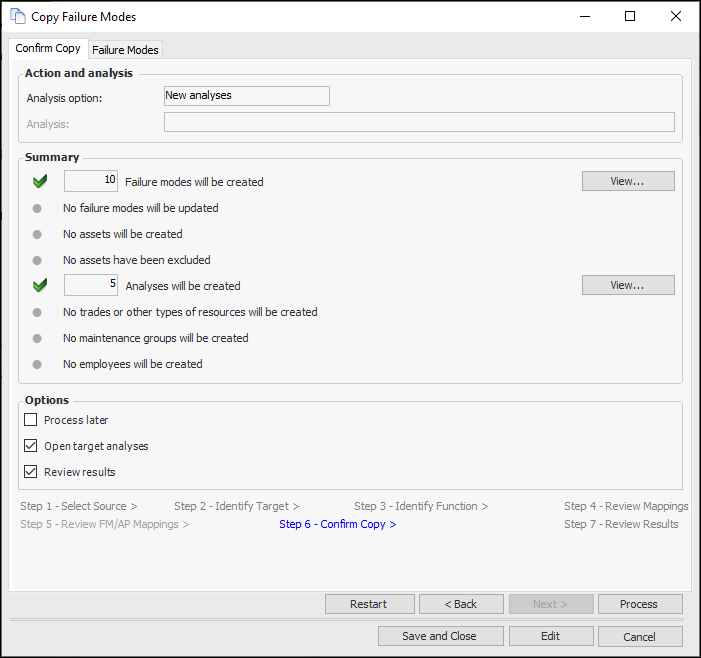
14. Review the items that will be created or updated. If an incorrect copy request is processed, you will have to make the corrections manually. Click View to see more details about the items.
15. The Failure Modes tab shows information about the source failure modes. If you wish to remove a failure mode from the list, right-click it and click Remove. Click Back to make adjustments on previous pages.
16. In the Options area, select the processing options:
17.
• If Process later is selected, a confirmation message appears. Click Yes to save the copy request to be completed later.
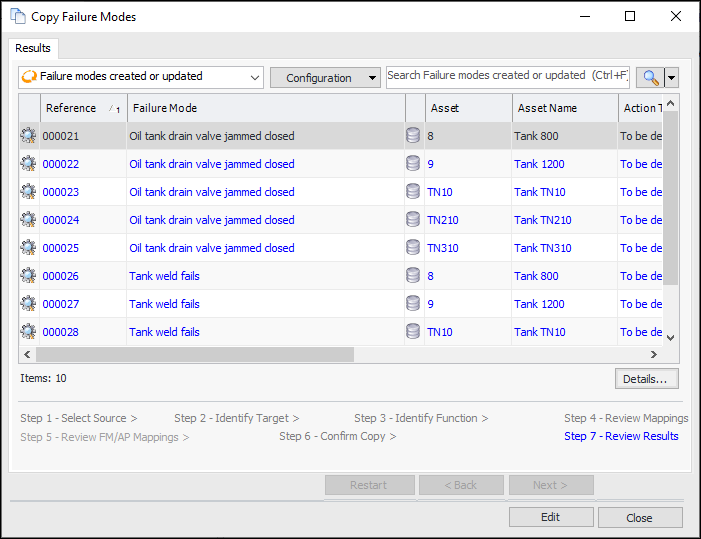
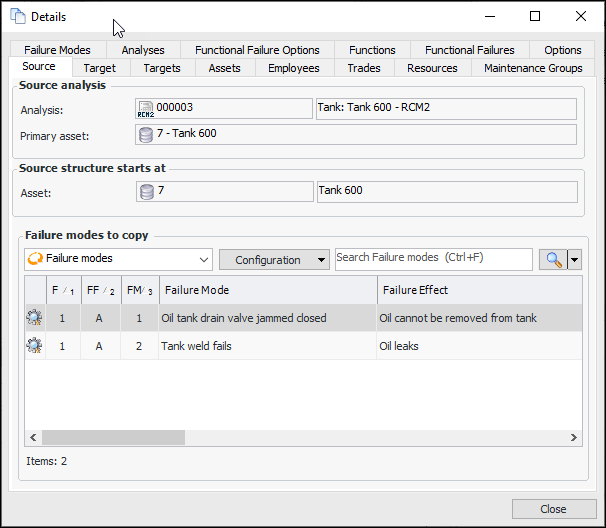
• If processing has not been deferred, the copy is completed. If Review results is selected, the Results step appears. For example:To view more information, click Details. The Details window displays information about the source and target asset structures, asset mappings, employees, trades, maintenance groups, failure modes, and so on. For example:When you are finished reviewing results, click Close. You can view the information again on the Copy Requests tab for the site or the analysis.
• If Open target analyses is selected in the Confirm Selections step, the Strategy Development Analysis window appears.Manually Changing an Asset Mapping
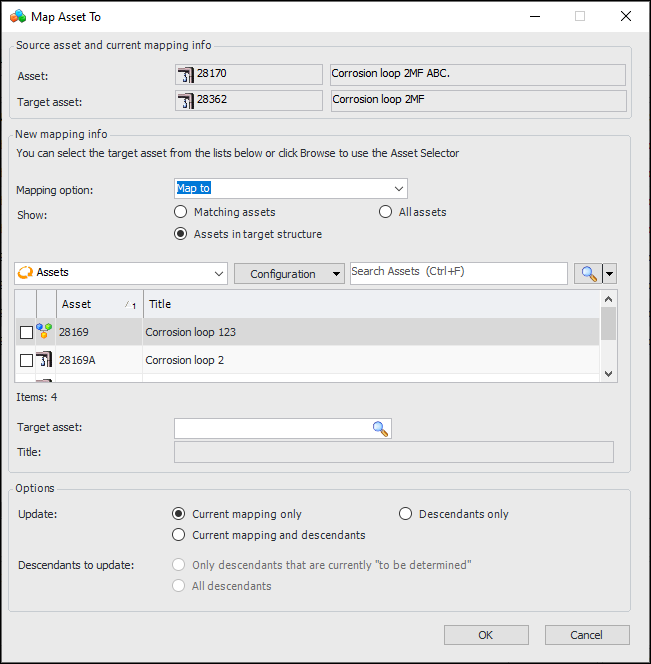
1.
2. To change the mapping options, select an option in the Mapping option list. The options are:
• Exclude – the source asset is excluded from the copy, as well as any failure modes, indicators, and standard tasks and jobs that refer to it
• Map to – map to a matching asset
• Map to primary target asset – the source asset is mapped to the target asset selected as the starting point for the structure
• New – a copy of the source asset is created when the copy request is processed
• Same – the source asset is mapped to itself
• To be determined – you can select the mapping option later
3.
• Matching assets – displays candidates identified during the original matching process
• Assets in target structure – displays all assets in the target structure
• All assets – displays all assets on the site
4. Select the new target asset from the table or click Browse next to the Target box and select a target.
5.
• Current mapping only – the default selection limits the update to the current mapping
• Descendants only – only descendants of the target asset are remapped
• Current mapping and descendants – both the current mapping and the descendants’ mappings are updated
6. If you select to update descendants, the Descendants to update options are available:
• Only descendants that are currently “to be determined” – only descendants that have not been mapped are updated
• All descendants – descendants that have been mapped are also updated
7. When you are finished, click OK to return to the Review FM Mappings step.