|
Working with the Current Practice Review Checklist
When recording an analysis, you can mark analysis checklist items as “Performed” and provide comments for them. APM records the employee who checked off the item, the date, and time. The analysis team can view the status of checklist items in the analysis window, Properties view, Checklist tab.For information about adding checklist items to the site’s Strategy Development settings, see Setting up Checklist Items for Strategy Development Analysis.To Mark a Checklist Item as Performed
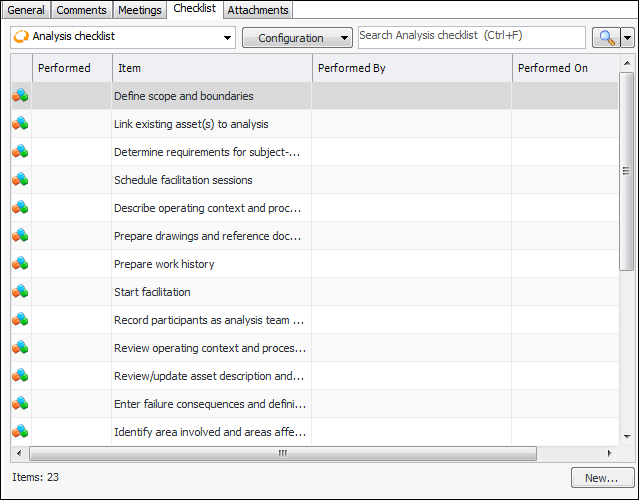
1. On the analysis window, select the Properties view, Checklist tab. This tab lists the checklist items defined for the type of analysis on the site. For example:
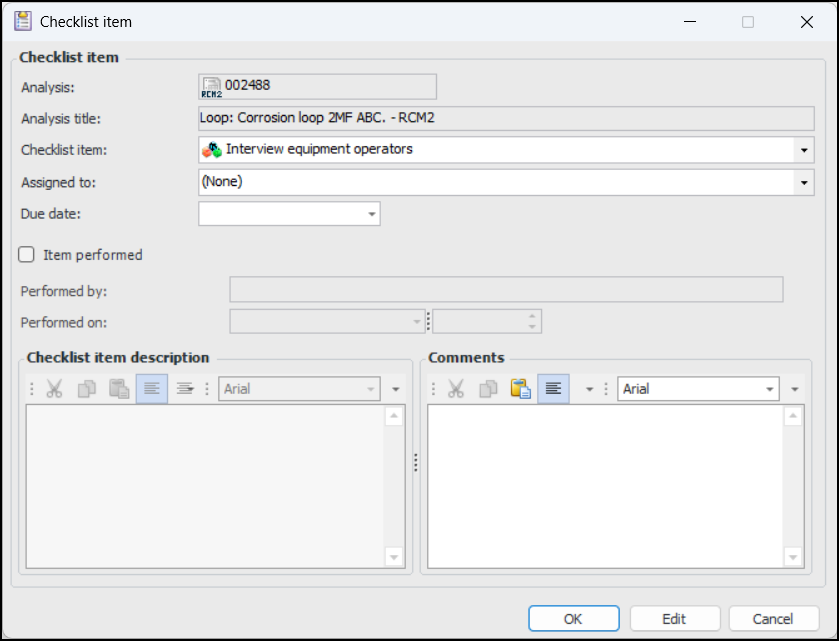
6. Click Item performed. APM automatically enters your name and the date and time that you marked the item as performed.
7. In the Comments box, provide additional information about the task.
8. Click OK to close the window. The Checklist tab displays a check mark for the task in the Performed column. The Performed On and Performed By columns are populated for the item.To Add an Item to the Checklist
1. On the analysis window, select the Properties view, Checklist tab. This tab lists the checklist items defined for the type of analysis on the site.
2. Click New. The Checklist Item window appears. The Checklist item list contains any items that were defined in the site’s settings after the current analysis was created.
3. Tip: To add an item, right-click in the Checklist item box and click New. The Properties dialog appears, where you can name and describe the item and select the analysis types to which it applies. When you click OK, the item is added to Strategy Development settings as well as the current analysis.
4.