|
Exploring the Object Model Using an Object Model Diagram
You must be logged in with APM administrator rights in order to access the Customization Center view and object model diagrams.To Create an Object Model Diagram
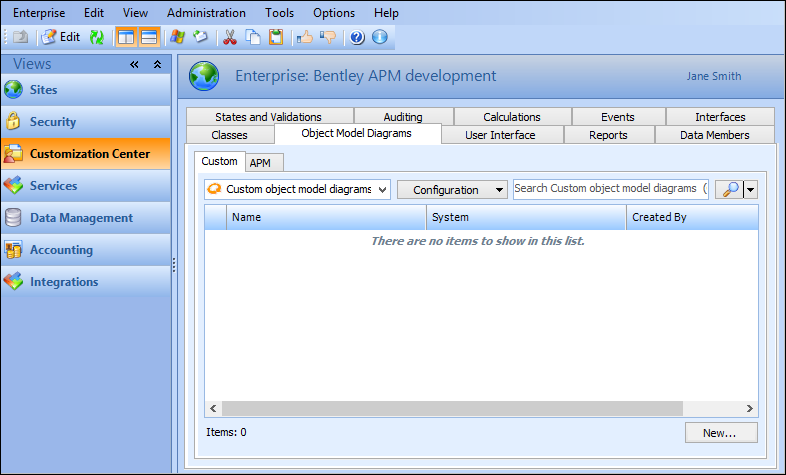
You can build an object model diagram from scratch, or you can use one of the several object model diagrams provided with APM, as a basis for a diagram. Although the APM-supplied diagrams are read-only, you can right-click the diagram and select Copy to create a custom diagram based on the original. APM-supplied diagrams are found on the Object Model Diagrams, APM tab of the Customization Center.
1.
2. Select the Custom tab. This tab lists all custom object model diagrams in the enterprise.
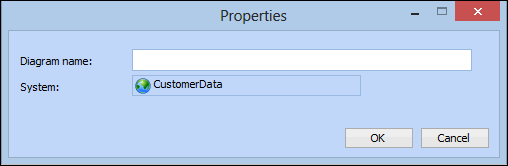
3. Click New. The diagram’s Properties dialog appears.
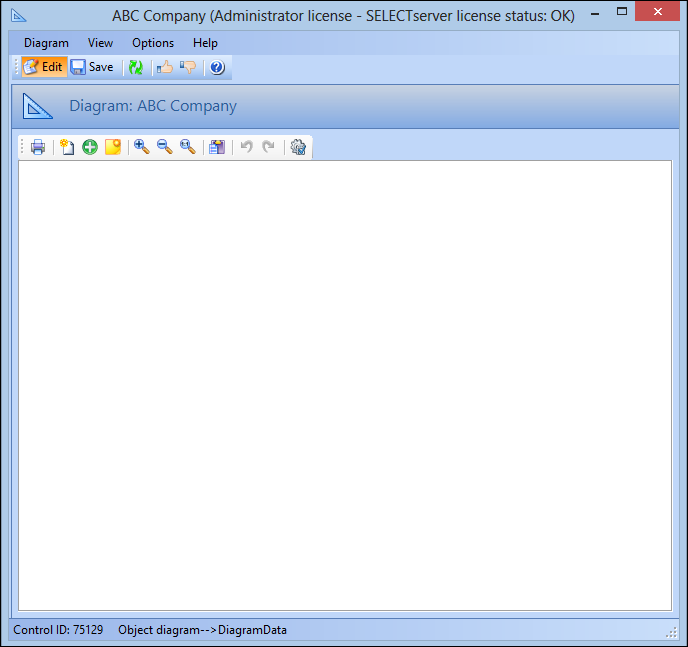
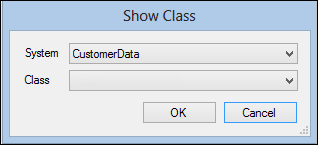
4. Enter a name for the diagram and then click OK. The Diagram window appears.Tip: You can also right-click a blank area of the diagram and select Show Class.Note: The CustomerData system includes all custom classes created in APM.
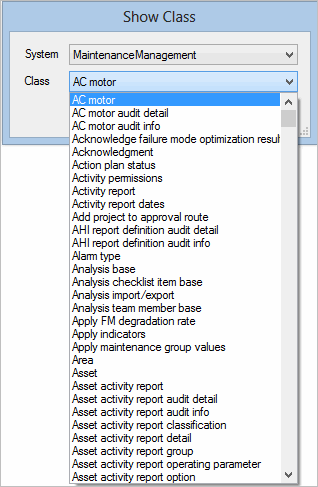
6. Select a system from the list. All APM classes for the selected system are available. For example, the MaintenanceManagement system includes classes relating to asset maintenance:
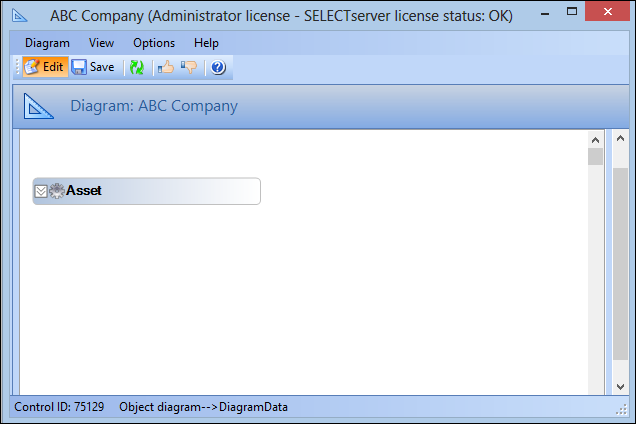
7. Select a class from the list and click OK. The class appears on the diagram. For example:
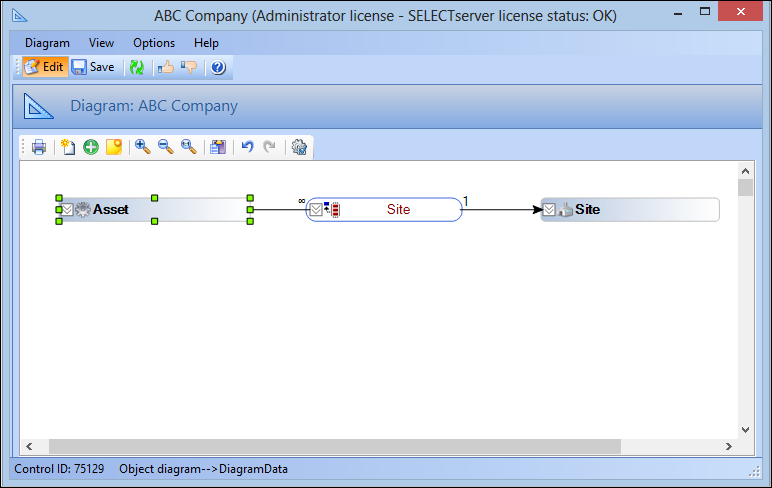
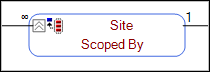
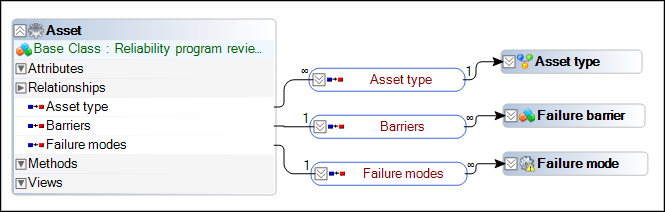
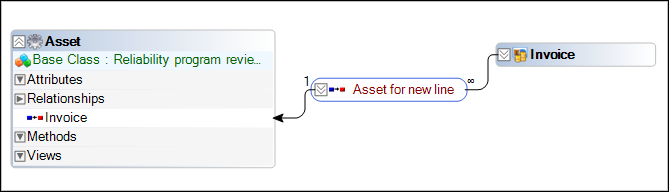
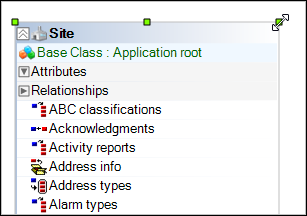
8. Right-click the class and select Relationships, then Show, and then select a relationship from the list. For example, select the Site relationship. The relationship is displayed on the diagram:Tip: From a class, you can expand its components and then expand the Relationships header to display all relationships in the class. For some classes, the list of relationships are extensive, therefore after all necessary relationships are displayed on the diagram, you can right-click Relationships in the class box and choose Only Show Drawn Relationships to toggle the list from showing all to only drawn relationships. For example:
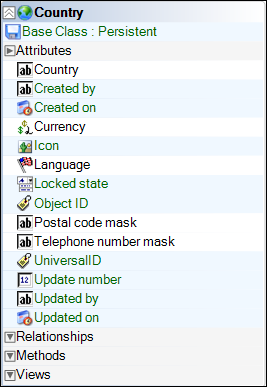
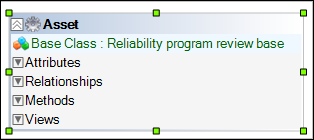
9. Right-click the class header and select Show Inherited Members to show attributes, relationships, methods, and views that are inherited from the base class. These members appear in green. For example:
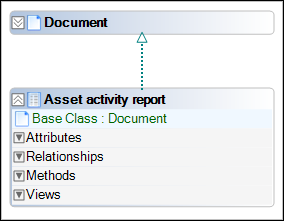
10. To show a class and its connection to its base class, right-click the class header and select Show Base. The base class is displayed on the diagram with a green, dotted arrow joining the class to its base class. For example:Tip: You can toggle displaying the base class connection by right-clicking the class and selecting Show Base. Likewise, you can toggle displaying the class from which a class was derived, by right-clicking the class, selecting Show Derived, and selecting the class from the list.
11. You can display the inverse relationship by selecting the relationship, and then selecting Show Inverse. The direction of the relationship connector is reversed. For example:
12.
14. Tip: As the number of objects on the diagram increases, you might want to adjust the objects to suit your preference. For more information, see To Rearrange and Resize Objects.To Create a Custom Class From Within an Object Model Diagram
1.
2. On the Customization Center view, select the Object Model Diagrams tab, and then double-click to open an object model diagram from the list.
4. Right-click on a blank area of the diagram and select New Custom Class, and then select either From Scratch or Based on APM Class.
5.
6.
7. When you are finished, click OK to save the class and close the New Class dialog. The class is saved to the CustomerData system and appears on the diagram.
8.
10.To Show and Hide Relationships
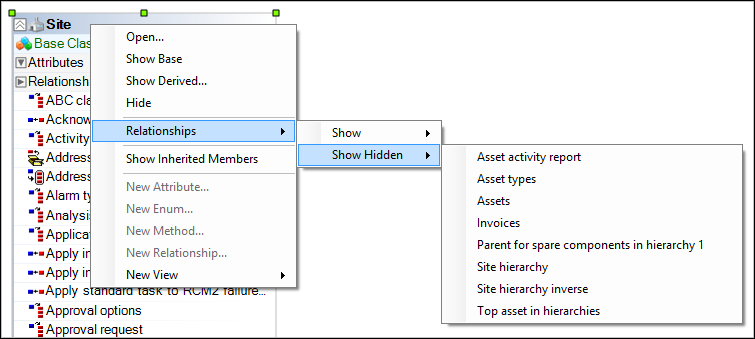
3. To show a hidden relationship, right-click the class header and select Relationships, then Show Hidden, then select a class from the list. For example:
4. To hide a relationship from the diagram, right-click the relationship and select Hide. The relationship is hidden from the diagram.To Rearrange and Resize Objects
Tip: Multiple objects can be selected by clicking the first object, pressing and holding Shift, and then clicking the other objects.To Delete Objects
3. Select the object that you want to remove and press Delete. The object is removed from the diagram.To Add a Note to an Object Model Diagram
3. Click. A yellow box predefined with the words New Note appears.
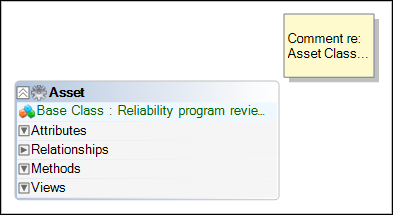
Tip: You can also right-click a blank area of the diagram and select Create Note.Tip: You can resize the comment to view all of its contents. For more information, see To Rearrange and Resize Objects.To Copy and Print an Object Model Diagram
All or parts of an object model diagram can be copied to the Windows® clipboard so that it can be pasted into other applications. A diagram may also be printed to provide a hard copy reference.
2.
4. Select the printer and settings and then click OK. The diagram is sent to the printer. For more information, see Printing Documents.