|
Balancing an Invoice
If the difference between the invoice amount and the line totals is less than the balancing threshold for the site, the system automatically balances the invoice. For more information, see Automatically Balancing an Invoice.To Balance an Invoice
1. From the Site window, select the Invoicing view, Invoices tab, then the Invoices tab. By default, this tab lists all invoices by supplier.
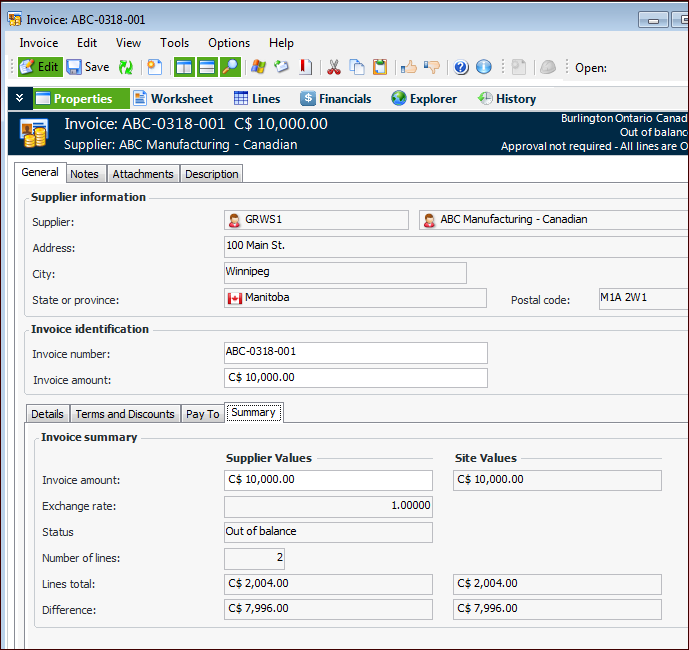
4. On the Properties view, select the General tab, and then the Summary tab. This tab displays the status of the invoice and the difference, if any.
5.
6. Review each line on the Worksheet or Lines view and ensure that all of the lines have been entered and that there are no extra lines.
7. If any line does not match the supplier’s invoice, you can open the line by double-clicking it. On the Invoice Line dialog, select the Details tab. On this tab you can review the quantity being invoiced, the price, and any discounts that have been applied.
9. In the Invoice Line dialog, select the Charges and Taxes tabs. On these tabs, you can review the applicable extra charges and taxes for the line. If necessary, you can update the tax or extra charge information for the line.
11.
12.
13.