Creating a Cumulative Indicator

An indicator is cumulative if it tracks a value that increases over time, such as an odometer. The current reading on a cumulative indicator is normally either the same as, or higher than, the previous reading.
You can collect readings for a cumulative indicator in one of two ways: as an accumulated value (the value over the lifetime of the indicator) or as a consumed value (the increase since the last reading).
For example, an odometer tracks the total number of miles that a vehicle has traveled over its lifetime. This is an accumulated value. When you enter a reading for an accumulated indicator, APM updates the indicator with the new reading. If the old life-to-date value was 40,000 miles and the new reading is 45,000 miles, the current life-to-date value is 45,000 miles.
On the other hand, you could have an indicator that keeps track of the total number of gallons of gas consumed over a period of time. In this case, you would enter the number of gallons that have been used since the last entry. This is a consumed value. When you enter a consumed value, APM adds the new entry to the previous life-to-date. For example, if the old life-to-date value is 445 gallons and the new reading is 22 gallons, the current life-to-date value is 467 gallons.
If you use cumulative indicators in triggering rules, you can set up early warning states for them. For example, you could create a triggering rule that says “trigger every 5000 miles, with early warning 500 miles in advance.” To do this, you must add a daily average calculation to the indicator setup.
Cumulative indicators can be collected manually or by an online data collection device. You can also set up cumulative indicators to “cascade,” or send their readings to indicators on other assets.
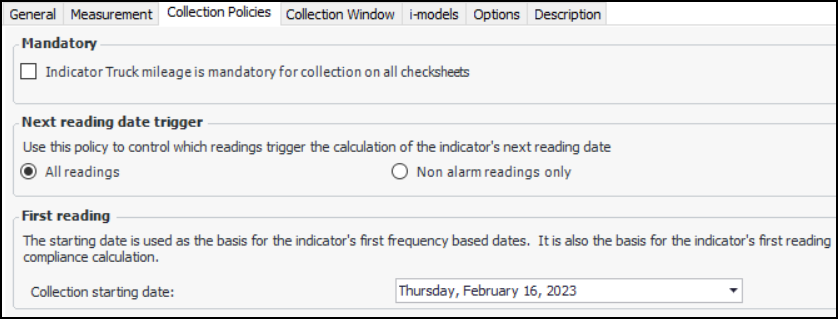
Using the indicator’s collection policies, you can specify how its reading due dates are calculated. You can also set up the indicator’s collection window to define early and late collection periods. You can track collection compliance using table configurations, sidebar dashboards, and KPIs. For information about viewing an indicator’s collection status, see Viewing Indicator Collection Compliance.
Note: Collection policies and windows are not available for rule-based indicators, calculated indicators, cascaded indicators, and indicators collected from an on-line source.
For information about setting up cascading indicators, see Cascading Indicator Readings to Other Assets.
APM supports publishing indicator readings to an external system. When selected readings are processed, APM generates an XML document that can then be consumed by Bentley Enterprise Connection Services, for example, and distributed to another system.
This functionality is supported for all types of indicators. The indicator and its type must have publishing enabled.
Note: The Publish Indicator Readings functionality is generally available. You must first enable feature 92 to use the functionality in APM. In the Enterprise window, select the Features view and the Enabled Features tab. Click Browse, select “Publish indicator readings to an external system” and click OK. If APM is running as a smart client, click Refresh Enabled Features on the server. Then restart the client to use the functionality.
For more information, see Publishing Readings to an External System.

Initial Values

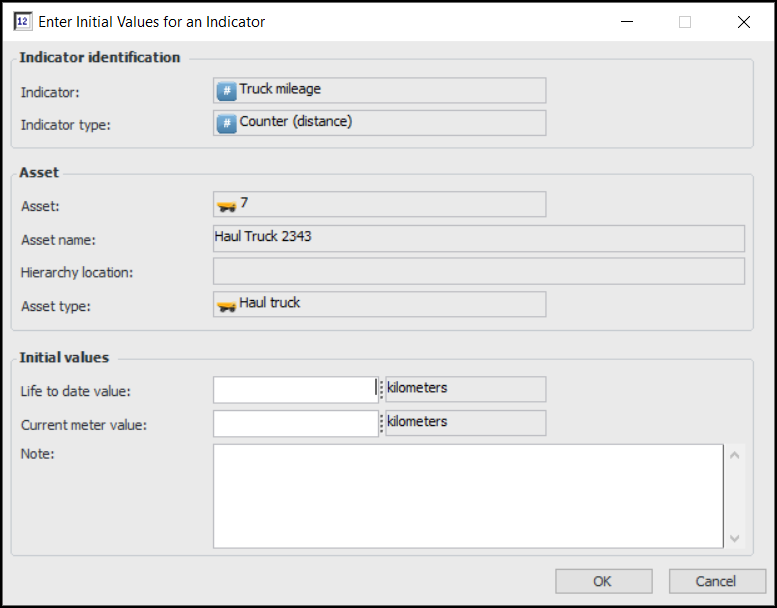
When you create a cumulative indicator, you might need to enter its initial values (for example, the current odometer reading). Once you begin collecting readings, they are added to this initial value. The initial values that you enter here do not affect the triggering of standard jobs. Initial values can only be entered once. You can also enter the initial values after you have created the indicator. However, once a reading is entered for the indicator, you cannot enter initial values.

Daily Average

You can add a daily average calculation to any cumulative indicator. APM uses the daily average to evaluate the early warning clauses in standard job triggering rules and to predict when the next standard job will be triggered. In the calculation, APM only counts days that the asset had an “operational” asset status.
You can also choose to have the system trigger standard jobs based on projected indicator readings when the PM Generation method is run. The system uses the daily average for cumulative indicators to make the indicator reading projections.
APM can record either one daily average for the indicator or a separate daily average for each standard job that has a triggering rule that uses the indicator. For the second option, this means that every time an indicator reading is entered, APM calculates the average units per day since the last work order for the standard job was closed. Calculating the daily average in this way takes into account any large increase or decrease in usage since the work order was closed.
If you choose to have a daily average for the indicator, you can either enter the daily average for the indicator or you can have APM calculate it for you. If you have not yet entered very many readings for this indicator, you might want to first enter an estimate of the daily average and then switch to a calculated average later.

Steps for Creating a Cumulative Indicator

This topic explains the basic steps for creating a cumulative indicator:

To Create the Indicator Record

1.
Open the asset that needs the indicator. Select the Inspection Management view, Indicators tab.
2.
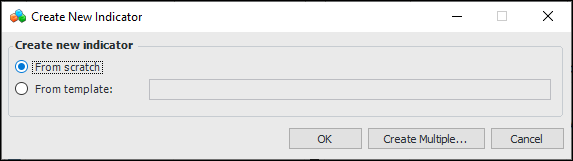
Click New. The Create New Indicator dialog appears.
3.
Select From scratch and click OK.
4.
5.
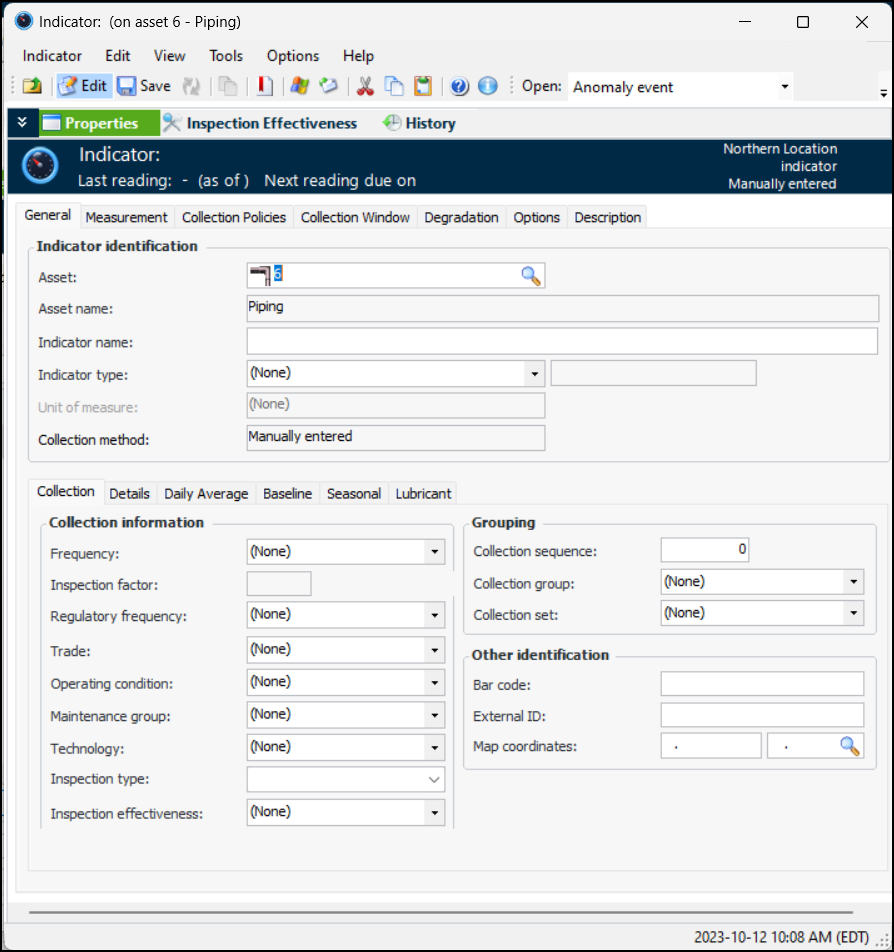
On the Properties view, General tab:
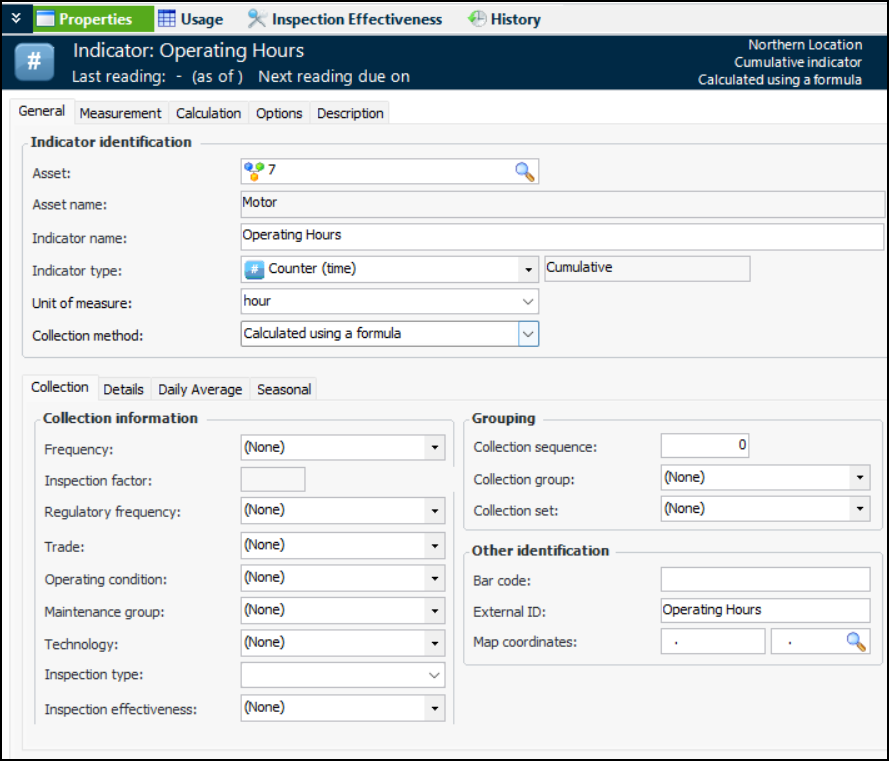
Select a cumulative indicator type from the Indicator type list. When you select a cumulative indicator type, the Type of value box displays “cumulative.”
The window changes to reflect the value type, for example, the Rule tab is no longer available.
6.
7.
Make a selection from the Collection method list:
If they are to be entered automatically by online collection devices, select Collected from an on-line source. The Online Data Source tab is added. See Configuring Indicators for ODC.
If they are to be calculated, select Calculated using a formula. The Calculation tab is added. See Creating a Calculated Cumulative Indicator.

To Enter Collection Values

8.
On the Collection tab, you can enter values that determine how often readings are expected and the next collection date. You can also enter information to make it easier to select this indicator when adding indicators to a work order task or standard task, when copying indicators to another asset, when setting up dynamic inspection routes, or when implementing reliability programs.
If you are creating the indicator from a strategy development analysis (MTA2, RCM2, RBI, CPR), the searching values (frequency, regulatory frequency, trade, operating condition, maintenance group, and technology) are automatically copied from the associated action plan, if the analysis’ indicator settings allow it. In this case, you need only verify the values.
Note: Any changes that you make to the searching values are not copied to the indicator’s associated action plan.
Review and select values, as appropriate:
Tip: If the technology is linked to an asset type that is used to collect indicator readings, you can identify the measurement device on indicator readings and checksheets.

To Enter a Target Value

9.
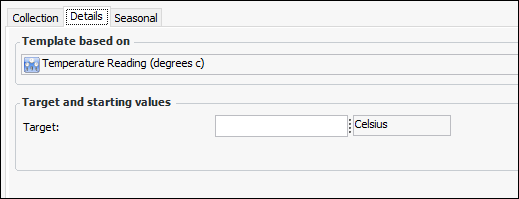
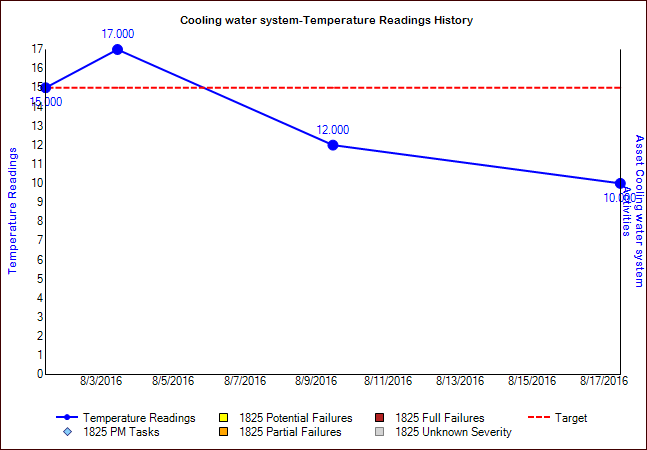
The target value is displayed on charts and dashboards that show readings for the indicator. In this example, the target line appears as a red dotted line on charts:

To Set Meter Values

10.
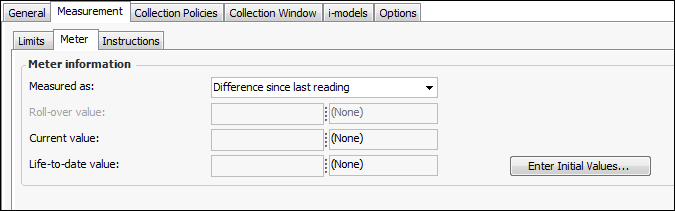
Select the Measurement tab and the Meter tab. On this tab, you can set the measurement type and roll-over value or daily maximum values for the indicator.
11.
In the Measured as list, select whether the indicator readings will be entered as accumulated values or as the difference since last reading. An example of an accumulated value is an odometer that measures the total number of miles traveled over the vehicle’s lifetime. An example of “difference since last reading” is the number of gallons of gas used since the last indicator reading.
12.
If the indicator uses an accumulated value, enter the Roll-over value for the indicator. This is the highest number that can be entered for the indicator. For example, on a vehicle the odometer might return to zero after 999,999.9 miles.
13.
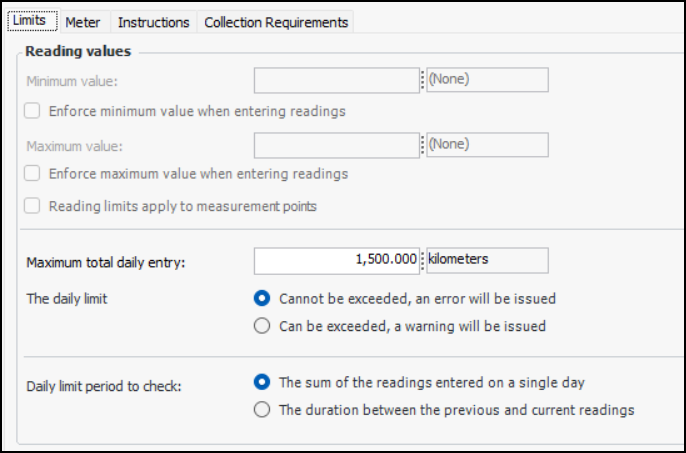
If necessary, you can enter a Maximum total daily entry on the Limits tab for the indicator. This is the maximum total amount that can be entered in one day for this indicator. For example:
If a reading exceeds the daily limit, APM can respond with an error (the reading cannot be saved) or a warning (the reading can be saved).
Using the Daily limit period to check option, you can also specify whether the sum of the readings entered on a single day are considered or if the duration between the previous and current readings are considered when evaluating the maximum daily entry.

To Enter Initial Values

14.
Tip: You can also click the Tools menu and then Enter Initial Values.
The Enter Initial Values for an Indicator dialog appears.
15.

To Set Collection Policies for the Indicator

16.
Select the Collection Policies tab.
17.
18.
All readings – The indicator’s next reading due date is recalculated whenever a reading is processed.
Non-alarm readings only – The indicator’s next reading due date is recalculated only when a normal (non-alarm) reading is processed. Select this option if an alarm situation must be resolved and confirmed by a normal reading before regular collection resumes.
Tip: On an alarm acknowledgment, you can request a follow-up reading and the time period for collecting it (for example, 10 days). For more information, see Acknowledging Indicator Alarms and Warnings.
19.
20.
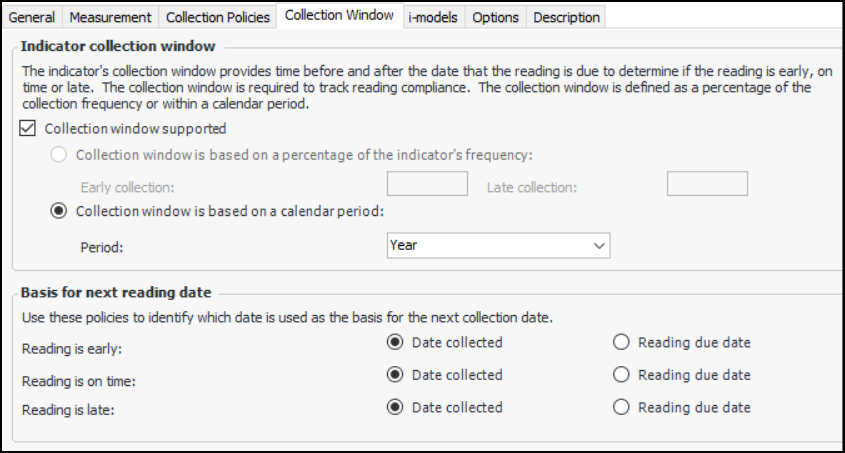
Select the Collection Window tab to enable reading compliance tracking. Select Collection window supported to set up reading tolerances.
21.
Collection window is based on a percentage of the indicator’s frequency – Enter percentages in the Early collection and Late collection boxes.
For example, if the frequency is 10 years and you enter 10.00 in both boxes, the early collection period ends one year before the due date. The late collection period begins one year after the due date. The on-time collection period extends from the end of the early collection period to the beginning of the late collection period.
Note: This option is not available if a frequency has not been selected on the General tab, Collection tab.
Collection window is based on a calendar period – Select the period: Day, Week, Month, or Year. The collection periods have the following characteristics:
Day – The early collection date is 00:00:01 on the due date, and the late collection date is 23:59:59 on the due date.
Week – The early collection date is the first day of the week (at 00:00:01) in which the due date falls. The late collection date is the last day of the week (at 23:59:59) in which the due date falls.
Month – The early collection date is the first day of the month (at 00:00:01) in which the due date falls. The late collection date is the last day of the month (at 23:59:59) in which the due date falls.
Year – The early collection date is the first day of the year (at 00:00:01) in which the due date falls. The late collection date is the last day of the year (at (23:59:59) in which the due date falls.
22.
Tip: Readings taken between the early and late dates are considered “on time”. The indicator’s collection status is “Coming due” when the early collection date is in the future but the current date is within the site’s compliance horizon (30 days by default).

To Track the Daily Average for the Indicator

23.
24.
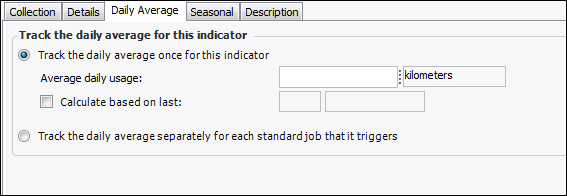
To create one daily average for the indicator, select Track the daily average once for this indicator.
To create separate daily averages for each standard job that refers to the indicator, select Track the daily average separately for each standard job that it triggers. If you select this option, the other options on the tab are not relevant and are disabled.
25.
To have APM calculate the daily average for you, select Calculate based on last. APM calculates the average based on either a number of readings or readings that were entered over a number of (operational) days. Select either Readings or Days, and then enter a number in the box.

To Set Work Order Inclusion and Indicator Snapshot Options

26.
On the Options tab, select the Work Orders tab. On this tab you can:

To Set Seasonal Options

27.
Select the General tab.
28.
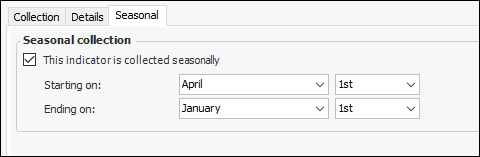
To specify the months during which readings should be taken, select the Seasonal tab. Click This indicator is collected seasonally and select the starting and ending dates. For example:
Reading due dates will reflect the seasonal settings.

To Enable Publishing

29.
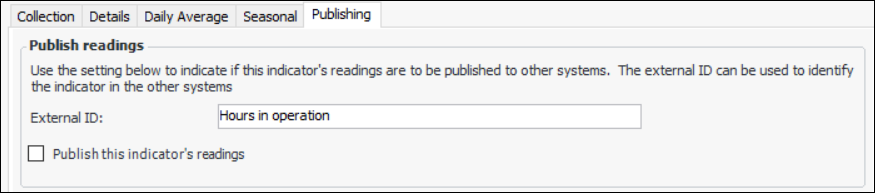
If the indicator type supports publishing indicator readings to an external system, the Publishing tab is available. Select this tab if you wish to publish processed readings for the indicator.
In the External ID box, provide a name to identify the XML file created when the readings are processed.
Select Publish this indicator’s readings
30.
Select the Description tab. Enter a detailed description of the indicator and what it measures. This information is copied to indicator readings.
31.