|
Cascading Indicator Readings to Other Assets
You can set up cascaded indicators from either the source asset indicator or the cascaded indicator.To Cascade Indicator Readings from the Source Indicator
1. Open the asset that includes the source indicator (the indicator you want to cascade). Select the Inspection Management view, Indicators tab.
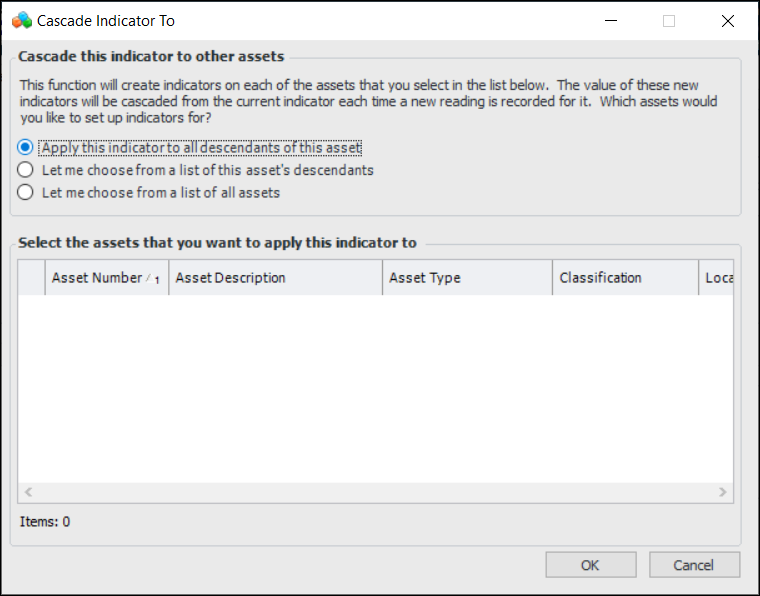
2. Right-click the cumulative indicator and click Cascade to. The Cascade Indicator To dialog appears.
• Apply this indicator to all descendants of this asset: automatically applies the cascade to all children of the asset.
• Let me choose from a list of this asset’s descendants: displays a list of the descendants. Select the assets to apply the indicator to.
• Let me choose from a list of all assets: displays all assets on the site. Select the assets to apply the indicator to.
4. Click OK. APM creates a new cascaded indicator on each of the assets you selected. If an indicator with the same name and indicator type already exists on a selected asset, APM asks you if the existing indicator should receive readings from the source indicator. To do this, click Yes. To cancel, click No.To Create a Cascaded Indicator
2.
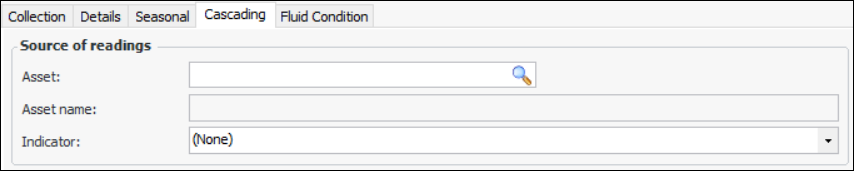
3. Select the Cascading tab.
5. Select the source indicator in the Indicator list.