Awarding RFQs

The last step in the RFQ life-cycle is to award the resources to one or more suppliers. An RFQ resource is awarded to either:
The award process varies, based on the type of RFQ. For demand RFQs, awarding the RFQ performs the following:
For catalog price RFQs, the following steps are performed:
Before awarding an RFQ, analyze it to determine the winning supplier or suppliers. For more information, see Analyzing Bids.
When the bid is awarded, you can view the resources and contracts in the RFQ’s Results view.

To Award an RFQ

1.
2.
Select the Analysis view. On this view you can review the supplier rankings before awarding the RFQ.
3.
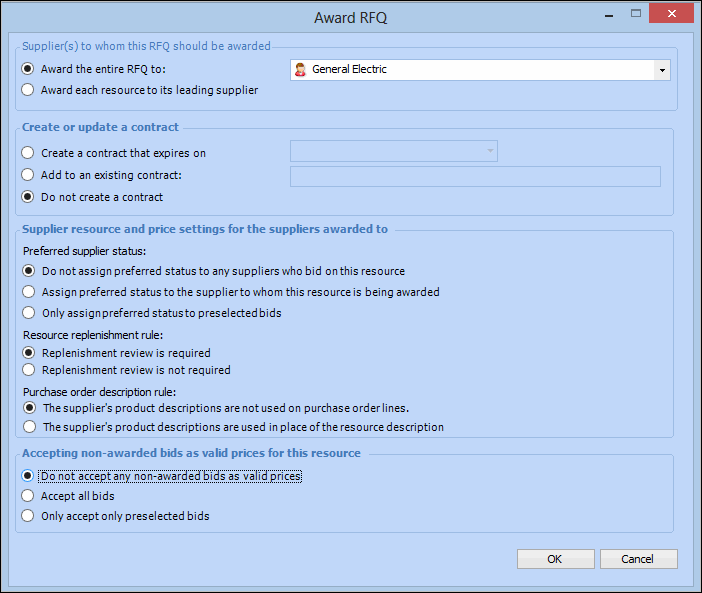
To award the RFQ, from the Tools menu select Award Bids. The Award RFQ dialog appears.
4.
Award the entire RFQ to one supplier: The entire RFQ is awarded to the supplier shown in the box beside this option. APM displays the number 1-ranked supplier for the RFQ, but you can select a different supplier if necessary.
Award each resource to its winning bidder: APM awards each resource to the supplier that was ranked number 1 for the resource. Rankings can be determined by lowest cost, shortest lead time, or manually selected.
Create a new contract: The winning bids are used to create one or more supplier contracts. A separate contract is created for each supplier. Specify the expiration date for the contract.
Add to an existing contract: If a supplier contract already exists, you can add the winning bid to the selected contract.
Do not create a contract: No contracts are created from this RFQ.
Do not assign preferred status to any suppliers: The preferred supplier for each resource is not changed.
Assign preferred status to all awarded bids: The winning supplier is given preferred status for each resource on the RFQ.
Only assign preferred status to pre-selected bids: If you have selected particular resource bids to receive the preferred status, only the selected bids are assigned. You can pre-select bids by opening the supplier’s bid for any resource.
Replenishment review is required: The replenishment requisition must be reviewed before a purchase order is created.
Replenishment review is not required: The purchase order is automatically generated as soon as the replenishment requisition is marked as planned or approved.
The supplier’s product descriptions are not used on purchase orders: The system uses the resource description as the purchase order line description, regardless of which supplier resource is selected.
The supplier’s product descriptions are used in place of the resource description: The system uses the description on the supplier resource as the purchase order line description (appears on printed purchase orders).
Do not accept any non-awarded bids as valid prices: The supplier resource prices for the non-winning suppliers are not changed.
Accept all bids: The supplier resource prices are updated for each resource and supplier on the RFQ.
Only accept pre-selected bids: If you have selected particular resource bids to accept valid prices, only the selected supplier resource prices are updated. You can pre-select bids by opening the supplier’s bid for any resource.
5.
When you have finished selecting the options, click OK. The system awards the RFQ as specified. The RFQ is now closed.
Tip: You can view the supplier resources and review the contract in the RFQ’s Results view.
6.