Assigning Demand to Buyers

A buyer assignment is mandatory on all purchase demands. This setting identifies the buyer who is responsible for purchasing the required resource. Planners are not required to identify the buyer when planning a purchase demand on a work order task requirement or a requisition line. In other words, the requestor is not expected to supply the name of the buyer.
However, the system does require a buyer name to process the purchase demand on an RFQ or a purchase order. To simplify setting the buyer name, you can have the system automatically assign a buyer based on business rules set at the site.
If buyers are not automatically assigned, you must assign them manually to each purchase demand. This topic explains how to assign buyers to purchase demand from the My Desk view.
Note: The My Desk view only displays the tabs described below if you are set up as a buyer on your employee record and the Purchasing Desk option is selected on the My Desk Settings tab.

To Assign Demand to Buyers

1.
Select the site’s My Desk view and the Purchase Demands tab.
2.
From the configuration list, select Waiting for buyer assignment. This list shows all purchase demands that have not yet been reviewed and are not assigned to any buyer.
3.
4.
5.
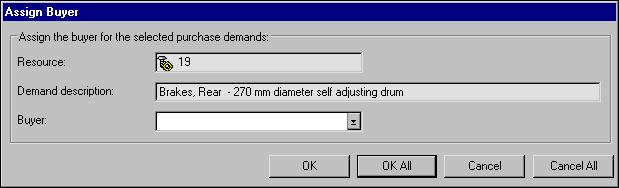
To assign the selected buyer to all selected demands, click OK All. To assign the buyer to only the demand displayed in the dialog, click OK. If you selected multiple demands, the system displays the next demand in the dialog.
6.
Repeat steps 4 and 5 until you have assigned buyers to all of the selected demands.