|
Working with Asset Circuits
Note: Support for asset circuits is a “generally available” product feature. To use it in APM, you must first enable feature 73. In the Enterprise window, select the Features view and the Enabled Features tab. Click Browse, select “Support for circuit assets”, and click OK. If APM is running as a smart client, click Refresh Enabled Features on the server. Then restart the client to use the functionality.Introduction
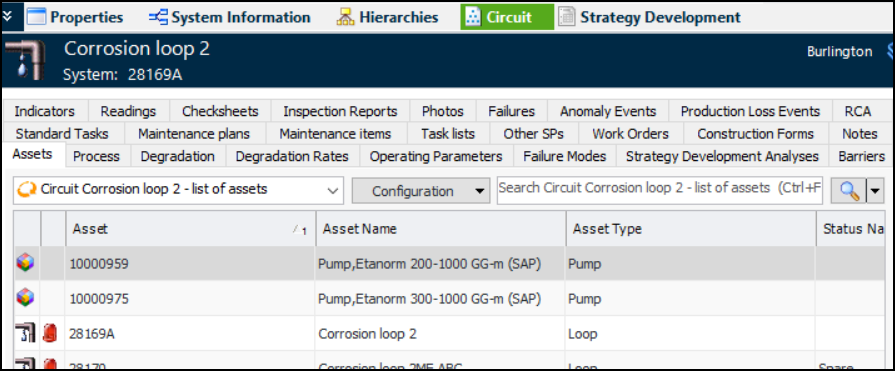
• For an asset that represents a circuit, select the Circuit view in the Asset window to view the assets included in the circuit. Similarly, Strategy Development Analysis windows display the Circuit view when the primary asset represents a circuit
• When browsing for indicators to add to a failure mode or standard task (for example), if the filter asset represents a circuit, select Show circuit assets in the Browse Indicators dialog. When the option is selected, only indicators on assets in the circuit are available for selectionViewing Circuit Information
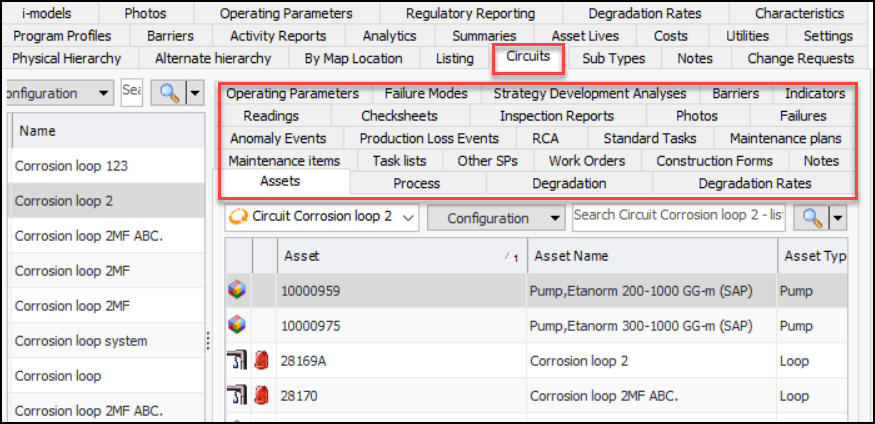
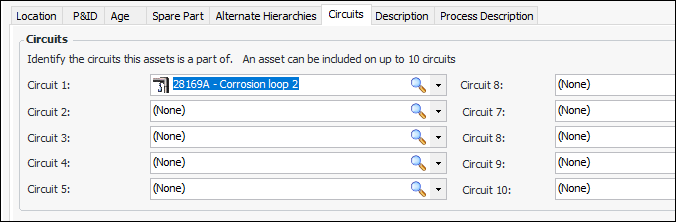
In the following example Site window, the Assets view, Circuits tab displays a list of circuit assets on the left. When an asset is selected (for example, Corrosion loop 2), the right-hand panel displays information about the member assets. The tabs range from the assets themselves to the failures assigned to the member assets.In an Asset window, the Circuit view is only available on assets that represent circuits. In this example for Corrosion Loop 2, the Circuit view displays the member assets and their information, including references to as many as 10 circuits.Strategy Development Analysis windows also display the Circuit view when the primary asset on the analysis represents a circuit.To Include an Asset in a Circuit
1. Open the Asset window, select the Properties view, General tab. If the asset type allows assets to be included in one or more circuits, the Circuits tab is available on the General tab.
2. Select the Circuits tab. Browse for one or more circuits. Circuit references can be set on any asset in any order. An asset can be referenced more than once on the same circuit. For example, Corrosion Loop 2 could be assigned as the asset’s first and third circuit. The only restrictions are that the assets must belong to the same site and their asset types must allow them to be part of a circuit, represent a circuit, or both.Setting up APM to Support Circuits
• Optionally, create one or more circuit types. Circuit types are handy for fine-tuning the types of information shown in the asset’s Circuit view. For example, you could specify that the “Corrosion loop” circuit type does not show construction forms
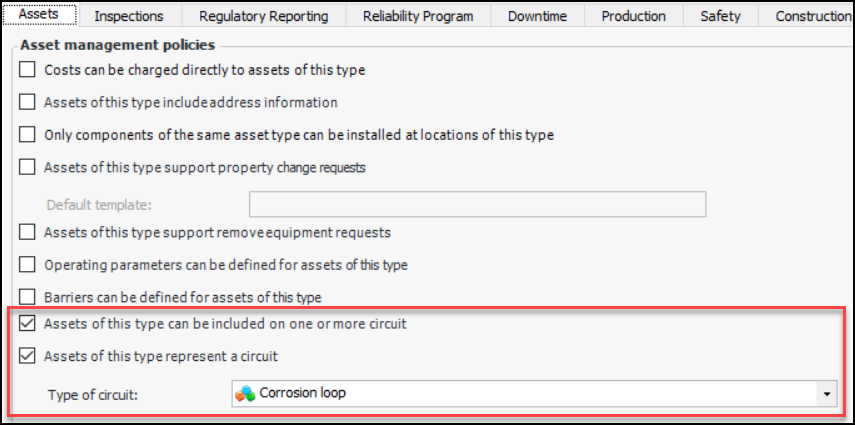
• Create or update asset types to support circuits. In the Asset Type window, select the Policies tab and then the Assets tab. In the Asset management policies area, click one or both circuit options. You can also select a circuit type. For example:
• If AWEIS is active, you can update site interoperability profiles to make circuit references read-only on interop assets. In the Site Interoperability Profile window, select the Assets tab. In the Asset properties area, select Circuits