Viewing an Asset’s Asset Health Information

If the asset health module is enabled for your site, you can view health index dashboards, health indexes, readings, calculations, and calculation inputs for an asset.
This topic explains how to view the following asset information:

To View an Asset’s Asset Health Information
1.
2.
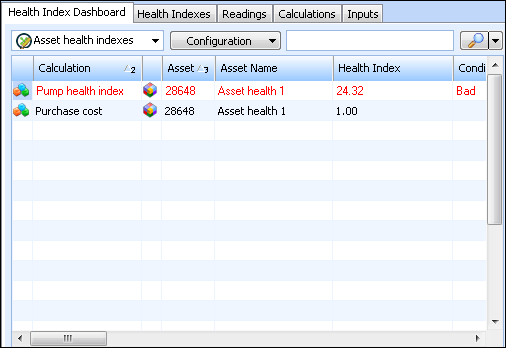
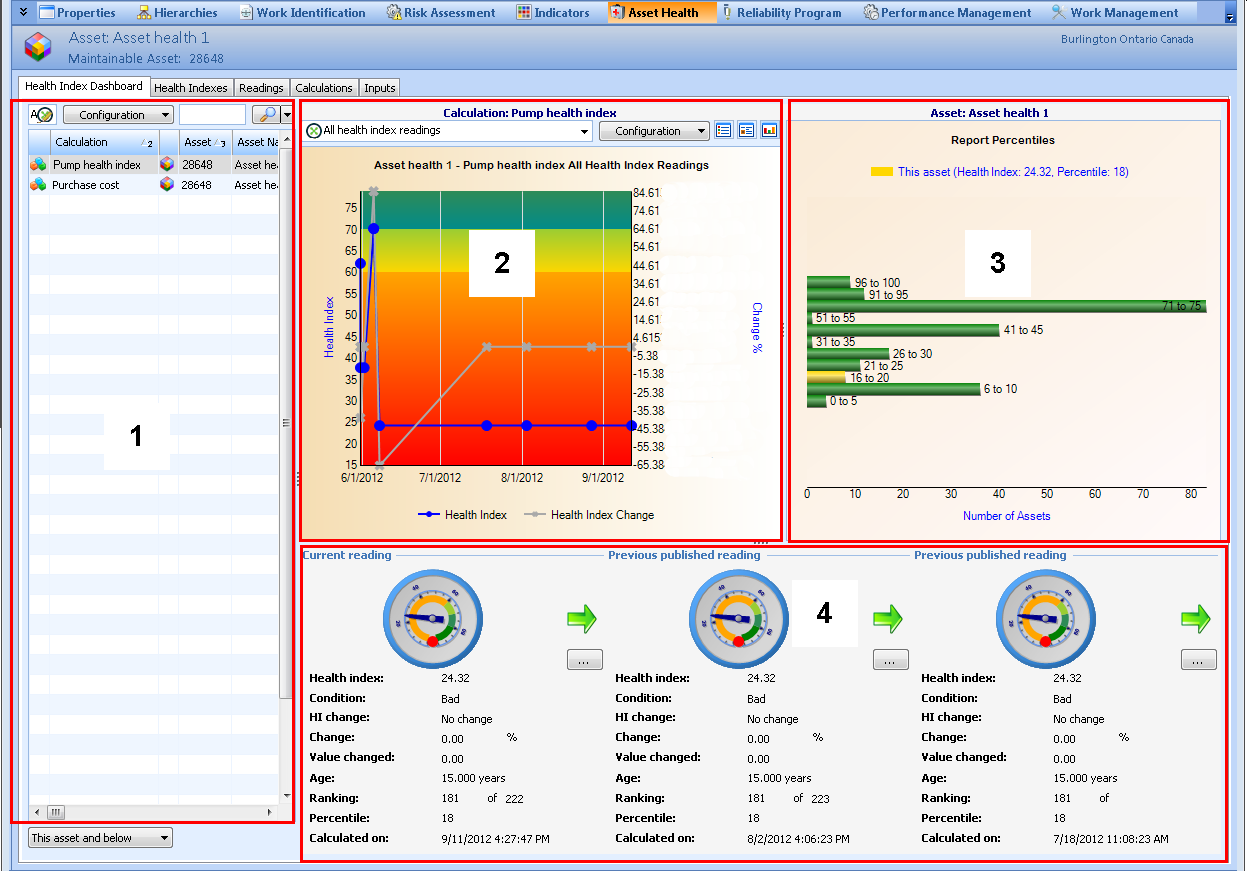
Select the Asset Health view and then the Health Index Dashboard tab. This tab displays information in four separate sections:
By default, section 1 lists all asset health indexes for the current asset and below. For example:
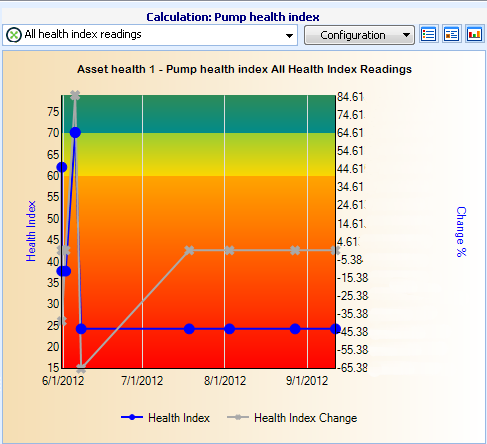
When a calculation is selected in section 1, section 2 displays a chart of published and current health index readings for the selected calculation. For example:
Tip: A second configuration for All health index readings can be selected from the configuration list.
 
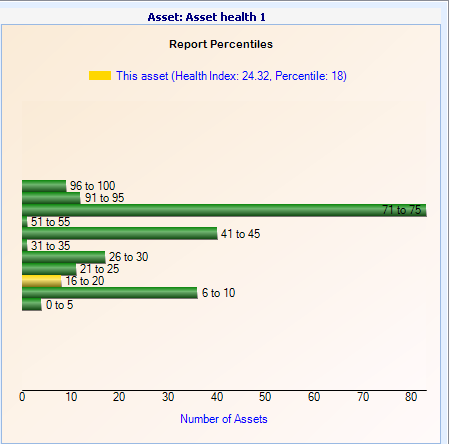
When a calculation is selected in section 1, section 3 displays a bar chart of each health index by health index change percentage, highlighting the percentile of the selected calculation in yellow. For example:
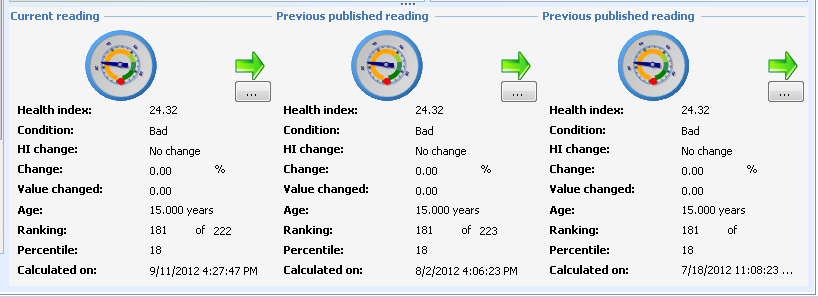
When a calculation is selected in section 1, section 4 displays details of current and previous readings of the selected calculation if available. For example:
3.
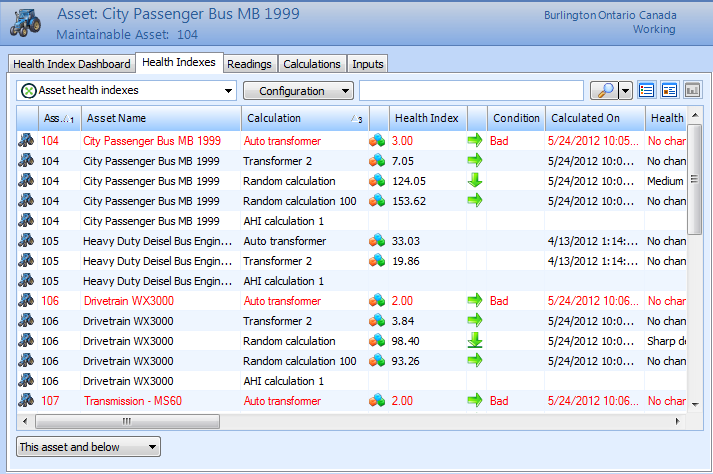
Select the Asset Health view and then the Health Indexes tab. By default, this tab displays a table of the most recent reading (published or not), for each calculation associated with the current asset and below. Information such as the name of the calculation, the health index value, asset condition at the time of the reading, the data availability index, and more is included. For example:
4.
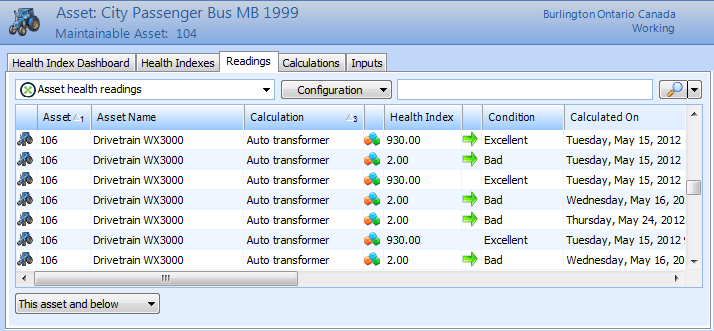
Select the Readings tab. By default, this tab displays a table of all asset health readings for the current asset and below, including information such as the health index, condition of the asset at the time of the reading, and more. For example:
5.
Select the Calculations tab. On the Health Calculations tab, details of each asset health report definition’s calculations for the current asset and below are listed in a table.
6.
Select the Calculations tab, History tab. Asset health definitions for the current asset and below are listed in the table on the left. To view details of a definition’s calculations, select a definition and its calculations and results are displayed in the table on the right.
7.
Select the Inputs tab. All asset health reading variable results for the current asset are displayed in a table.
8.