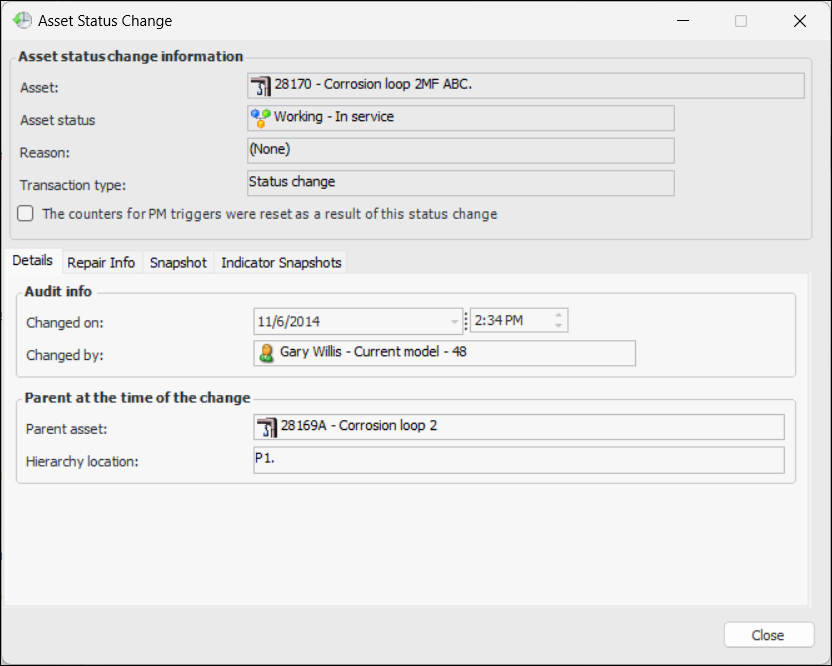
|
Viewing an Asset’s Status History
To View the Status History of an Asset
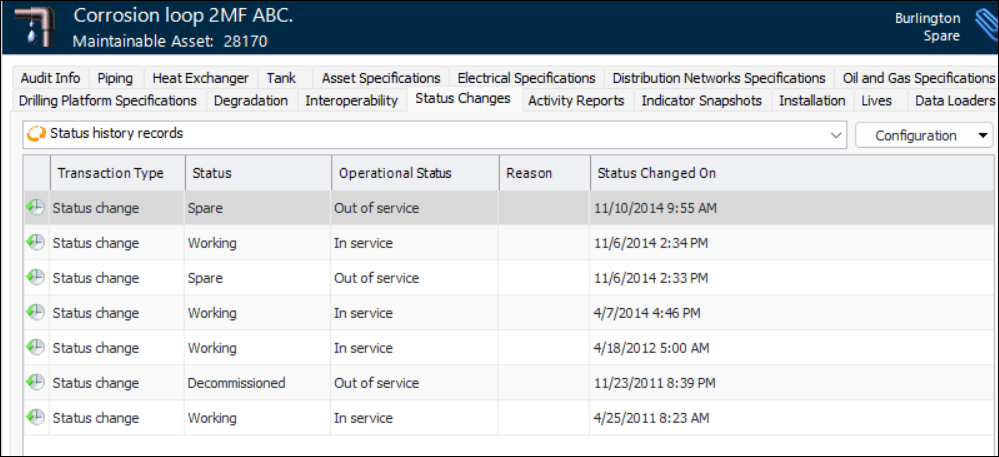
1. Open the asset and select the History view, and then the Status Changes tab. This tab shows a list of each status the asset has had, with the most recent changes at the top of the list. For example:If the asset is a component location, the Component installed in this location area displays the component installed when the status change occurred.If the asset is a component, the Component location area displays the location where it was installed when the status change took place. Information about the asset life is also shown. The Unit Details tab shows information about the inventory unit that the asset is linked to.
3. Select the Manufacturer Info tab, if available, to view changes to manufacturer information.
4. Select the Repair Info tab, if available. Information about the repair task and request is listed.
5. Select the Snapshot tab to view information about the asset as of the date of the status change.
6. Select the Indicator Snapshots tab, if available, to view the life-to-date and asset life values of the asset’s cumulative indicators at the time that the status changed.