|
Viewing an Asset’s Audit History
Tip: You can also view audit information at the site level for all assets. Select the Asset Management view and the Asset History tab.To View the Audit History of an Asset
1.
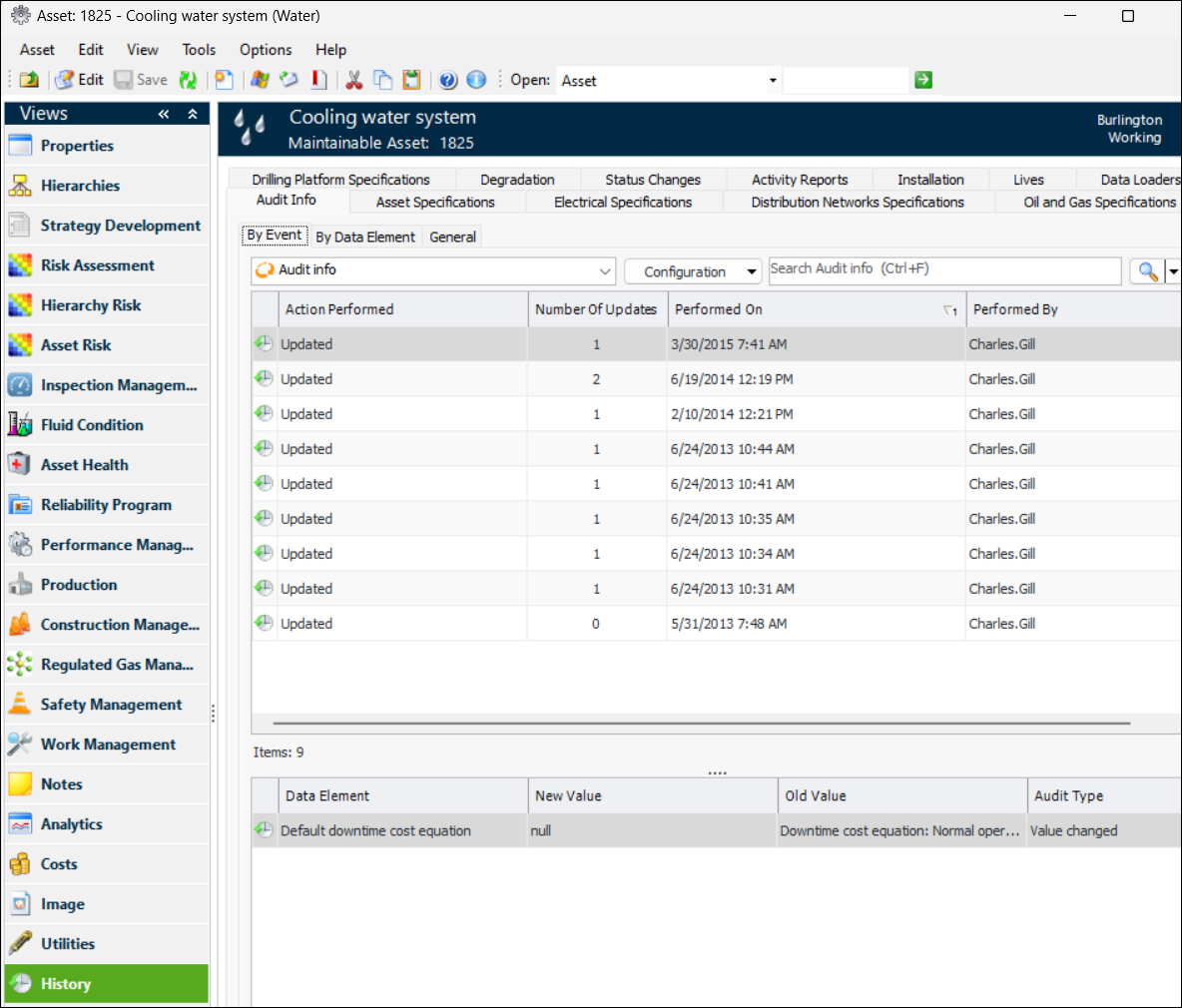
2. Select the By Event tab and select a site event in the top table. Audit details for that event appear in the table at the bottom. For example:
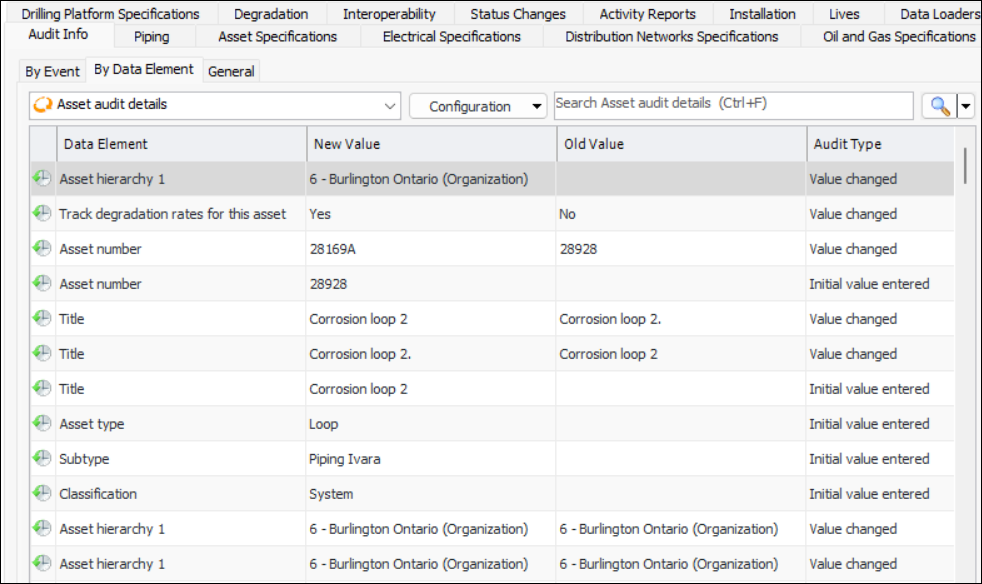
3. Select the By Data Element tab to view audit details for each data element. For example:
4. Select the General tab to view creation and last update information for the asset.
5.
6. To view audit information for any of the asset’s specifications, select the appropriate Specifications tab, for example, Asset Specifications.
7. Select the Status Changes tab to view the asset’s status history. For more information, see Viewing an Asset’s Status History.
8. Select the Activity Reports tab to view a list of asset activity reports that include this asset.
9. Select the Indicator Snapshots tab, if available, to view the life-to-date and asset life values of cumulative indicators at the time that the asset’s status changed.
10. Select the Installation tab to view installation history for the asset. For more information, see Viewing an Asset’s Installation History.
11. Select the Lives tab to view the asset’s life history. For more information, see Viewing an Asset’s Life History.
12. Select the Data Loaders tab to view audit records for the Assets, Asset hierarchy, Asset degradation rates, and Operating parameters data loaders.