Reviewing Asset Properties Change Requests

The review process provides an alternative to the formal APM approvals process. Once the request has been validated, authorized employees examine the property changes and either mark the request as “Reviewed” or as “Returned for Rework”. Settings on the request type determine whether the review process is used and how many levels of review are required.
Note: We recommend using security profiles to identify employees who have the authority to review asset property change requests. For more information, see Security.
For related information, see Setting up Asset Change Request Types.
Note: Support for approving or reviewing asset change requests is generally available in APM. To use it, you must first enable feature 56. In the Enterprise window, select the Features view and the Enabled Features tab. Click Browse, select “Review or approval support for asset change requests”, and click OK. If APM is running as a smart client, click Refresh Enabled Features on the server. Then restart the client to use the functionality.
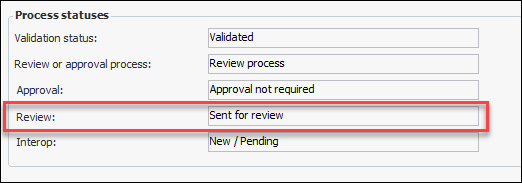
Its review status controls what you can do with a request. In the Asset Change Request window, Change Request view, select the Details tab. The Process statuses area displays several statuses, for example:
Possible review statuses are:
This topic explains how to review a request to change asset properties. It explains how:

To Review Change Requests for the Site

1.
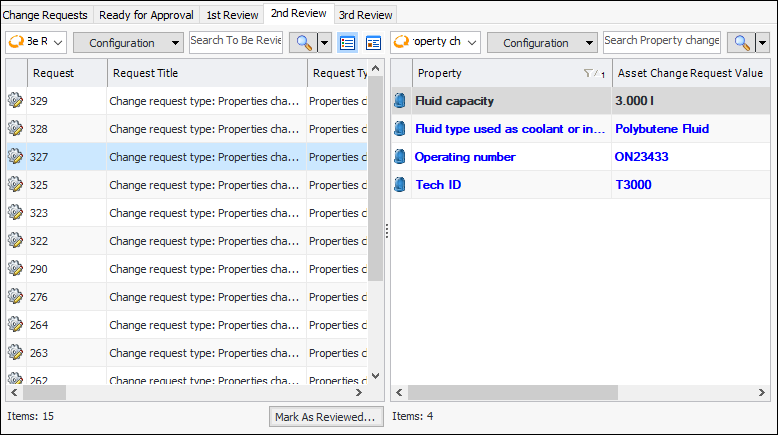
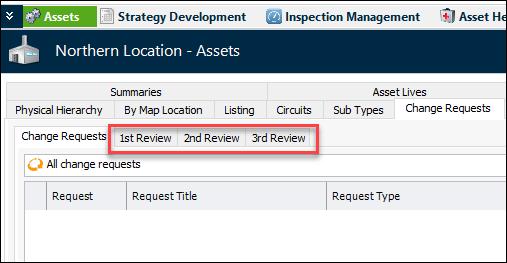
In the Site window, select the Assets view, Change Requests tab. There will be one or more tabs labeled for the levels of review. In this example, the levels are 1st, 2nd, and 3rd.
Note: The tab labels are determined by site options for change requests. See Setting up Asset Change Request Types.
2.
The “To be Reviewed” table on the left lists all of the requests that have been marked “Ready for Review”. Select a request on the left to view the changed properties in the “Property changes” table on the right. This table contains columns showing the property name, asset change request value, and asset (original) value.
Tip: In the “Property changes” table, you can select “All properties” in the configuration list to display unchanged properties, as well as the bold, blue changed properties.
3.
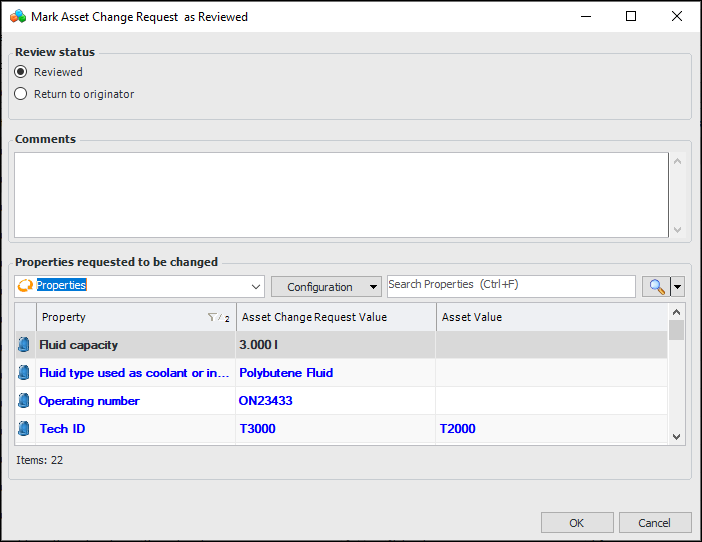
In the “To be Reviewed” table, select the request and click Mark as Reviewed at the bottom of the tab. The Mark Asset Change Request as Reviewed dialog appears. For example:
Tip: You can select two or more requests in the “To be Reviewed” table. When you click Mark as Reviewed, a Mark Asset Change Request as Reviewed dialog appears for the first selected. When you close that dialog, a dialog appears for the second selected, and so on.
4.
Reviewed – The review process status changes to “Reviewed”
Return to originator – The review process status changes to “Returned”
When a request has been marked as reviewed or returned, its properties are not available for editing.

To Review an Asset Properties Change Request

1.
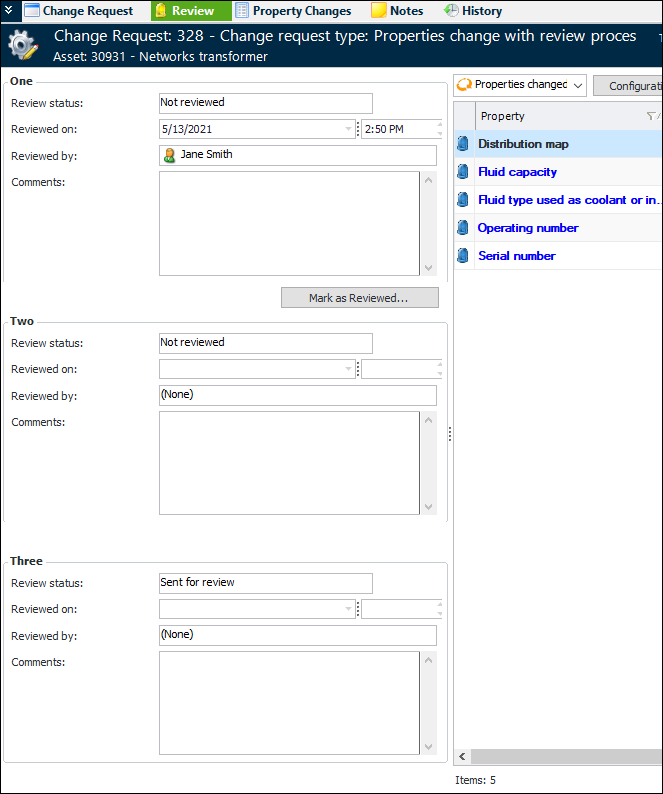
Open the Asset Change Request window and select the Review view. In this example, three levels of review have been set up for the site:
The “Properties changed” table on the right contains columns showing the property name, asset change request value, and asset (original) value.
Tip: In the “Properties changed” table, you can select “Properties” in the configuration list to display unchanged properties, as well as the changed properties shown in blue.
2.
When you have checked the property changes, click the available Mark as Reviewed button. The Mark Asset Change Request as Reviewed dialog appears:
3.
Reviewed – The review process status changes to “Reviewed”
Return to originator – The review process status changes to “Returned”
4.
Click OK to close the dialog.
Tip: If you chose the Reviewed option, the button label changes to Mark as Not Reviewed. Click this button if you wish to reverse your decision. In the dialog that appears, you can enter comments and click OK. The button label changes back to Mark as Reviewed.

To Rework a Request that was Returned
1.
2.
In the Change Request menu, click Rework. The properties are available for editing.
3.
4.
On the Property Changes tab, click Validate. Correct any errors and validate the request again.
5.
In the Change Request menu, click Mark as Ready to Review. The Review view now allows reviewers to mark the request as reviewed.