
Installing, Removing, and Swapping Components

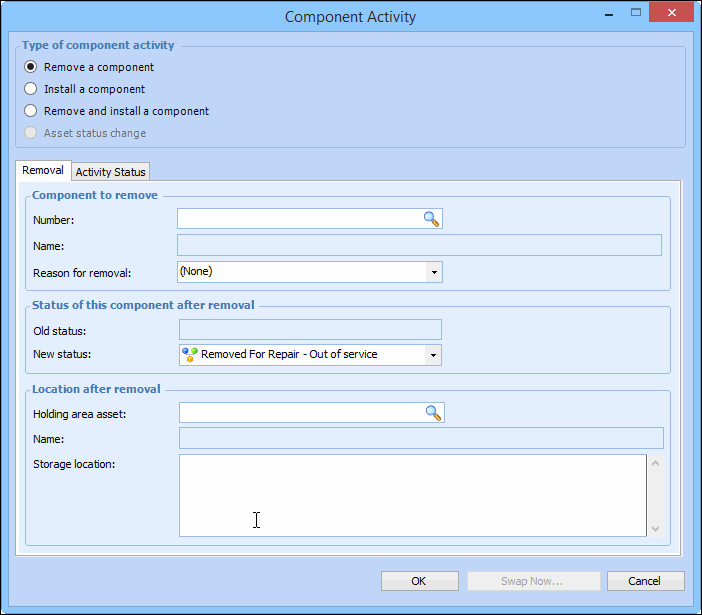
When you physically install, remove, or swap (that is, remove and install) a component in a component location, you need to tell APM that the component has moved. You can install and remove components while viewing the component or the component location asset record. You can also use a work order to install, remove, or swap components.
If the component is a serialized unit (stocked in inventory), when the work order is marked as planned or is approved, APM checks for a requisition. If a manual requisition is not found, APM creates a new requisition.
Note: APM checks the asset status of a component asset before allowing it to be installed into a location. If a component does not have an “available for use” asset status, it cannot be installed. As well, APM checks the asset type if a specific asset type is required by the component location. If a component does not have the required matching asset type, it cannot be installed.
If default statuses are set up for your site, the system will select them for the installed and removed components. If necessary, you can change these statuses. The system may also set a default “empty” status for the location after the removal, if this default has been set for the site.
Note: If you remove a component that has an indicator in alarm, this alarm will need to be acknowledged separately for both the location and the component.

To Install, Remove, or Swap Components
1.
2.
Select the Planning tab, and then the Component Swaps tab. This tab lists all of the planned component swaps.
3.
Click New. The Component Activity dialog appears.
4.