Installing a Component

If your site uses components, after you have created the component locations and components, you can install the components into those locations.
If you are installing an assembly, APM matches the assembly’s child component locations to the location into which you are installing. If the locations do not have corresponding match codes, APM displays an error message. Make sure that the match codes are the same for the corresponding sub-locations and then install the assembly.
This topic explains how to install components from the physical hierarchy (during initial set up of APM). Typically, you install and remove (or swap) components as part of doing maintenance work. In this case, you should plan the swap (install and remove) on a work order.
Note: APM checks the asset status of a component asset before allowing it to be installed into a location. If a component does not have an “available for use” asset status, it cannot be installed. As well, APM checks the asset type if a specific asset type is required by the component location. If a component does not have the required matching asset type, it cannot be installed.
If set up for your site, the system might select a default status for the installed component. If necessary, you can change this status.

To Install a Component

1.
On the Site window, select the Assets view and then the tab that shows your physical hierarchy.
2.
Right-click the component location and select Install Component. The Install Component dialog appears.
3.
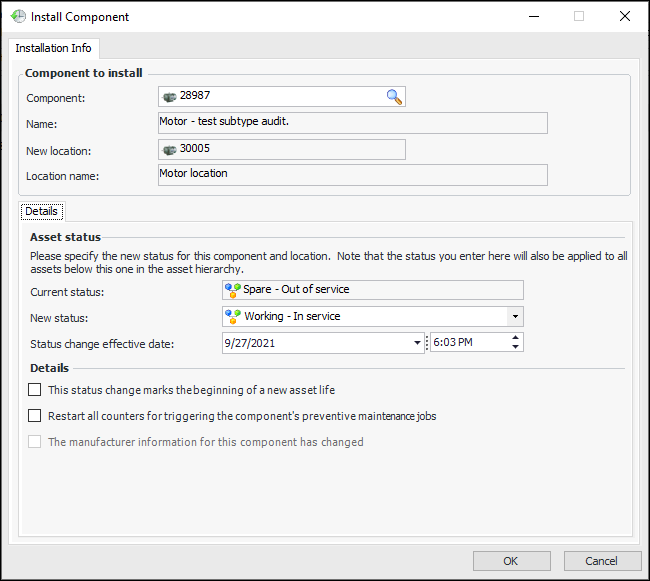
Click the browse icon to locate and select the component asset. Click OK. Information is added to the dialog. For example:
4.
If the component is linked to a serialized unit, you must select the New unit status. This will normally be the Installed status. This unit status is linked to an appropriate asset status, which is displayed in the dialog.
If the component is not linked to a serialized unit, select a new status from the New asset status list. For example, if the component is being installed after sitting in storage, change it from a non-operational status to an operational one.
5.
The manufacturer information for this component has changed becomes available for section. If you click it, the Manufacturer Info tab is now available, and the asset’s manufacturer information can be edited. Select the Manufacturer Info tab. You can enter the manufacturer, model, OEM number, expected life, year of manufacture, and so on.
6.
To restart the counters that trigger work orders from standard jobs, select Restart all counters for triggering the component’s preventive maintenance jobs. When you select this option, APM asks you to confirm your selection. Click Yes.
7.
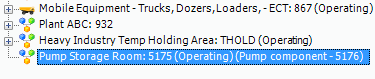
To install the component, click OK. APM installs the selected component in the location. The component appears in the physical hierarchy in brackets beside the component location, as shown below:
8.