Generating Asset Program Profiles

You can use asset program profiles to generate reliability and inspection programs for one or more assets at the same time. The profile specifies asset types and filters for selecting the specific assets to update, as well as the indicators, standard tasks, jobs, solution packages, and documents to assign to assets. If you are using the construction form feature, the profile also generates a checksheet for each of the assets’ standard tasks.
You can start the generation process manually from these locations:
Tip: You can set up the Generate Asset Program scheduled action to automatically update the site’s assets at predetermined intervals. For more information, see Creating a Scheduled Action.
APM checks whether the inspection and reliability objects have already been assigned to the asset. If they have not, APM creates or adds them to the asset.
This topic describes how:
For more information about creating profiles and how they work with APM objects and solution packages, see Setting up Asset Program Profiles.

To Generate Asset Program Profiles for an Asset

1.
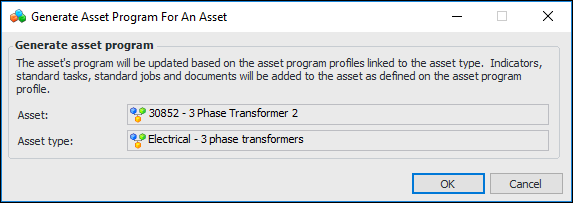
Open the Asset window, click the Tools menu and then Generate Asset Program. The Generate Asset Program for an Asset dialog appears. For example:
Tip: To view the program profiles that will be applied to the asset, select the Reliability Program view and the Program Profiles tab. This tab lists profiles assigned to the asset type.
2.
Click OK. When the process is completed, you can select the Reliability Program view to review the objects created for the asset.

To Review Profile Dates

1.
In the site’s Assets view, select the Settings tab and the Assets tab. Select the Asset Management Settings node in the tree.
Tip: You can also select the site’s Administration menu, Asset Management Settings, and then Asset Management. The Asset Management Settings dialog appears.
2.
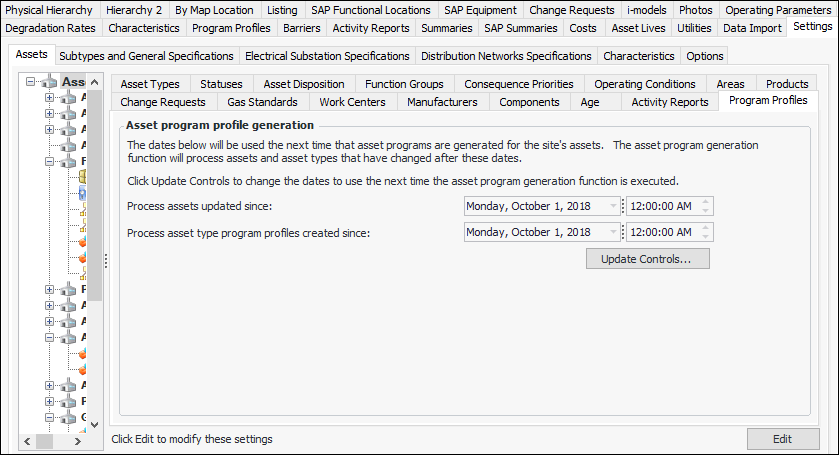
Select the Program Profiles tab. This tab shows the dates and times when the profiles for assets and asset types were last updated. For example:
3.
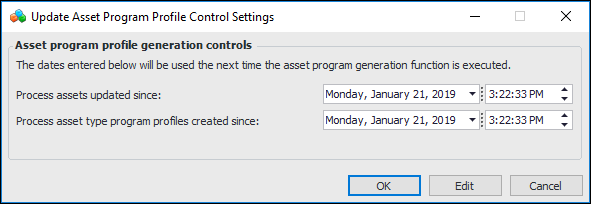
To change the dates, click Update Controls. The Update Asset Program Profile Control Settings dialog appears. For example:
4.
5.
Click OK to close the dialog. The changes are shown on the Program Profiles tab.

To Generate Asset Program Profiles for the Site

1.
From the Site window, click the Tools menu, Assets, and then Update Asset Program. A confirmation message appears, notifying you that, depending on the number of assets to be updated, the process can take a long time to complete.
2.
Click Yes. A progress dialog appears. When it closes, the process is complete.

To View Objects Created from an Asset Program Profile
Several locations display the objects generated from asset program profiles:
On the Site window, select the Assets view, Program Profiles tab. The Indicators and Tasks tabs provide table configurations for viewing objects generated in the last seven days or all objects
In the Asset Program Profile and Asset Program Profile Detail window, select the Usage view to see tables of the indicators and tasks created from the profile or detail, respectively