Creating a System or Subsystem Asset

A system asset groups and identifies assets that are part of a system, making it easier to search for related assets or to compare data on similar assets. Gas treatment systems and water distribution systems are two examples of system assets. A system asset can contain subsystem assets.
The system asset classification is identical to the Maintainable Asset classification in that system assets can have any number of asset lives, and you can also charge costs to system assets in addition to having a parts list associated with it. Indicator, costs, and manufacturer information about the asset are tracked by asset life.
A subsystem asset is part of a system and contains assets that make up the subsystem. Grouping assets into a subsystem allows you to make it easier to search them or to compare data on similar assets. For example, a gas treatment system can have heating, cooling, and dehydration subsystems. Another example is a water distribution system that consists of mixing and settling subsystems.
The subsystem asset classification is identical to the Maintainable Asset classification in that subsystem assets can have any number of asset lives, and you can also charge costs to system assets in addition to having a parts list associated with it. Indicator, costs, and manufacturer information about the asset are tracked by asset life.
Expect that changing an asset classification to a system or subsystem asset classification from a different asset classification such as a maintainable asset might take a few minutes as APM updates the classification of existing assets of that type.
This section describes how to create a system or subsystem asset and provides links to more advanced tasks.

To Create a System or Subsystem Asset
1.
From the Site window, select the Assets view and then the Physical Hierarchy tab.
2.
Tip: When you create assets from the hierarchy, APM automatically fills in the parent information. You can also add assets from the Listing tab by clicking New. With this method, you must add the parent asset information.
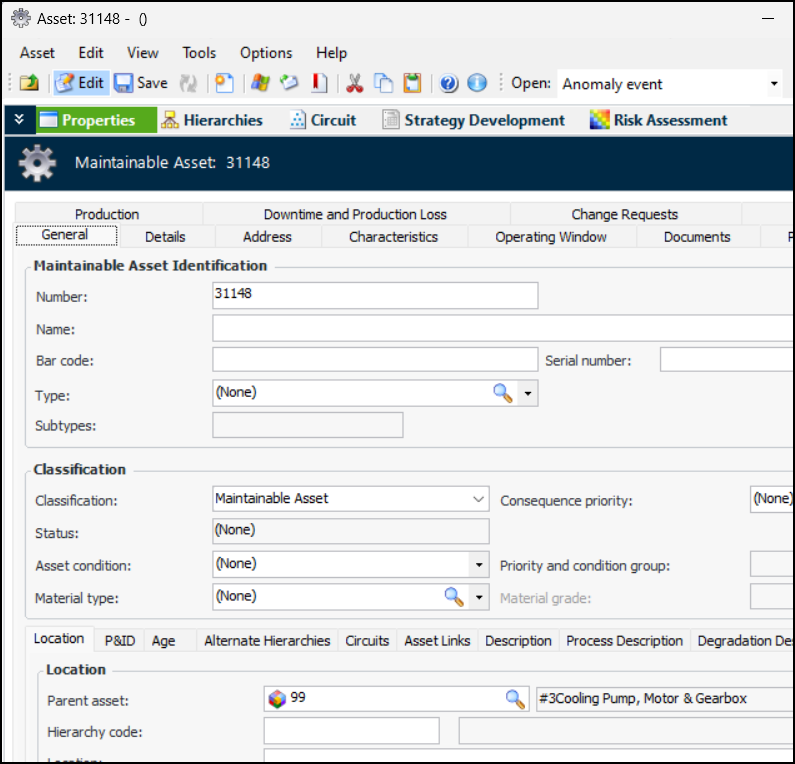
The Asset window opens, showing the Properties view, General tab. For example:
Note: The CMMS tab appears in the Asset window when the Work Management Integration module is licensed and activated. For information, see the guide for the APM CMMS Integration plug-in you are using.
3.
On the General tab, identify the asset:
A tab for each subtype is added to the asset’s Properties view, where you can enter additional information about the asset.
4.
In the Classification area, provide the following information:
5.
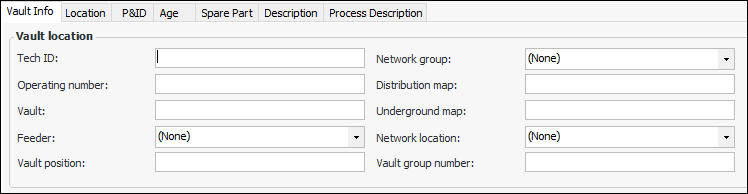
The Vault Info tab is available if the asset type is for electricity transmission and distribution networks. For example:
6.
On the Location tab, enter the following information:
Tip: You can click the browse icon and point to the location on a map to have APM assign the coordinates. For more information, see Setting Map Coordinates.
7.
If asset age is recorded for the site, the Age tab displays the asset’s age (in years) and remaining life expectancy.
For more information about setting up asset age calculations, see Setting up Asset Age Calculations.
8.
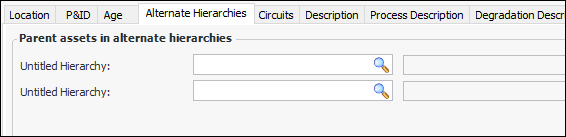
If you are using additional hierarchies, you can select the Alternate Hierarchies tab to establish the new asset’s position in it. This tab lists all of the hierarchies defined for the enterprise. For example:
Click a browse icon to select the parent asset in the alternate hierarchy.
9.
Select the Description tab to add general information about the asset.
10.
Select the Process Description tab to describe the process taking place in the asset. For example, enter a degradation-focused summary of the movement of fluid through a corrosion loop.
11.
The Degradation Description tab is available if the asset type supports degradation descriptions. Provide a description of the potential degradation mechanism in the asset or corrosion loop.
12.
If the asset type allows operating parameters to be recorded for the asset, select the Operating Window tab. The parameters describe the asset’s designed and actual performance, including unit of measurement, maximum and minimum measurements, measurement frequency, and indicators used to track parameters.
For more information, see Adding Operating Parameters to an Asset.
13.
Select the Documents tab to add standard documents. For more information, see Adding Documents to an Asset.
14.
Select the Photos tab and then click Browse to select inspection photos to be included with this asset.
15.
Click Open Folder to view the location.
Tip: You can also drag and drop photo files into the table.
16.
Select the Manufacturer tab to add information about the purchase and manufacturer of the asset. For more information, see Adding Purchase and Manufacturer Information to an Asset.
17.
Select the Parts tab to add a spare parts list. For more information, see Creating a Parts List for an Asset.
18.
If the asset type allows barriers to be recorded for the asset, select the Barriers tab. A barrier is a means of slowing or mitigating asset degradation. For example, coating, lining, and chemical treatment are used to slow corrosion in metal piping. For more information, see Adding Barriers to an Asset.
19.
Advanced production loss accounting: the Production tab is available. Select it to assign products and calculations to the asset
Basic production loss accounting: the Downtime and Production Loss tab is available. Select it to set downtime and lost production options.
For more information, see Setting up Production Loss Rules on an Asset.
20.
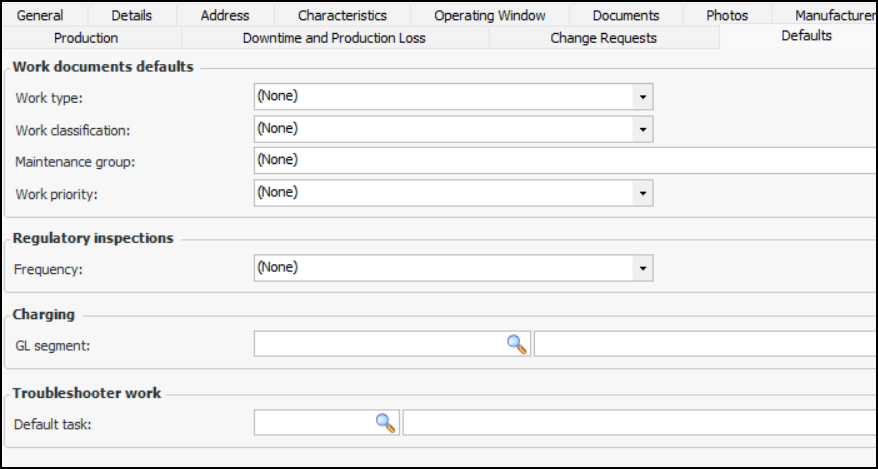
Select the Defaults tab to choose default selections for the asset’s work documents, regulatory inspections, and so on. For example:
 
21.
22.
Select the Approvals tab to view and select approval routes for the asset and to view which documents require approval for the asset.