Creating a Parts List for an Asset

You can create a list of the spare parts required for most assets and for resources. Asset Group and Organization assets cannot have parts lists.
For assets, spare parts can include the basic resources required whenever you perform work on the asset. You can view the parts list for an asset when you create a work order for it, allowing you to select all of the requirements for the job quickly and accurately.
This topic explains how:

To Browse for Parts to Add to the List

1.
Open the asset, select the Properties view and then the Parts tab. This tab shows the asset’s current parts list.
2.
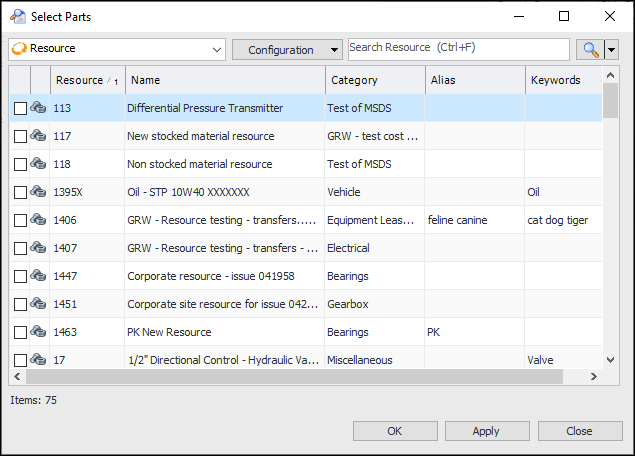
Click Browse. The Select Parts dialog appears.
3.
Select the parts that you want to add to the asset and click OK. APM adds the selected parts to the asset’s parts list.
4.
5.
You can have APM add materials to the parts list whenever they are issued for the asset. Select Automatically add parts to this list as they are issued to or received against this asset from the Asset window.

To Copy a Parts List from Another Asset

1.
Open the asset, select the Properties view and then the Parts tab. This tab shows the asset’s current parts list.
2.
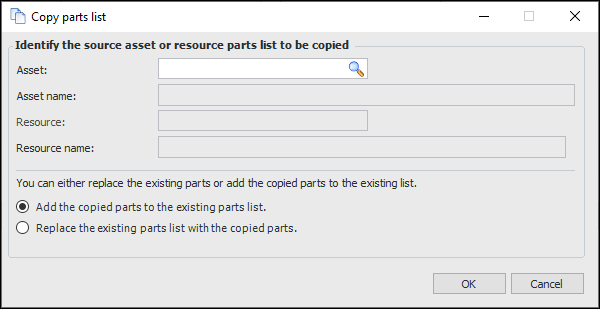
Click Copy Parts List. The Copy Parts List dialog appears.
3.
4.
If you wish to have APM delete the existing parts from the asset, select Replace the existing parts list with the copied parts. Otherwise, the copied parts list is added to the asset’s existing parts list.
5.
Click OK. APM copies the parts list from the source asset.
6.
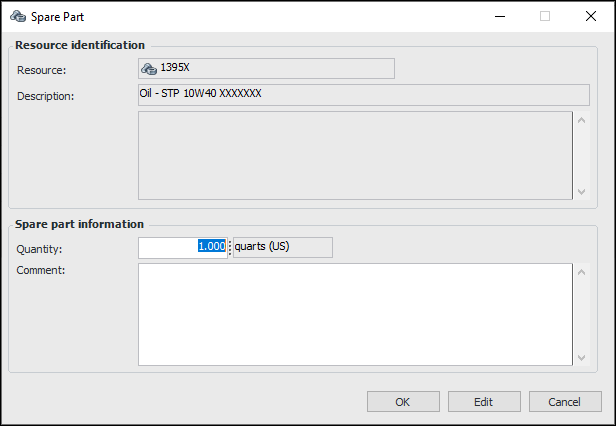
You can adjust the required quantity of any part on the list. Right-click the part and select Open. The Spare Part dialog appears. Click Edit, enter the new Quantity, and click OK.
7.
You can have APM add materials to the parts list whenever they are issued for the asset. Select Automatically add parts to this list as they are issued to or received against this asset from the Asset window.

To Create a Spare Part

1.
Open the asset, select the Properties view and then the Parts tab. This tab shows the asset’s current parts list.
2.
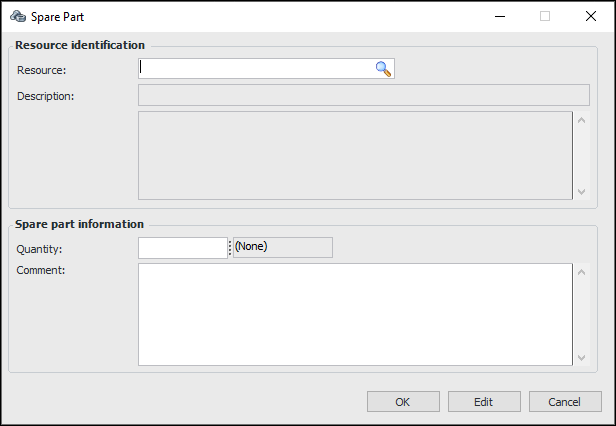
Click New. The Spare Part dialog appears:
3.
4.
In the Quantity box, specify the number of parts that need to be kept on hand for this parts list.
5.
6.
Click OK. The part is added to the Parts tab.