Creating an Organization Asset

An organization asset represents an organizational unit within one site in APM. It usually represents a cost center. Typically, assets with this classification identify departments, areas, or buildings in an asset hierarchy. They have child assets, usually maintainable and component type assets, that represent the equipment for which the organization is responsible.
This section describes how to create a basic organization asset and provides links to more advanced tasks.

To Create an Organization Asset

1.
From the Site window, select the Assets view and then the Physical Hierarchy tab.
2.
Tip: When you create assets from the hierarchy, APM automatically fills in the parent information. You can also add assets from the Listing tab by clicking New. With this method, you must add the parent asset information.
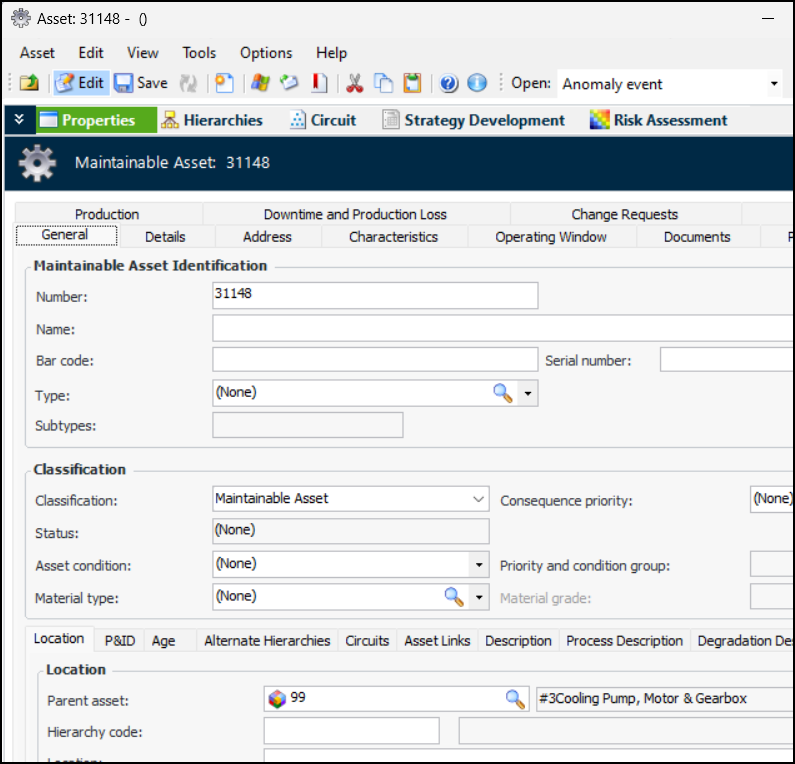
The Asset window opens, showing the Properties view, General tab. For example:
Note: The CMMS tab appears in the Asset window when the Work Management Integration module is licensed and activated. For information, see the guide for the APM CMMS Integration plug-in you are using.
3.
On the General tab, identify the asset:
Tip: Select “Organization” in the Classification list. The Type list now contains only asset types with that classification.
Note: When the type is selected for an asset, the number of tabs displayed changes based on the type’s settings and classification. For example, for asset groups, you need only fill in minimal information, whereas for maintainable assets, you will need to provide more information.
A tab for each subtype is added to the asset’s Properties view, where you can enter additional information about the asset.
4.
In the Classification area, provide the following information:
5.
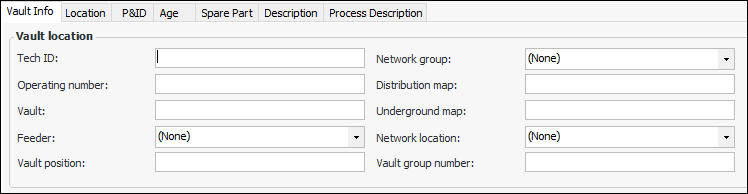
The Vault Info tab is available if the asset type is for electricity transmission and distribution networks. For example:
6.
On the Location tab, enter the following information:
Tip: You can click the browse icon and point to the location on a map to have APM assign the coordinates. For more information, see Setting Map Coordinates.
7.
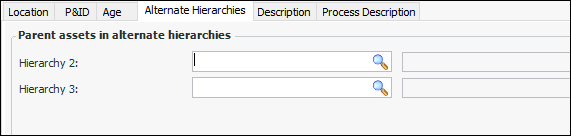
If you are using additional hierarchies, you can select the Alternate Hierarchies tab to establish the new asset’s position in it. This tab lists all of the hierarchies defined for the enterprise. For example:
Click a browse icon to select the parent asset in the alternate hierarchy.
8.
Select the Description tab to add a general description of the asset.
9.
The Process Description tab is typically used to describe the process taking place in the asset, for example, the flow of material through a plant.
10.
11.
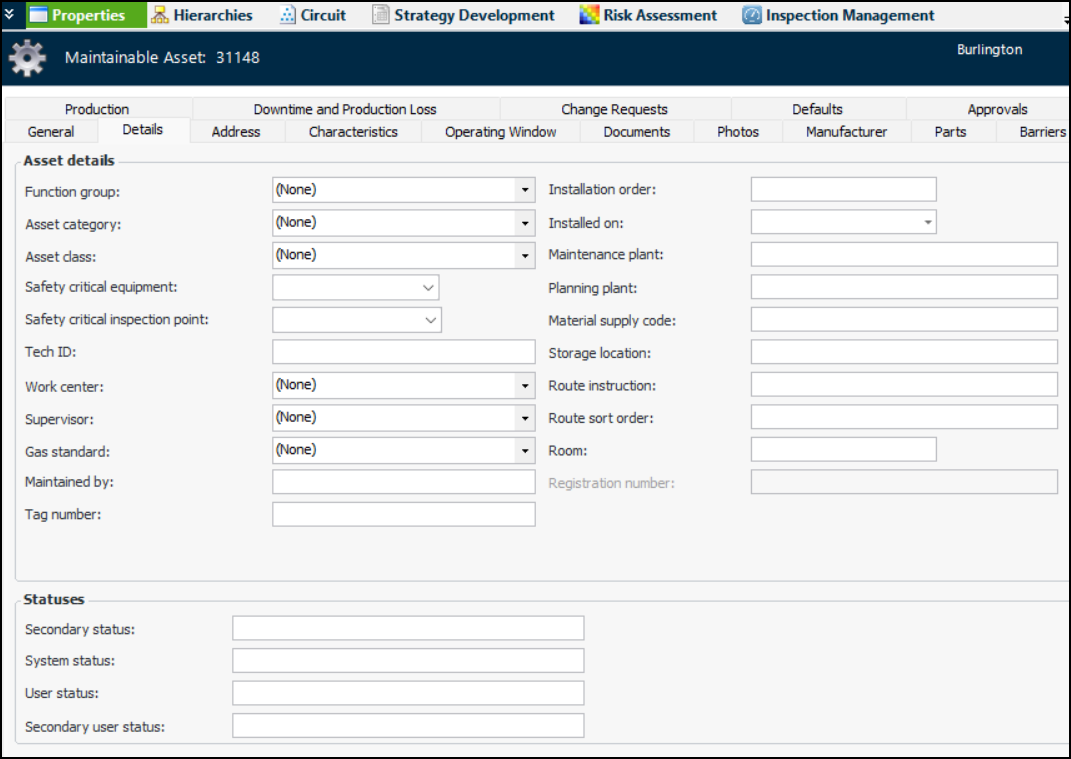
Select the Details tab and select the appropriate values:
Value lists can be set up in APM for:
12.
Select the Documents tab to view and select standard documents for the asset. For more information, see Adding Documents to an Asset.
13.
Select the Photos tab and then click Browse to select inspection photos to be included with this asset.
14.
Click Open Folder to view the location.
Tip: You can also drag and drop photo files into the table.
15.
Advanced production loss accounting: the Production tab is available. Select it to assign products and calculations to the asset
Basic production loss accounting: the Downtime and Production Loss tab is available. Select it to set downtime and lost production options.
For more information, see Setting up Production Loss Rules on an Asset.
16.
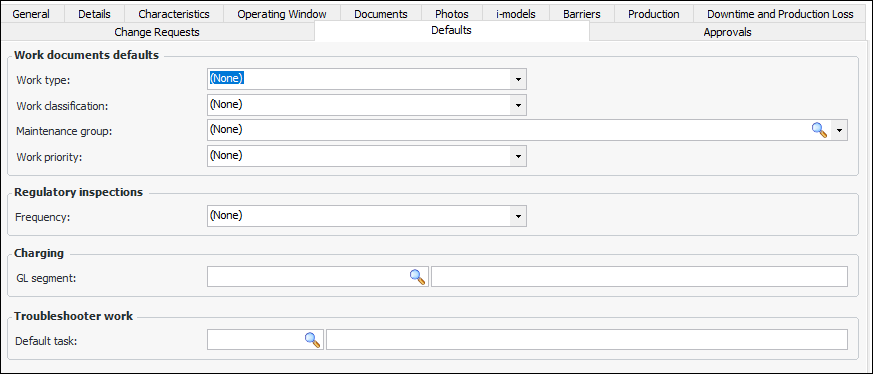
Select the Defaults tab to choose default selections for the asset’s work documents, regulatory inspections, and so on.
 
17.
18.
Select the Approvals tab to view and select approval routes for the asset and to view which documents require approval for the asset.