|
Creating Multiple Child Assets
To Create Multiple Child Assets
1.
2. Right-click the parent asset and click Create Multiple Child Assets.
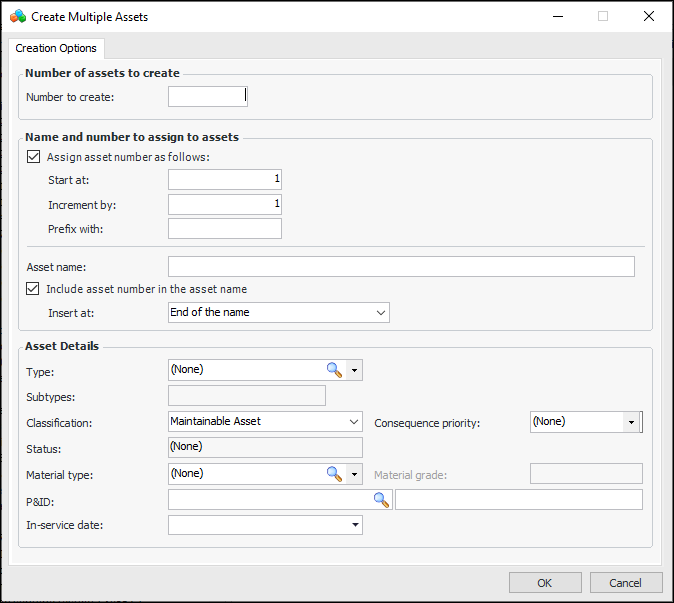
3. Enter and select options on the Creation Options tab:
4. In the Asset details area, select the options for the new assets:
If the asset type has one or more default subtypes, those subtypes are added to the Creation Options tab. A tab is added to the window for each default subtype. These specifications tabs will appear on the new child assets.
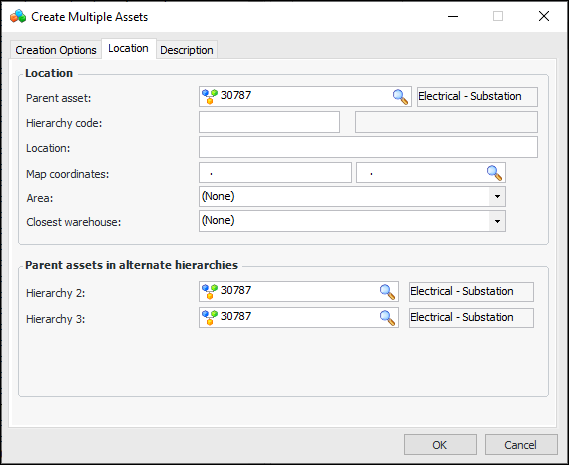
5. Select the Location tab. This tab displays information about the parent asset in the physical and any alternate hierarchies. For example:
Tip: You can click the browse icon and point to the location on a map to have APM assign the coordinates. For more information, see Setting Map Coordinates.
9. Select the Description tab to add information to be added to each asset’s description.
10. Click OK. The child assets are created and added to the asset hierarchy.