|
Adding Degradation Information to an Asset
Note: In order for the Degradation Info tab to appear in the Asset window, the asset type must allow degradation tracking.Minimum Value Calculations
If the Minimum Value Calculator is supported by the asset type, you can have APM calculate the asset’s minimum degradation value using the formula appropriate to the asset type and design code (for example, API or BSI). Using the Minimum Value Calculations dialog, you can enter the asset’s dimensions and specifications and then click Calculate to arrive at a minimum value. You can try other formulas and inputs and then select the appropriate result to assign to the asset’s degradation information.Tip: The formulas that are used to create calculations are provided by industry standards organizations, such as API (American Petroleum Industry), BS (British Standards), and ASME (American Society of Mechanical Engineers). For example, APM provides two versions of the liquid load case calculation for atmospheric storage tanks (API and BS design codes). For information about setting up calculations for your organization, see Creating a Degradation Minimum Value Calculation.Structural Minimum Thickness for Pipe
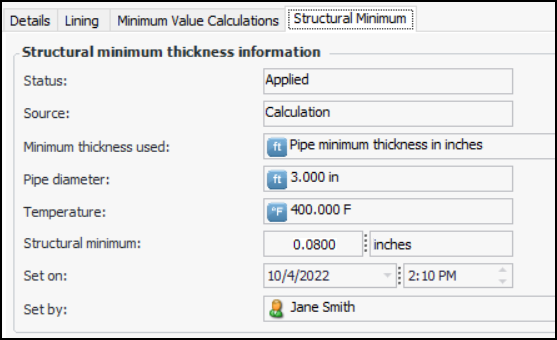
The Structural Minimum tab appears in the Asset window, Properties view, Degradation Info tab. After calculating the minimum value, select the Structural Minimum tab to see whether the structural minimum value was applied. For example:Lining Degradation
The life adjustment factor can be set manually, or it can be determined using strategy development analysis. See To Evaluate Confidence Factors in “Performing Risk Analysis for RBI Failure Modes”.To Add Degradation Information to an Asset
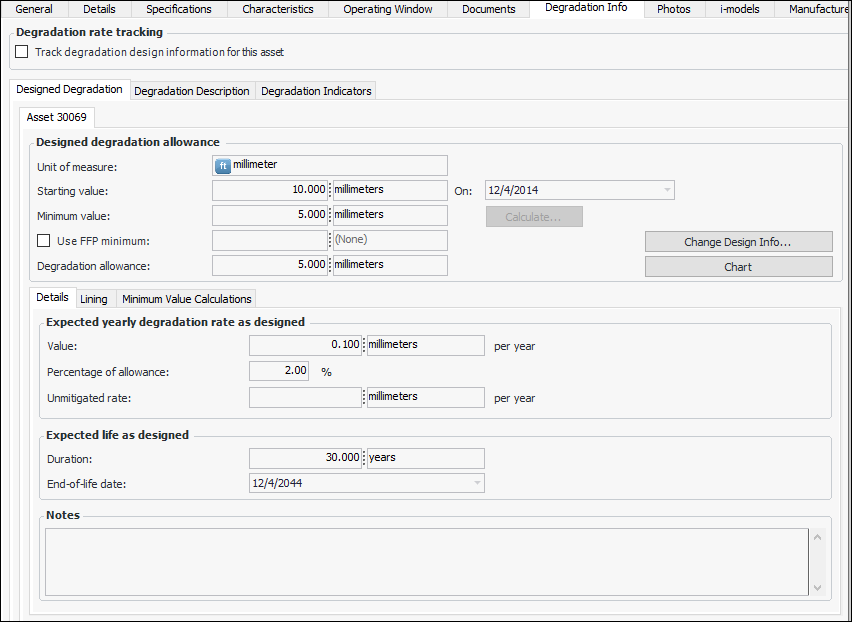
1. If the asset’s parent in the hierarchy tracks degradation, its information is shown on a tab labeled with its number, as shown in this example for Asset 30069. (If the asset’s parent does not track degradation, APM takes the information from the grand or great-grand parent, if available.)
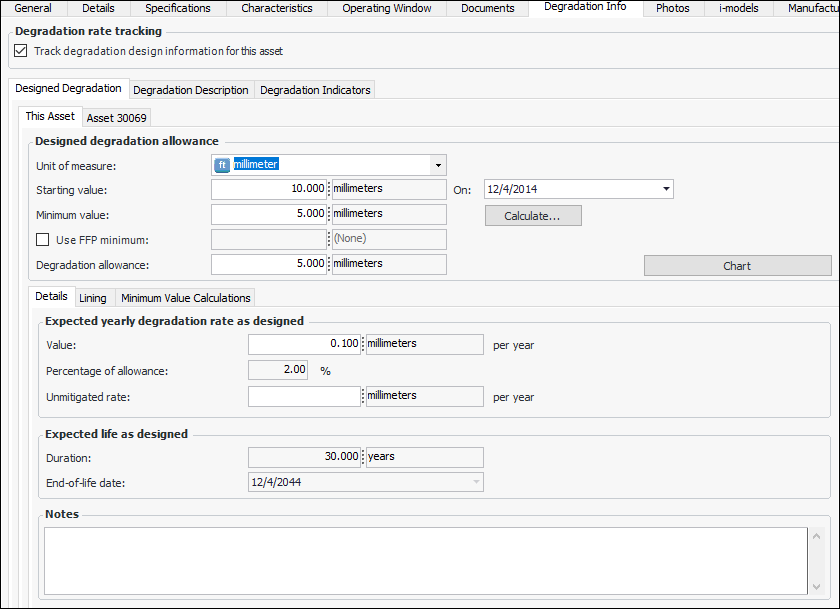
2. To record degradation information for the current asset, select Track degradation design information for this asset. The This Asset tab is added to the window and shows the information for the parent asset. For example:Note: Once degradation information is saved with an asset, you can no longer edit it by checking out the asset. Instead, the Change Design Info button is available in the Designed degradation allowance area. After you change values, the asset’s indicators are updated and their readings’ degradation rates are recalculated.
3. On the This Asset tab, provide information about the designed degradation allowance:
Note: If the asset type supports the Minimum Value Calculator, you can click Calculate to arrive at the minimum value. For more information, see To Calculate the Minimum Degradation Value.
4.
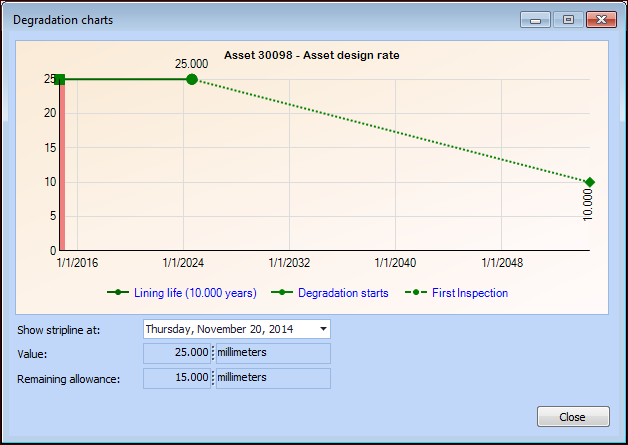
Tip: Click Chart to display the Degradation Charts dialog and view the degradation information in chart form. As indicator readings are taken to track degradation, the inspections are added to the graph.
5. If the asset has lining properties that affect the asset’s degradation rate, select the Lining tab. For more information, see To Add Lining Degradation Information.
6. Select the Degradation Description tab to add detailed notes about the asset’s degradation.
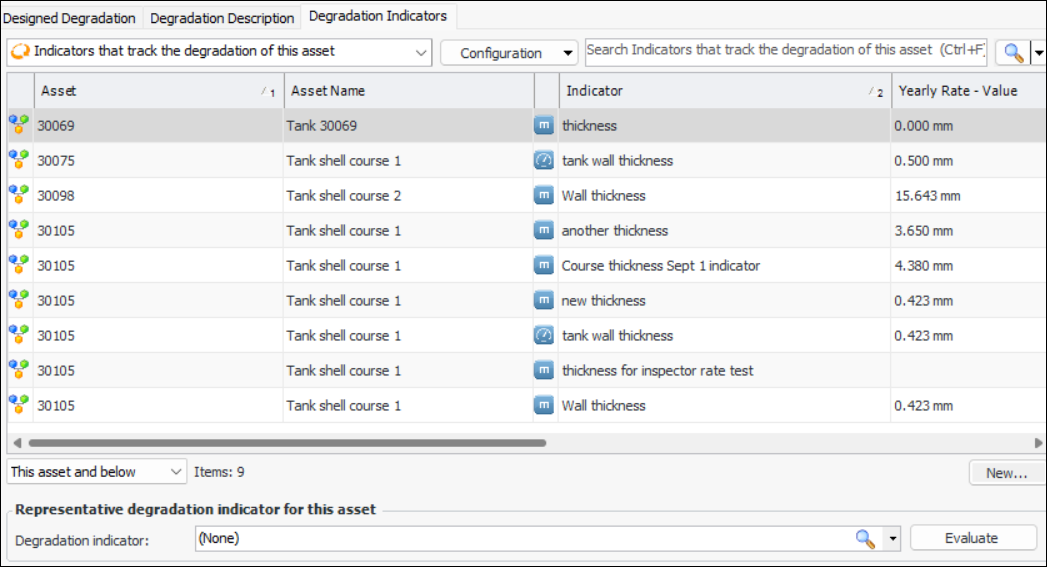
7. Select the Degradation Indicators tab to browse for an existing degradation indicator or to create one.When you create an indicator from this tab, its Track degradation using this indicator option is automatically selected.
8. Select an indicator from the Representative degradation indicator for this asset list. The representative indicator is used to show current degradation values for the asset. For example, when a failure mode is created for the asset, the degradation rates are copied from the representative indicator. Do one of the following:
• If the asset type’s settings allow APM to automatically update the representative degradation indicator, click Evaluate to select the indicator. APM selects the indicator based on either current rates or design rates, as specified by the asset type settingTo Calculate the Minimum Degradation Value
1.
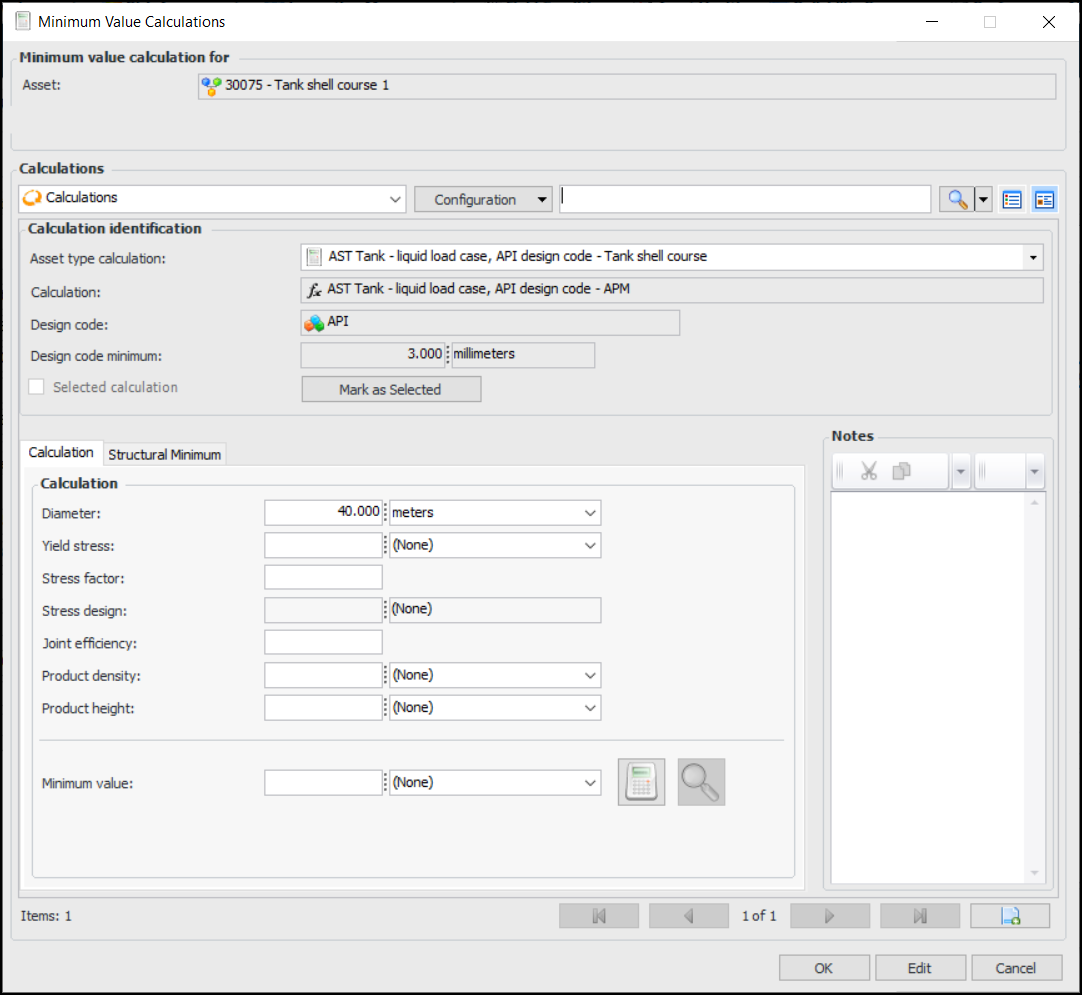
2. Clickto add a calculation. If available, select a calculation from the Asset type calculation list. The calculation values are added to the dialog. For example:
3. The Calculation identification area shows the calculation and asset type, design code, and design code minimum from the asset type. You can select another asset type calculation from the list, if appropriate.Note: If the calculation result is less than the value shown in Design code minimum, the design code minimum is used instead of the calculation result.
4. The Calculation area displays the panel assigned to the calculation, which differs depending on the calculation’s design. Enter the values and units of measure to be used to calculate the minimum. Any existing values are supplied by the asset’s or its parent’s subtype or specification properties.If you are working with a pipe asset, the asset type might support a structural minimum thickness lookup table. After calculating the minimum value, select the Structural Minimum tab to see whether the structural minimum value was applied. For example:
5. Enter your comments in the Notes area.
6. Click the Calculator icon () to view the results in the Minimum value box.
Tip: To see the results in more detail, click the View Results icon. The Calculation Results dialog shows you the value calculated and data availability. Select the Results by Variable tab to view the calculation expression and the result values for each variable.
8. When you have decided on the minimum value to use, click Mark as Selected. The Selected calculation option is selected.
9. Tip: You can view, edit, and add calculations using the Minimum Value Calculations tab.To Add Lining Degradation Information
1.
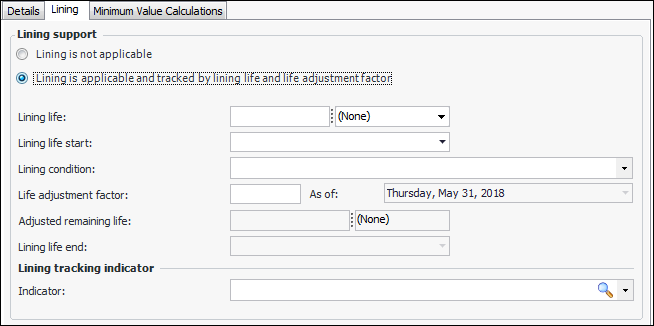
2. Click Lining is applicable and tracked by lining life and life adjustment factor. For example: