|
Setting up Asset Change Request Templates
Note: Change request types should have characteristic classes and map sets. For more information, see Setting up Characteristic Mapping for Asset Change Requests.To Set up a Change Request Template
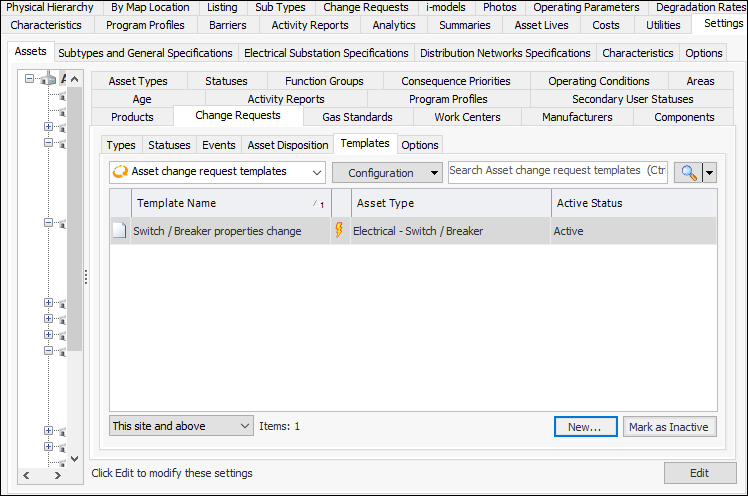
1. From the Site window, select the Assets view, Settings tab. Select the Assets tab and the Asset management settings node in the tree.Tip: You can also select the Administration menu, Asset Management Settings, and then Asset Management. The Asset Management Settings dialog appears.
2. Tip: While templates are being developed, you can mark them as inactive to prevent them from being selected. When you are ready to enable the template, select it in the table and click Mark as Active.
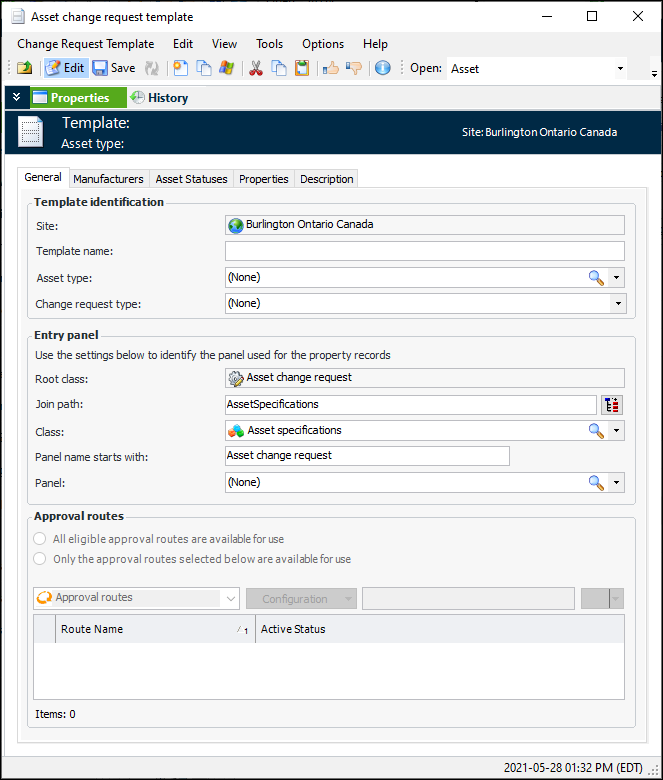
3. Click New. The Asset Change Request Template window appears:
7. In the Entry panel area, the default values are appropriate for most templates. Select an asset change request panel that matches the asset type you selected.
8. If the change request type specifies that requests must be sent for approval, the Approval routes area is enabled. You can restrict the approval routes available in requests:
• Click Only the approval routes selected below are available for use
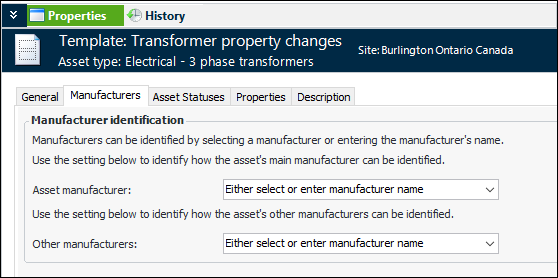
9. Select the Manufacturers tab to set options for identifying manufacturers for assets:
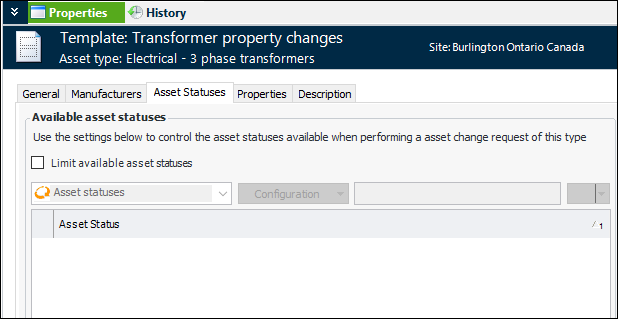
12. Select the Asset Statuses tab.
13. If you wish to restrict the asset statuses that are available in change requests that use the template, click Limit available asset statuses. The table is populated with asset statuses, which you can select from.
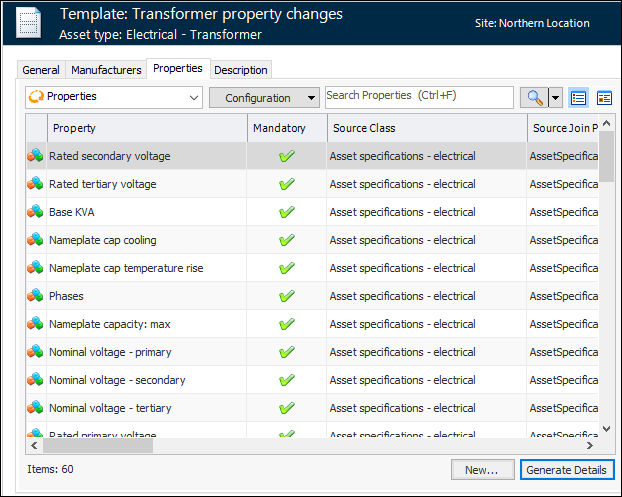
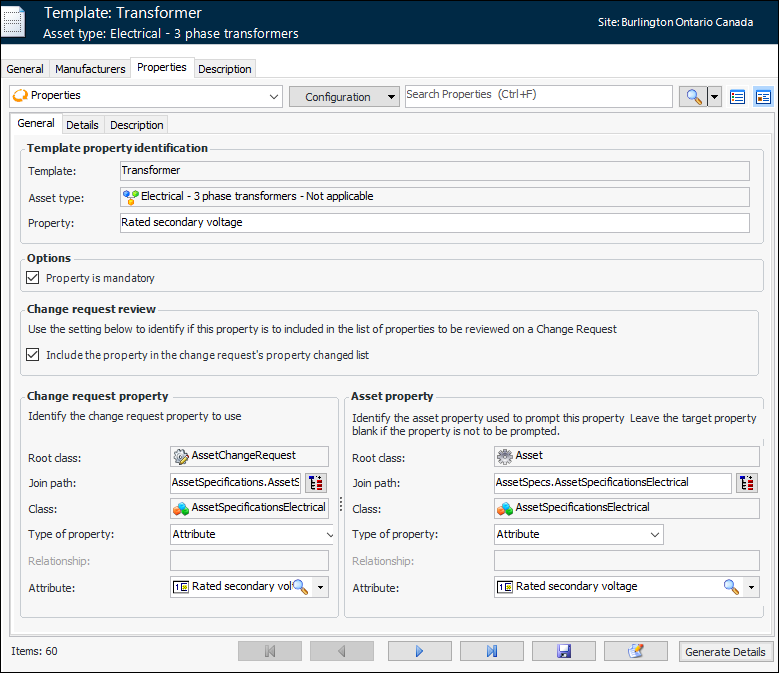
14. Select the Properties tab. Click Generate Details to populate the table with properties from the asset type panel that you selected on the General tab. For example:
• On the Properties tab, double-click a property to open its window. When you have finished editing the property, click OK.
•
16. When Property is mandatory is selected, the change request cannot be saved unless a value is provided for it.
17. If the review process is used for requests of this type, ensure that Include the property in the change request’s property changed list is selected so that the property appears in the Review view.
18. In the Property prompt area, the values correspond to those in the Change request property area with the exception of root class. If you do not wish the asset’s current value to appear in the entry panel, leave the type of property unmapped.
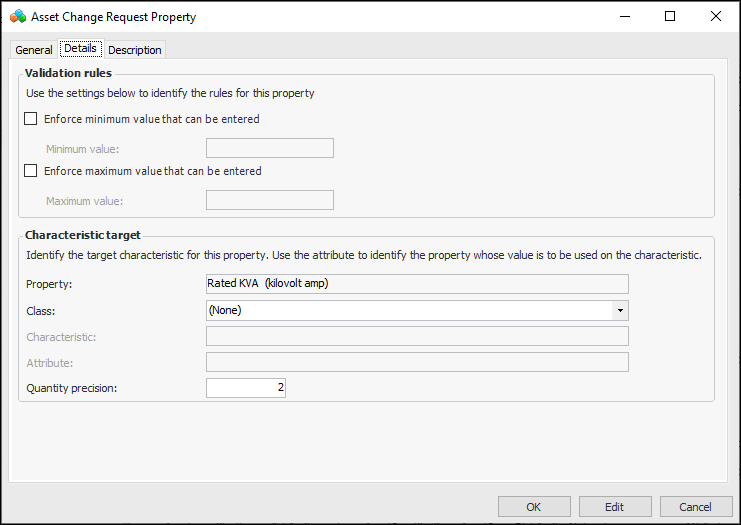
19. Select the Details tab to set the validation rules and the target asset characteristic for each property. For example:
21. In the Characteristic target area, make any changes required for the target characteristic in the CMMS. You can select a characteristic class, characteristic, and attribute. For numeric data types, you can specify the number of decimal places allowed in the Quantity precision box.
22. Select the Description tab to add more information to the template.