|
|


Creating Asset Properties Change Requests
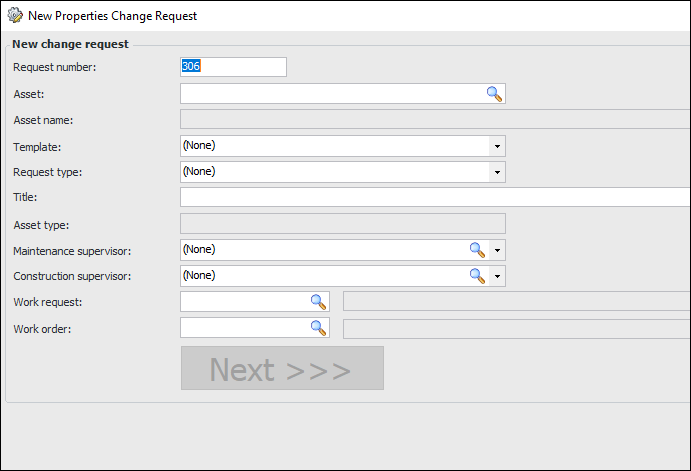
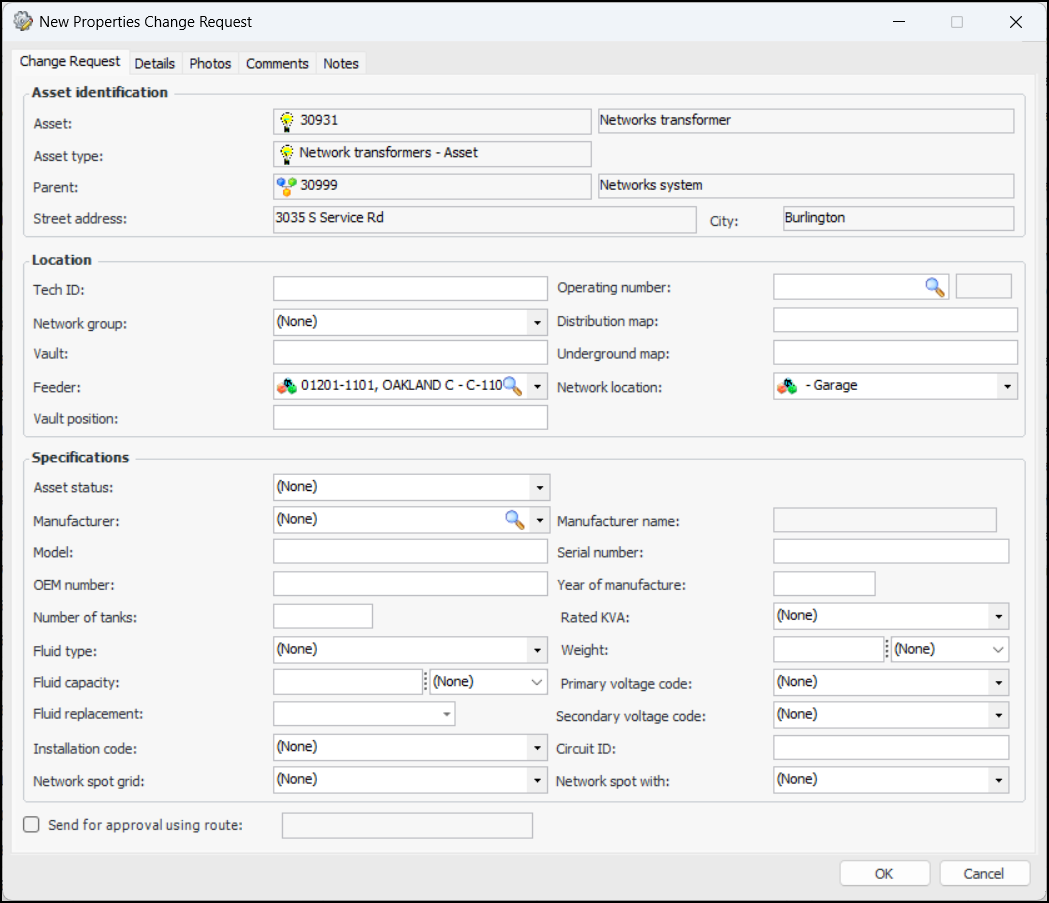
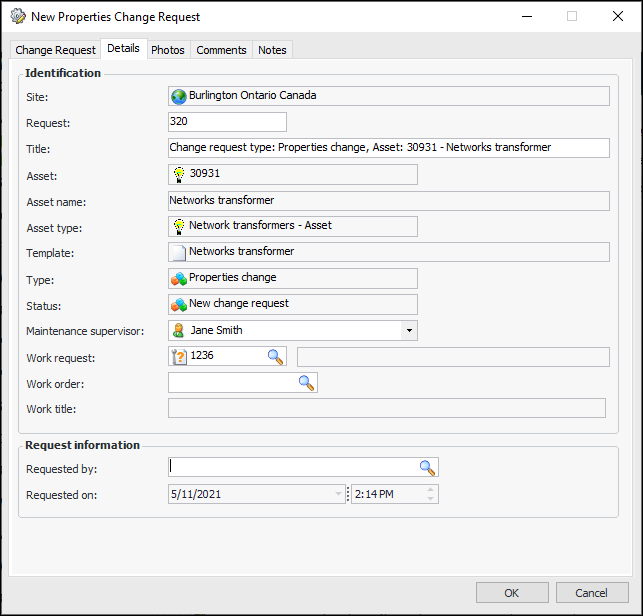
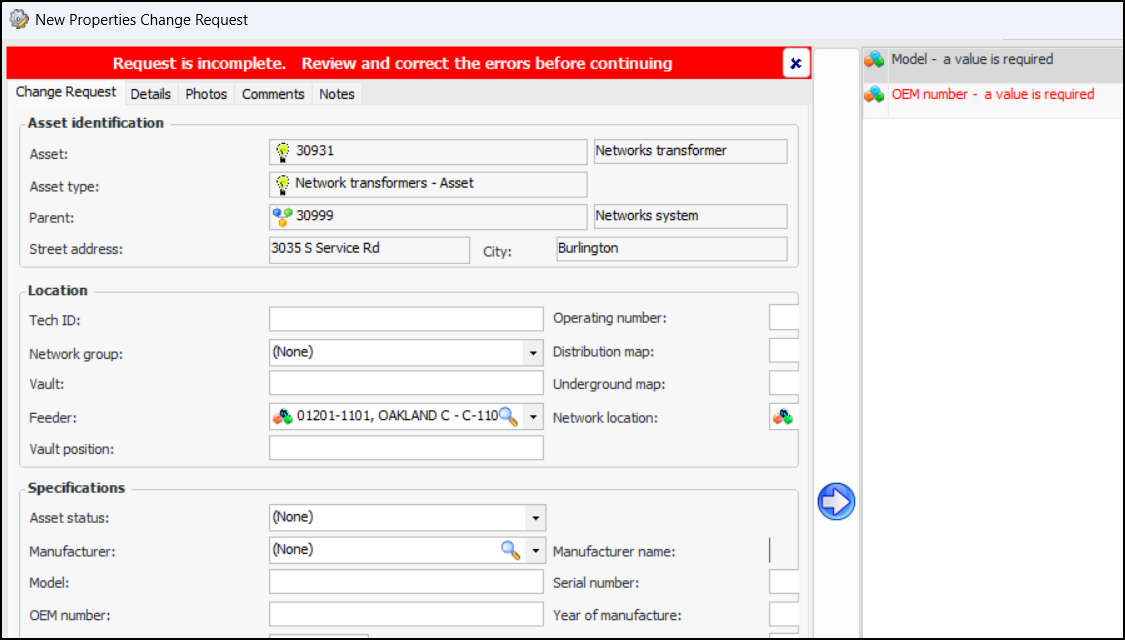
Asset change request types provide settings according to the kind of request: asset properties change, status change, equipment removal, priority change, or construction form update. For more information, see Setting up Asset Change Request Types.Note: A banner appears at the top of the Asset Change Request window if asset change request statuses have not been assigned to interop statuses. Click the Edit Settings button to assign an asset change request status to each of the Sent, Accepted, Rejected, and Error interop statuses. For more information, see Setting up Asset Change Request Statuses.Creating an asset properties change request involves selecting the asset, request template, and request type, and then entering the new and revised information for the asset. Then click Validate to have APM check that the mandatory properties have values, numeric fields have valid data, and so on. Depending on the requirements set out in the request type, the change request might need to be either sent for approval or reviewed by as many as three authorized employees. When these steps are complete, characteristic values are generated for the asset properties and the request is “Ready for interop”.For information about the approval and review processes, see Reviewing Asset Properties Change Requests and Sending an Asset Properties Change Request for Approval.This topic explains how to create a request to change asset properties in the CMMS. It explains how:To Create and Validate an Asset Properties Change Request
To View Asset Change Requests
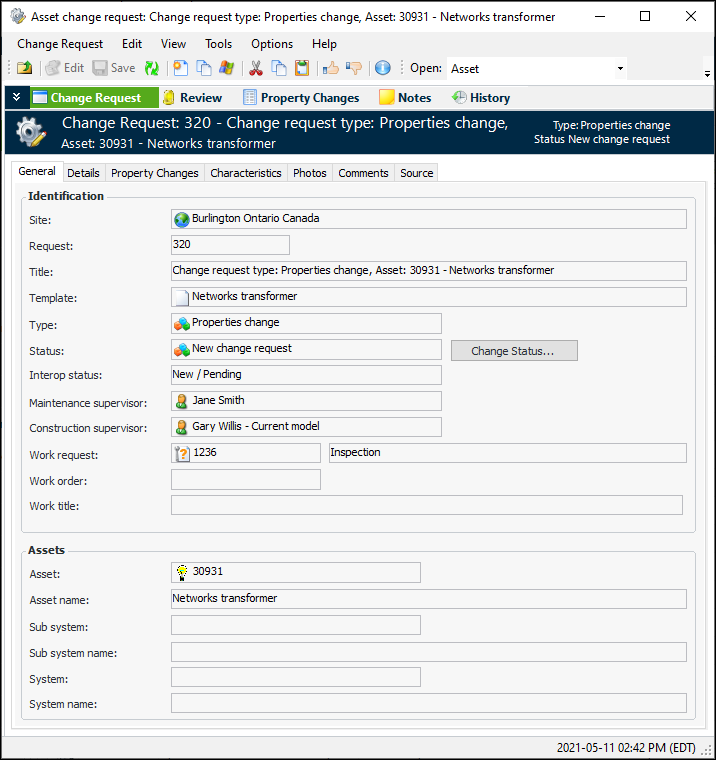
After you have created the change request, you can view it in the Asset window. On the Properties tab, select the Change Requests tab. You can open the change request to view and change its request status, monitor its interop status, and view detailed information. For example: