
Creating an Assembly in the Physical Hierarchy

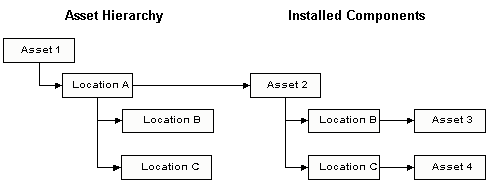
Assemblies are component assets that also include component assets. A component asset is simply an asset that is moved to and from various locations. Component assets are installed in component locations, as shown in the following diagram.
Whenever you use assemblies, you need to put the component’s locations (locations B and C in this example) in the physical hierarchy as children of the component location (location A). The physical hierarchy represents the static relationships between assets. Since components can move from one asset to another, they do not belong in the hierarchy. Component locations, on the other hand, do not change, so they are included.
Assemblies are fairly common in most industries. For example, an oil rig (Asset 1) has a generator set (Asset 2) as a component. The generator set, in turn, has a motor (Asset 3) and a pump (Asset 4) as components. The oil rig needs to collect costs and work history data for all of its installed components, so it includes component locations for the generator set (Location A), motor (Location B), and pump (Location C).
The two hierarchies depicted in the diagram (Asset Hierarchy and Installed Components) are called parallel hierarchies. In APM, you can have up to two levels in your parallel hierarchies, as shown in the diagram. The two location B’s and the two location C’s are called parallel component locations. You can have as many parallel component locations as necessary. The parallel component locations on the physical hierarchy are called the outer component locations. The parallel component locations on the installed components hierarchy are called the inner component locations.

To Add an Assembly to the Physical Hierarchy
1.
From the Site window, select the Assets view and then the tab that shows your physical hierarchy.
2.
3.
Create the component locations for the assembly (see Adding Component Locations for an Assembly). In the example, this is Location A, and its child component locations are B and C. Record the match codes for the component locations in order to be used in step 4.
4.
Create the assembly asset (Asset 2), and its child parallel component locations (parallel component locations B and C). For detailed instructions, see Setting up a Component Hierarchy for an Assembly. Be sure to enter the correct match codes for the new component locations. If the parent asset has already been created, you can select the appropriate parent when you create the rest of the assembly. Otherwise, you can use the “spares holding area” (if you have one) as the temporary parent or leave the Parent asset field blank.
5.
Create the component assets to be installed in the assembly. In the example, these are Assets 3 and 4. For detailed instructions, see Creating a Maintainable Asset. You can enter the parent asset (Asset 2) when you create these assets. If the parent asset has not yet been created, you can use the “spares holding area” (if you have one) as the temporary parent or leave the Parent asset area blank.
6.
7.